

Configure schema and searchable attributes
Configure the general catalog schema to define how records transform into items. This guide helps you map your source record fields to custom item attributes.
To configure the schema for your product catalog, use Item collections.
How schema changes work
Modifying a catalog's schema immediately triggers a reprocessing of all existing records, resulting in a complete regeneration of items based on the new schema. This action can have immediate and significant effects on application usage.
For example, changing the data type of an attribute used in a campaign or recommendation may cause those campaigns to behave unexpectedly or fail.
Always test schema changes in a non-production environment to prevent unexpected issues in dependent applications.
Configure attributes
-
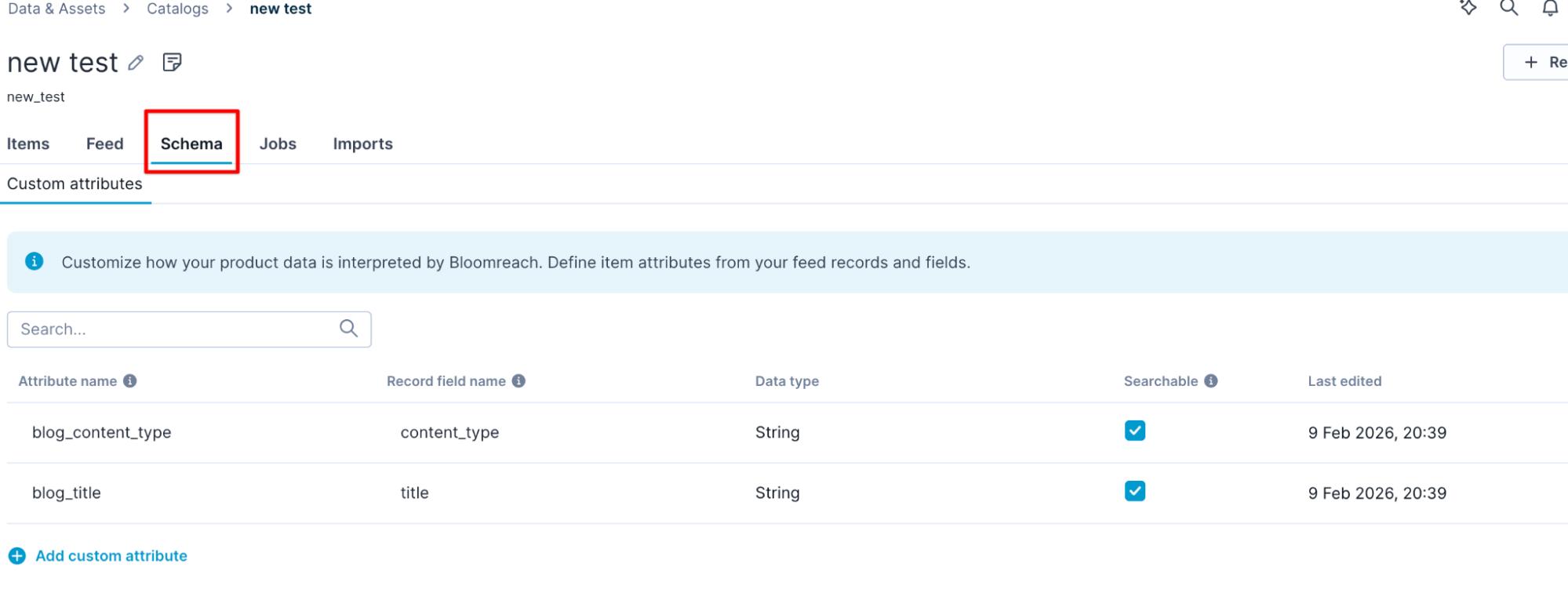
Go to Schema > Custom attributes tab.
-
To create a new custom attribute, click + Add custom attribute.
NoteAttributes are created automatically during new imports and import configuration updates. Learn more about auto-add schema during imports.
-
Enter an attribute name. For example: blog_title.
-
Enter the record field name as the source field of this attribute.
-
Choose the data type of the attribute. For example, String, Integer, Boolean, and more.
-
Toggle ON the Searchable switch to enable searching and filtering using this attribute. There is a limit of 40 searchable attributes per catalog.
Configure searchable attributes
-
Click Save changes.
The system uses the schema to process data and generate items.
Updated 20 days ago