

Access Loomi BigQuery
You can access your Loomi BigQuery data through the BigQuery Console, BI tools, JDBC/ODBC drivers, or the BigQuery API. Your CSM manages who can access your data. Permissions are the same for every account.
Prerequisites
- Google account (user or service account) to access BigQuery Console.
- GCP service accounts aren't created automatically. Contact your Customer Success Manager (CSM) to request one.
Google account neededYou can create a Google account with your existing company email. Consider creating a GSuite for Business account.
Access your data
There are several ways to access your Loomi BigQuery data, which is loaded in BigQuery.
BigQuery Console
Use the web-based BigQuery Console to write, store, and execute your custom SQL queries.
- Log in to BigQuery Console with your Google account.
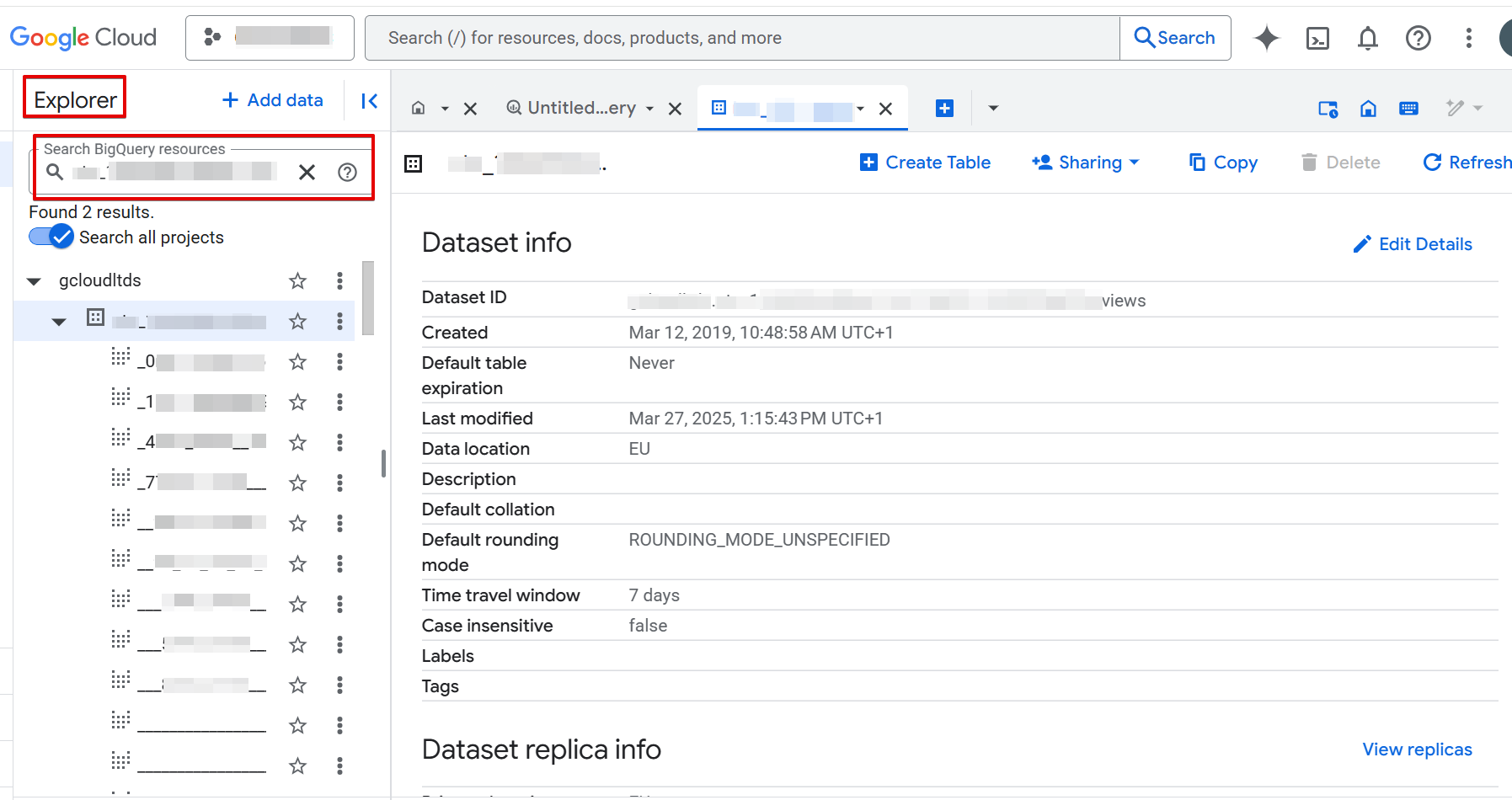
- Search for your dataset using the Explorer sidebar (Search BigQuery resources).
- Type your dataset ID or name.
- Enable Search all projects to include all available datasets.
- Star (bookmark) the dataset for easier access.
Troubleshooting access
- Make sure you're in the GCloudLTDS project, not your own BigQuery project.
- Always search by dataset ID, not just name.
- Star datasets you find. Links to datasets can expire.
- Permissions are the same for every account, so a missing dataset points to access, not permissions. Check the steps above, then ask your CSM to confirm which Google account is in the access group.
BI tools
To create reports and analyses using Loomi BigQuery data, connect BI tools that support BigQuery connectors:
- Tableau
- Power BI
- Qlik
- Google Data Studio
JDBC/ODBC drivers
Install JDBC/ODBC drivers for tools without native BigQuery connectors (like ETL tools).
BigQuery API
Access data programmatically using Google Cloud Client Libraries.
Third-party toolsBloomreach can't guarantee availability, performance, or compatibility of third-party tools with Loomi BigQuery because they're developed, maintained, or licensed by external vendors.
Some tools may require additional permissions to access BigQuery datasets. These aren't granted by default when Loomi BigQuery is enabled due to security reasons. This can lead to offloading data from Loomi BigQuery to another dataset where such permissions are granted.
User management
- Google Groups: Your CSM manages user access through a Google Group. Only group members can access your data. You don't need to accept Google Group invitations. Your CSM adds members directly.
- User accounts: Use your Google user account to analyze data in BigQuery Console and access BI tools.
- Service accounts: A service account is a special account used by applications instead of people. Request one from your CSM for API access. If you already have one, contact your CSM to find out whether your existing one can be used for Loomi BigQuery.
- User access and security policy: Bloomreach reviews accounts inactive for more than 180 days. Inactive accounts may be revoked to protect system security. This action is vital for system integrity and protection against security threats, including unauthorized access.
- Permissions: Every account has the same permissions. Your CSM can’t check, change, or customize them.
- Read-only access: You can't edit data in Loomi BigQuery.
- Project level: BigQuery Job User role.
- Dataset level: BigQuery Data Viewer role.
- API access: BigQuery API only (not BigQuery Storage API).
Review information on IAM roles in the official BigQuery documentation.
Updated 6 days ago