

Enable Slack notifications
The notification center delivers timely updates on important events in Bloomreach. You can view these updates in the app or receive them by email. To make it easier for your team to collaborate on these updates, you can also send them to Slack with the Slack integration.
How it works
The Slack integration sends all notifications you have access to directly to a designated Slack channel. You decide who's invited to the Slack channel and what other actions can be performed there. All notifications are sent, and you can't restrict them to specific types.
Set up the Slack integration
- Log in to your Slack account and go to the Slack API quickstart page.
- Click on Create a new Slack app.

- Then, click Create New App.
- Select From scratch.

- Enter a name for your app, and select the workspace where messages are sent. The app name is shown in Slack. Click Create App.
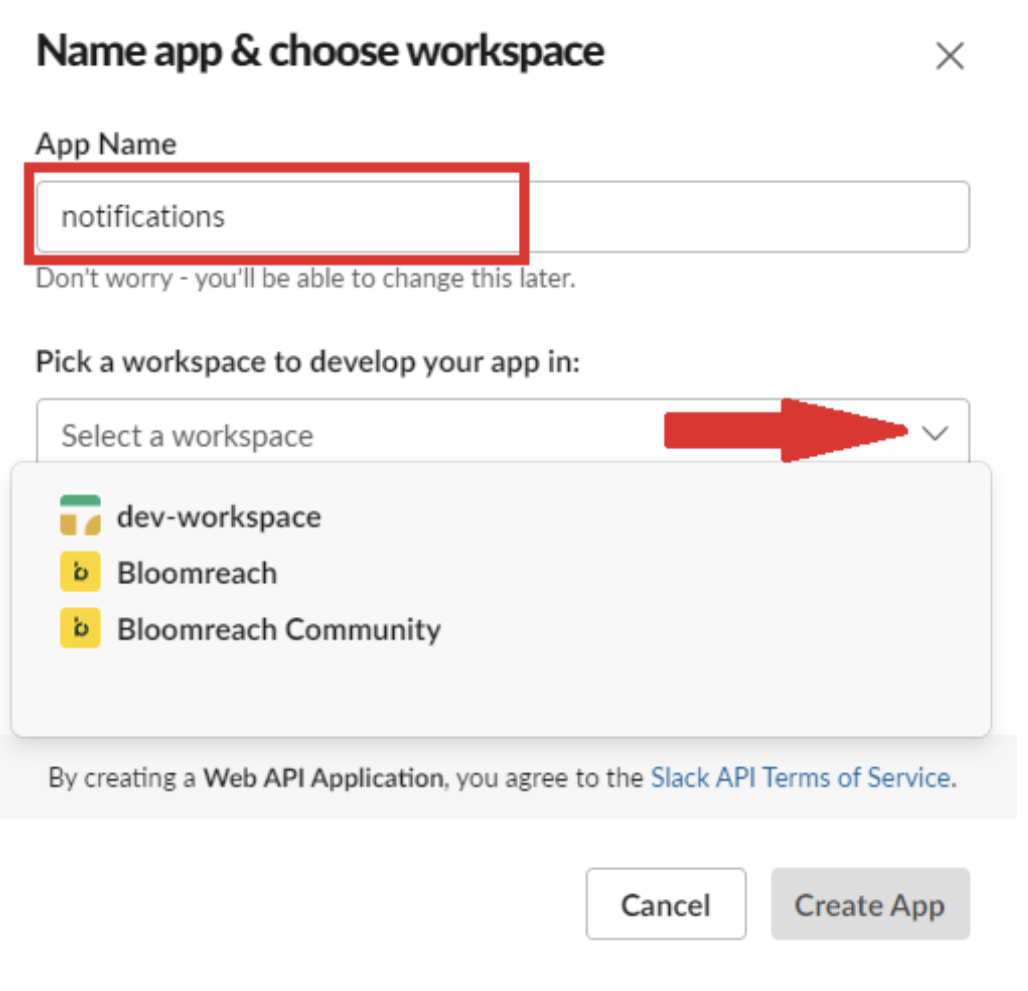
- On the next screen, click Create App.
- Choose Incoming Webhooks.

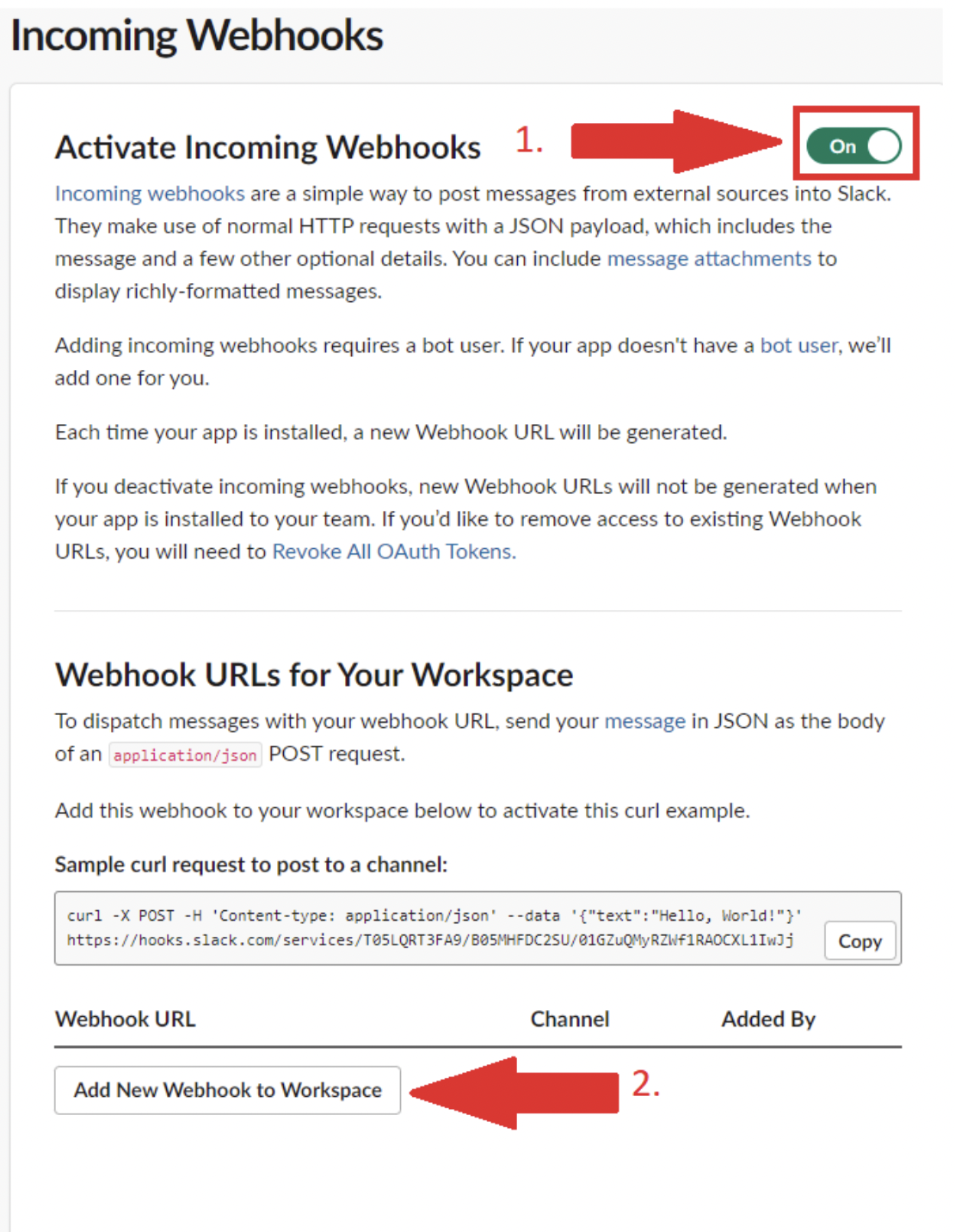
- Enable incoming webhooks.
- Click on Add New Webhook to Workspace.
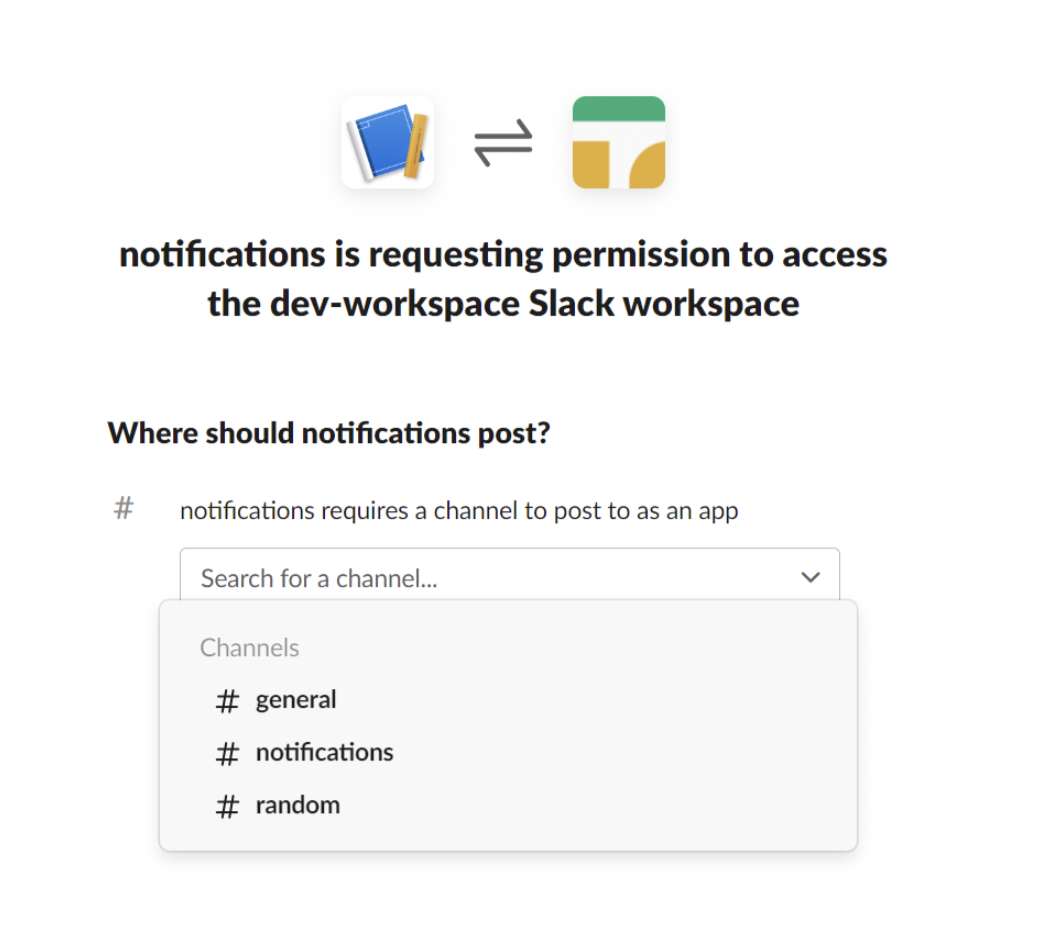
- Select a Slack channel for incoming messages.
- Copy the webhook URL.
- In Bloomreach, click the settings icon in the top-right corner, and select Notification settings.
- Enable Get notifications via Slack integration, paste the webhook URL into the field, and click Connect.
If the connection is successful, you receive a message in the Slack channel.
Updated 10 days ago
Did this page help you?