

Customize legacy ranking
This guide shows you how to customize search and category ranking with the legacy algorithm (Bloomreach-Optimized search and Classic search) in Ranking studio.
Prerequisites
-
Knowledge: Review Ranking studio and How to use Ranking studio for a feature overview.
-
Ensure you have the required permissions.
Train the Bloomreach-Optimized algorithm
-
Start algorithm training under the Algorithms tab.
-
The algorithm shows the In training status while it runs.
-
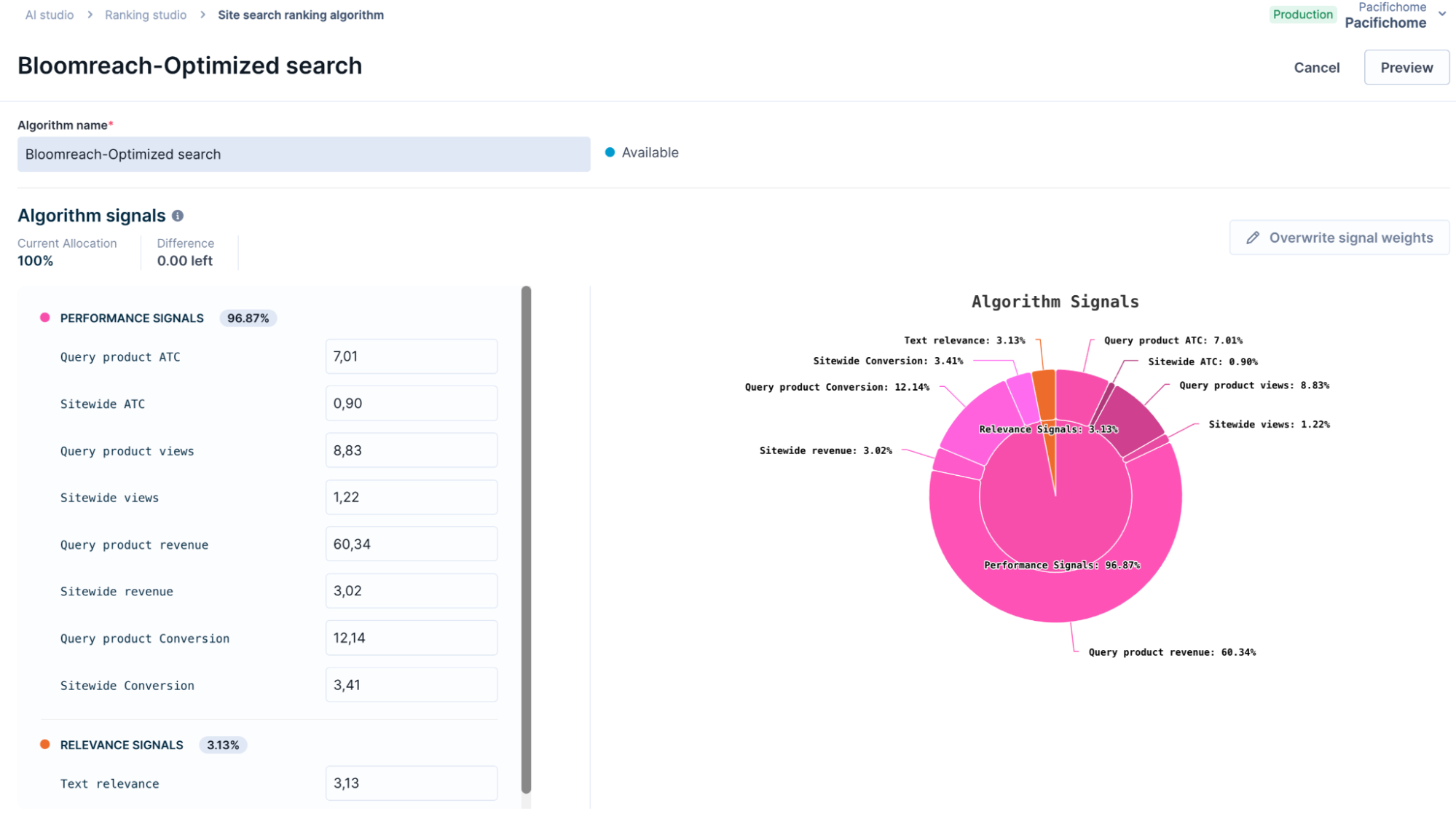
When training completes, the status changes to Available. View its signal distribution or use it as a source algorithm.
Train catalog-specific algorithm
Train a catalog-specific algorithm when you want ranking tuned to one catalog.
- Click Train catalog-specific algorithm to open the algorithm setup modal.
- Add an algorithm name and description.
- Click Continue to start training on the catalog.
- The algorithm appears in the listing with the In training status.
- When training completes, the status changes to Available. The algorithm is ready to view.
Cancel algorithm training
To cancel algorithm training while it's in progress:
- Go to AI studio > Ranking studio > Site search ranking algorithm (or Category ranking algorithm).
- Find the algorithm you want to cancel.
- Click the action dropdown (v) and select Cancel algorithm training.
- Confirm by clicking Cancel and delete. A message confirms that the algorithm has been deleted.
View signal weights
Click View or Edit next to the algorithm to open the detail panel. The detail panel shows:
- Algorithm status: The current state of the algorithm.
- Signal weight breakdown: The learned weight of each signal, shown as a percentage across the signal mix.
Click Show signals to view the ranking score distribution.
Create a custom algorithm
Create a custom algorithm by cloning the signals from a trained source algorithm, then add custom signals or adjust the weights.
- In the Algorithms tab, click + New algorithm to open the algorithm setup modal.
- Add an algorithm name and description.
- Choose the Source algorithm to clone signals from. You can choose the Bloomreach-Optimized search algorithm or any other ML algorithm you've created.
- Click Show signals to view the ranking score distribution.
- Optionally, add one or more Custom data signals. Click + new signal to add more. Review the best-practice guidelines for sending signals.
- Click Continue.
Cloned signals don't sync with the source algorithm. Updates to the source algorithm don't carry over to the custom algorithm.
What happens next depends on whether you add custom signals.
Without custom signals
The algorithm is created from the source algorithm's signals. Adjust the weights if needed, as described in Tune signal weights.
With custom signals
The new algorithm shows the In training status. Training takes 24-48 hours. You can train 1 algorithm at a time. Define the weights of the new signals once training completes.
NoteYou can't edit the source algorithm directly. To modify the Bloomreach-Optimized search algorithm, choose it as a source algorithm first, then apply your customizations.
Tune signal weights
Adjust signal weights to customize how an algorithm ranks results.
- In the algorithm detail panel, click Overwrite signal weights.
- Set the signal weights as percentages that add up to 100.
- Click Apply to apply the weights.
- Click Preview to see the changes in search results.
- Click Save to sync the new weights.
When you manually overwrite an ML algorithm's weights, it becomes a non-ML custom algorithm. Saving a weight change doesn't trigger training. The algorithm shows the Syncing status, which takes about 20 minutes.
Delete an algorithm
You can have up to 5 custom algorithms per catalog. Before you create a new one, edit or delete an existing algorithm. To delete an algorithm, click the action dropdown next to it and select Delete algorithm.
Configure algorithm rules and A/B tests
See how to use the Rules tab to apply algorithms to queries and set up A/B tests.
Updated 3 months ago