

Set up 1:1 Personalization
This guide walks you through setting up 1:1 Personalization for your catalog, including reviewing the model viability check (for Behavioral Sequence) and completing the activation.
For an overview of how 1:1 Personalization works, including user profile creation and the available personalization models, see Personalization studio.
Prerequisites
Before you begin, ensure the following requirements are met:
User role: You must have the Personalization studio editor user role assigned.
Model-specific requirements:
- Attribute affinity: Available for English (EN) catalogs only.
- Behavioral Sequence: Available for multilingual catalogs. Review the requirements for optimal performance before setup.
Start the setup
-
Go to AI Studio > Personalization studio.
-
Under the Setup tab, click Set up personalization.
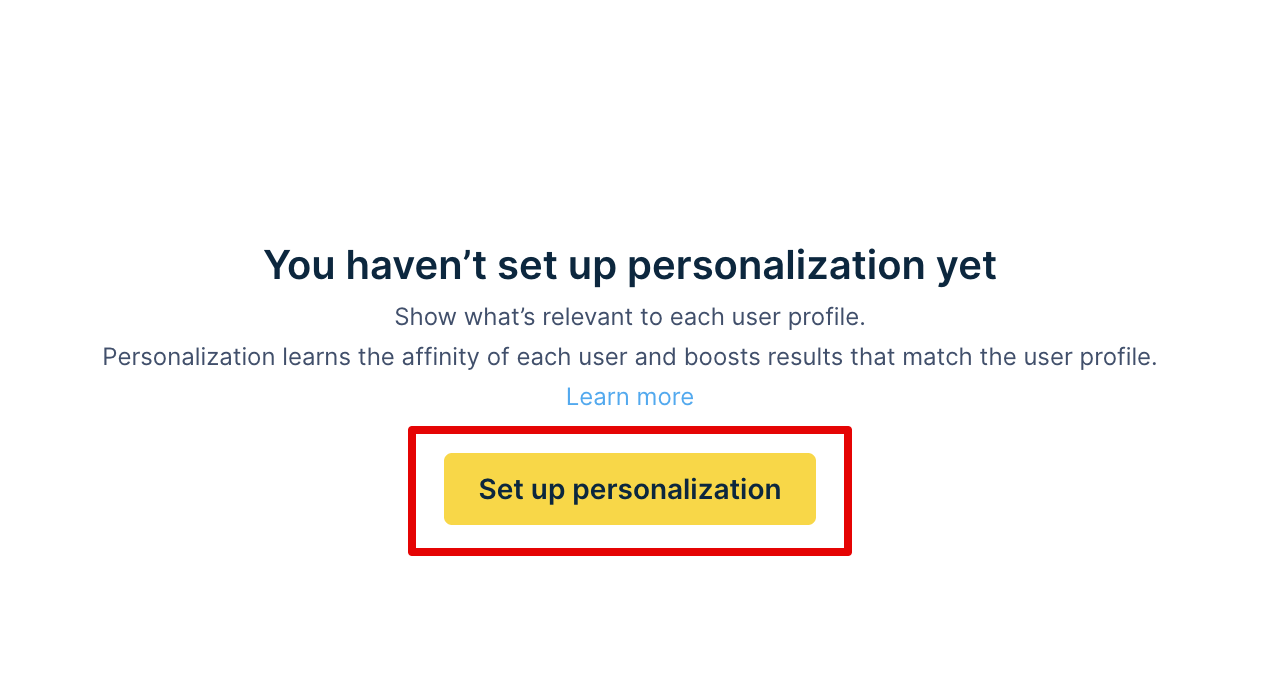
The Setup tab with no active personalization
-
In the panel that appears, select the Catalog you want to enable personalization for.
-
Under Model, choose the personalization model to use:
-
Attribute affinity: Tracks user preferences for product attributes like brand, color, and size.
-
Behavioral Sequence: Uses AI to analyze patterns in shopper behavior sequences.
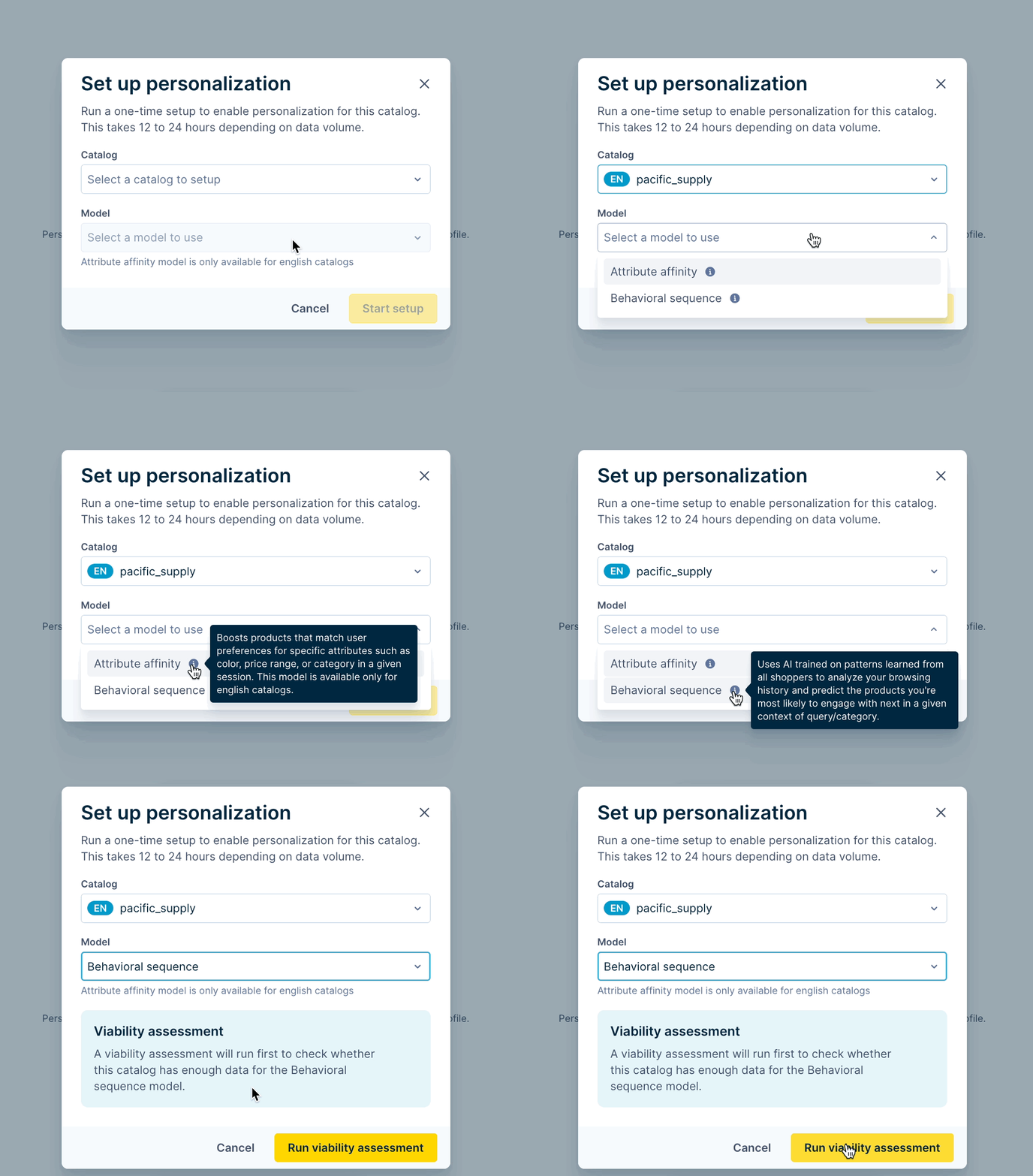
The setup panel with catalog and model selection options
-
-
Review your configuration and click Start setup.
This triggers a one-time setup run that processes your catalog and pixel data. The setup takes 24–48 hours to complete, depending on your site traffic and catalog size. During this time, the catalog status shows as Setup in progress or Viability assessment (for Behavioral Sequence model).

Catalog list showing Setup in progress status

Catalog list showing Viability assessment status
NotePersonalization is set up at the account level for a catalog. The rules apply to all sites using the configured catalog.
Review the viability check (Behavioral Sequence only)
If you selected the Behavioral Sequence model, the dashboard displays the viability assessment results after the one-time check completes. This check evaluates whether your catalog and traffic data meet the requirements for effective personalization.
If you selected the Attribute affinity model, skip to Complete the activation.
The viability check for Behavioral Sequence model returns one of the following outcomes:
Viable for personalization
If the catalog passes the viability assessment, its status shows as Viable for behavior based personalization.

Catalog list showing Viable for personalization status
Choose your next steps based on one of the following outcomes of the viability assessment:
1. Catalog is viable for personalization
This means that all viability assessment criteria meet recommended thresholds.
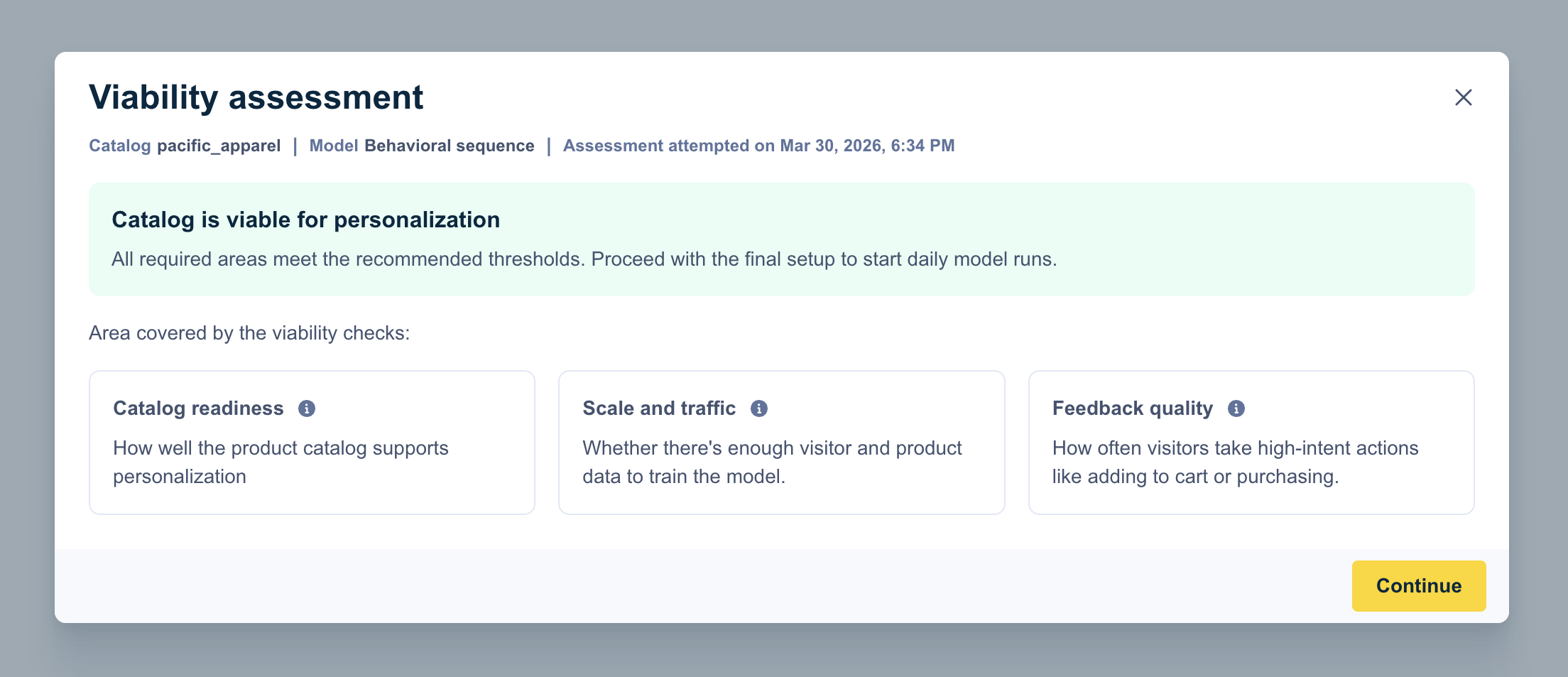
Viability check results showing all criteria passed with green indicator
Recommended next steps:
- Click Continue to complete the activation and activate daily model runs.
2. Catalog is viable for personalization, but some areas need improvement
This means the catalog is viable for personalization, but some of the viability check criteria need improvement to meet the recommended thresholds.
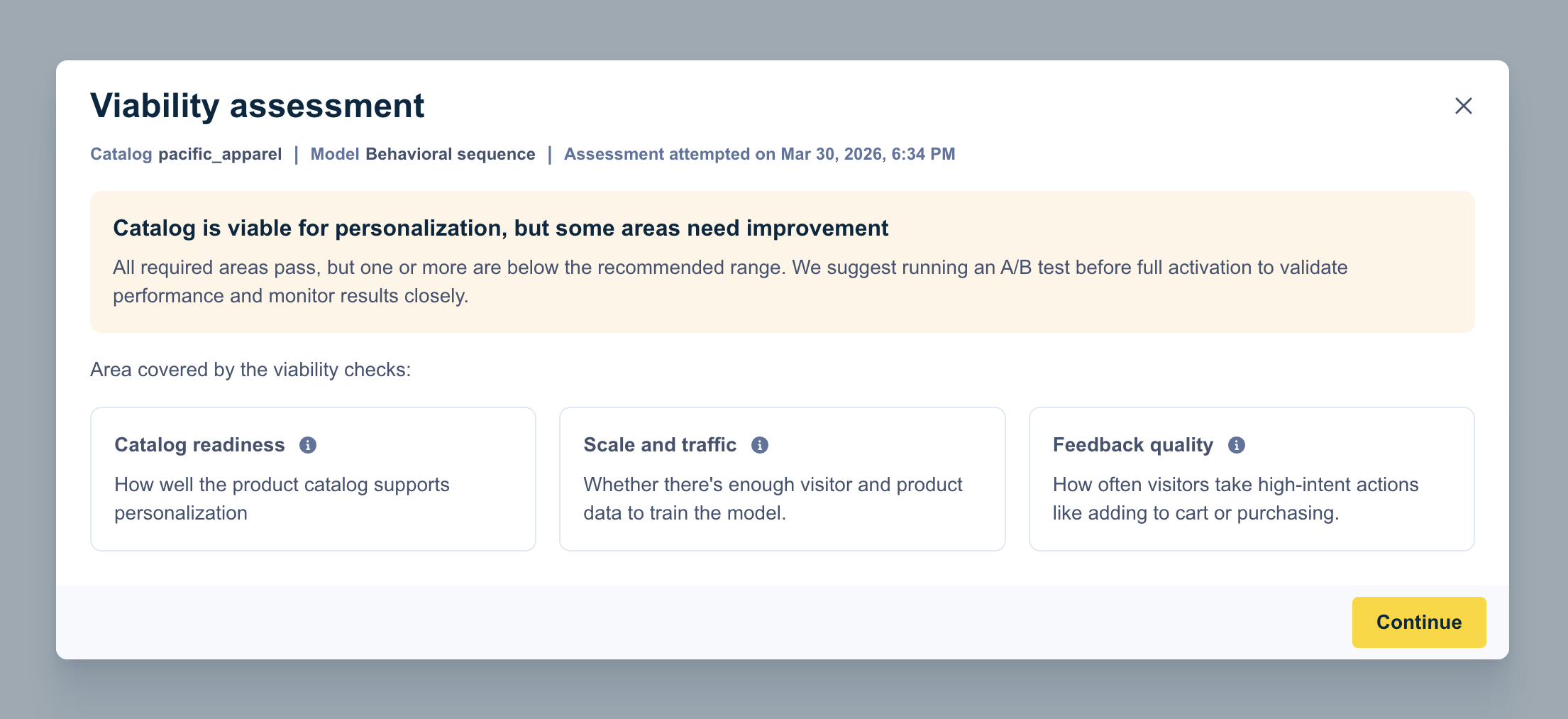
Viability check results showing some criteria need improvement with yellow indicator
Recommended next steps:
- Click Continue to complete the activation and activate daily model runs. Note that the results may be less stable.
- Run an A/B test to validate performance.
- Monitor results closely after activation.
Not viable for personalization
If the catalog fails the viability assessment, its status shows as Not viable for behavior based personalization.

Catalog list showing Not viable for personalization status
The viability check results show that Behavioral sequence model is not recommended for this catalog. This means that at least one required criterion doesn't meet the minimum thresholds.
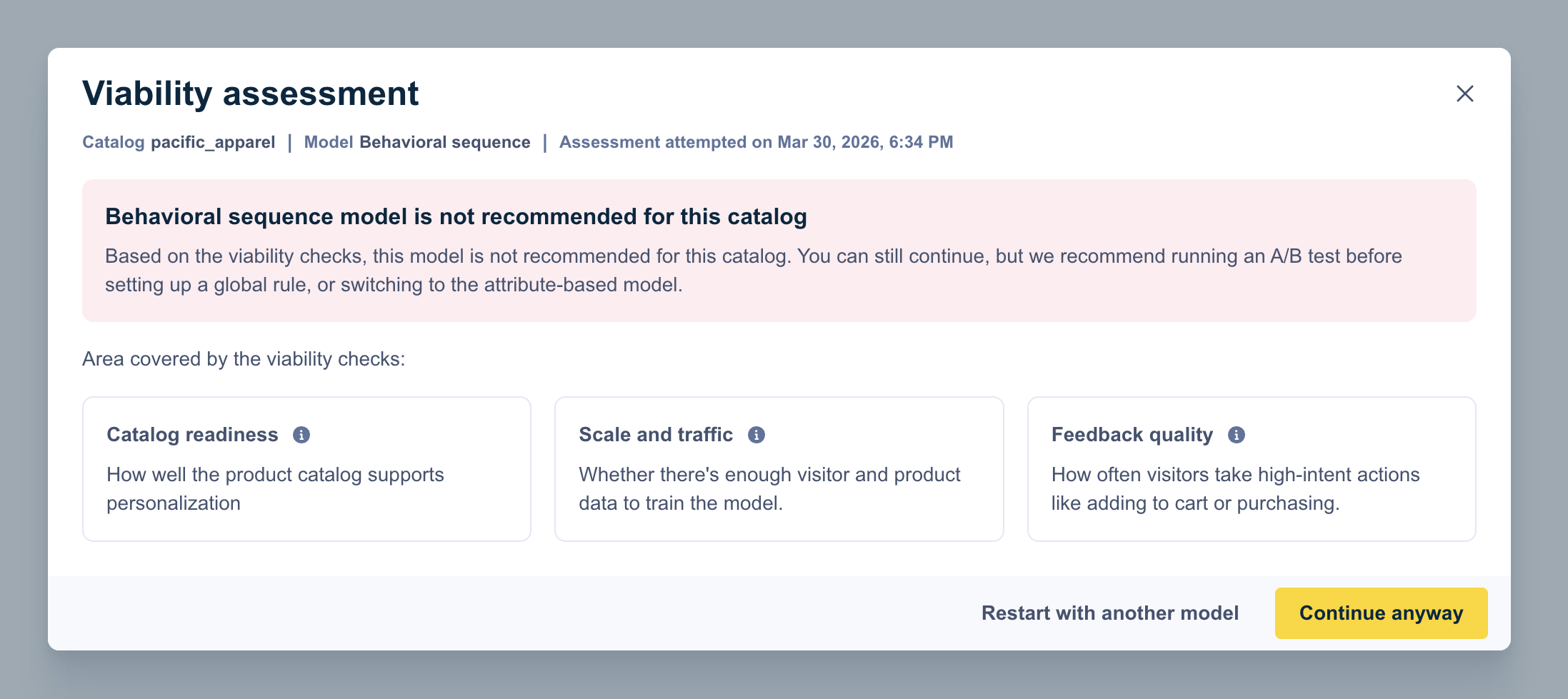
Viability check results showing failed criteria with red indicator
Recommended next steps:
- Improve Pixel data quality, and try the setup again.
- Run A/B tests to experiment with personalization.
- Click Restart with another model, then choose Attribute affinity personalization instead.
- Click Continue anyway to activate daily model runs (not recommended).
WarningIf the viability check results in Assessment failed, it means that the check could not be completed due to unknown reasons. Try the setup again, and if the issue persists, consult with your Bloomreach representative.
Viability assessment criteria
The viability check evaluates metrics across three priority areas. Priority 1 and Priority 2 are required to determine whether activation can proceed. Priority 3 is informational and doesn't block activation.
NoteSome priority areas are determined by your Pixel data, which directly depends on the customer interactions on your site. Ensure that you track events accurately to improve Pixel data quality.
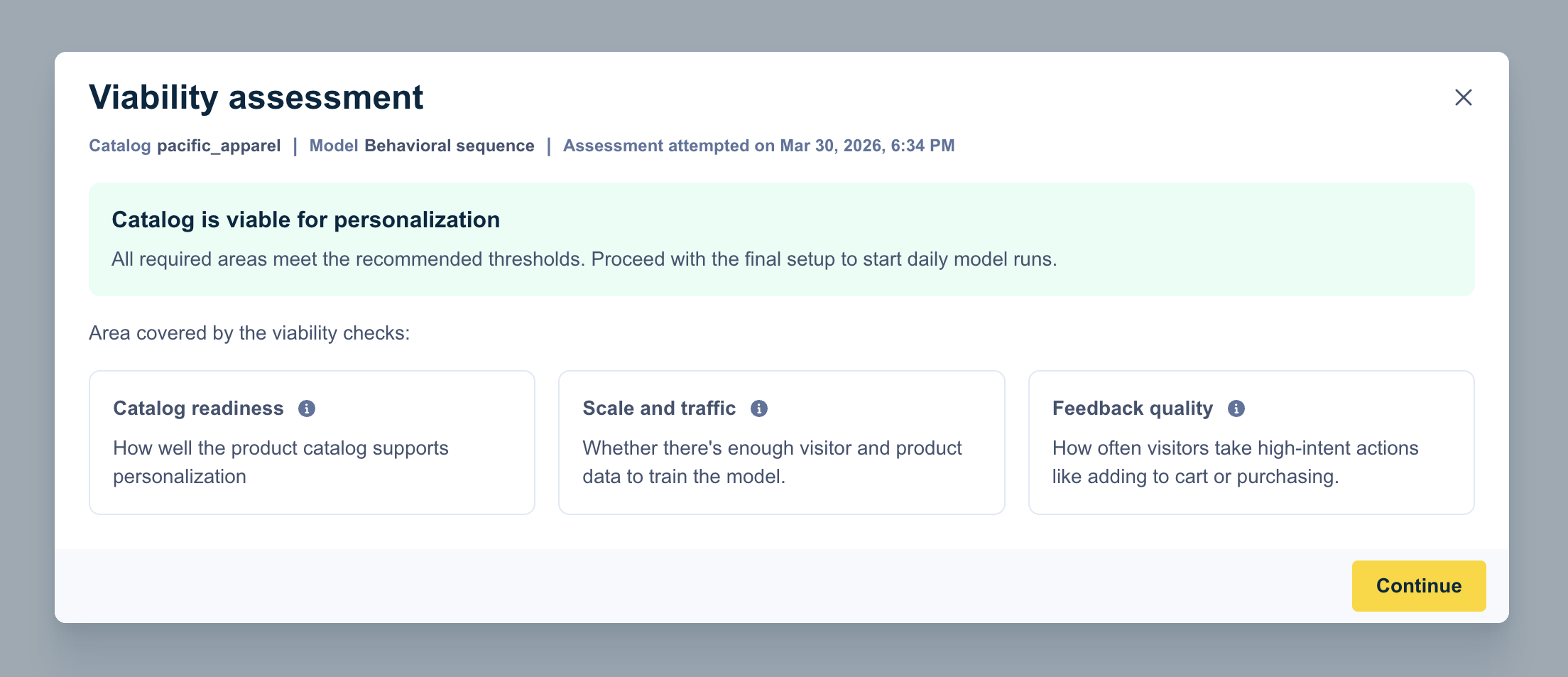
Priority 1: Catalog readiness (required)
Catalog readiness measures how well your product catalog is represented inside the personalization model.
The model learns a profile (an embedding) for each product based on user behavior. Products with a profile can be used in recommendations, while products without one are invisible to the system.
For strong performance, you want:
- Most live products are known to the model (they have some learned representation).
- A large share of products have their own product-specific profile based on real interactions, rather than being grouped with similar products.
If many products lack these profiles, the model has an incomplete picture of your catalog, and recommendations may overemphasize a subset of items.
WarningPersonalization works best when your catalog remains relatively stable. If you add or remove more than 30% of your catalog every few days (common with flash sales), the model does not have enough time to learn meaningful patterns.
Priority 2: Scale and traffic (required)
Scale and traffic measures whether there is enough data for the model to learn meaningful patterns. Three aspects matter most:
- Event volume: How many user interactions (views, clicks, add-to-cart, purchases) are available for training.
- Product count: How many unique products are in your catalog.
- Event-to-product balance: Whether products receive enough interactions, on average, for the model to understand them.
Behavior Sequence model-based personalization is a data-driven system. If there are too few interactions, too few products, or many products with almost no activity, the model will struggle to accurately learn user preferences and product relationships.
Priority 3: Feedback quality (informational)
Feedback quality measures how strong and useful your user signals are, beyond simple page views. This check evaluates:
- How many users perform transactional actions such as adding items to cart or purchasing.
- The mix of browsing (page views, clicks) versus high-intent (add-to-cart and conversion) actions.
High-intent actions provide clearer signals of what users actually value, helping the model learn faster and rank recommendations more effectively. Feedback quality acts as a boost rather than a hard requirement—even if these signals are weaker, a catalog can still be viable when catalog readiness, scale, and traffic are in good shape.
Complete the activation
After reviewing the viability check results (Behavioral Sequence) or once the setup run completes (Attribute affinity), click Continue, and then Activate personalization to trigger daily pipeline runs for the model. A confirmation dialog appears when you click this button. Review the information and confirm to complete the activation.
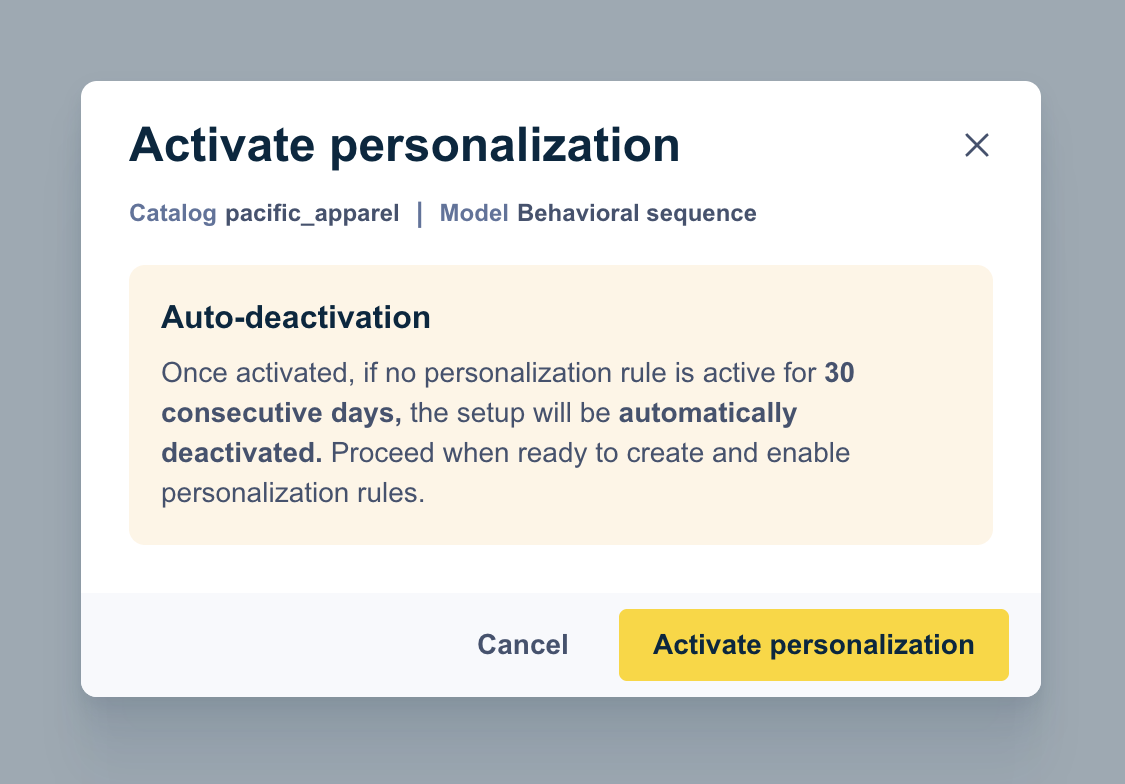
The Activate personalization confirmation modal
Retry with another model: Click this button to set up personalization with a different model if the viability isn't satisfactory.
Once activation is complete, you can configure the personalization experience for your shoppers across different levels of your site.
NotePersonalization only applies to your site after you create one or more personalization rules. Without active rules, the model trains and updates daily, but does not affect search results or category pages.
If you have no active personalization rules or A/B tests, deactivate the training setup to avoid unnecessary processing.
Deactivate personalization setup
You can deactivate a personalization setup for a catalog using the Deactivate button next to the catalog listing under the Setup tab.

The Setup tab showing the Deactivate button for an active catalog
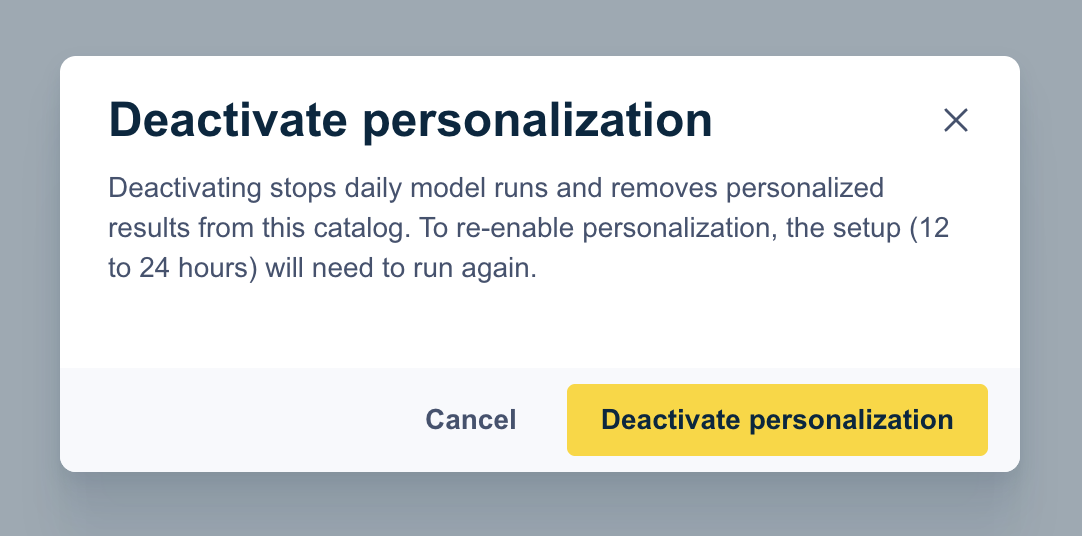
Deactivate confirmation dialog
The Deactivate button is available only when:
- No personalization rule is enabled for the catalog.
- No A/B test is in progress for the catalog.
- Setup and training are not in progress.
What's next
- Configure 1:1 Personalization: Set up personalization rules for search queries and category pages.
- Personalization studio: Learn more about how the personalization models work.
Updated 3 months ago