

Customize category ranking with ABR
This guide covers how to use the Ranking studio application to customize the Bloomreach Advanced Base Ranker (ABR) algorithm for category ranking.
Prerequisites
-
Knowledge: Review Ranking studio and How to use Ranking studio for a feature overview.
-
Ensure you have the required permissions.
Overview
New customers
Your catalog gathers enough data to build the optimized ABR category ranking algorithm. More options to train catalog-specific algorithms and create custom algorithms become available once there is enough data.
While your catalog gathers data, ABR ranks category results using the fallback Bloomreach data algorithm. No action is needed from you. ABR switches to your default catalog-trained algorithm automatically once there's enough data.
Legacy category ranking customers
If your Categories currently rank on the legacy category algorithm, you see one of these scenarios, depending on your Ranking studio access:
ABR upgrade
For eligible accounts, category ABR is enabled automatically based on account state and access. The algorithm is already trained and in use.
ABR available to test
If category ABR is available for testing, click Set up Bloomreach advanced base ranker to start training. After training completes, its status shows as Available, and you can configure the test.
If training is required, your current category algorithm remains live until category ABR training finishes.
NoteCategory ABR and keyword ABR are separate algorithms. A category rule accepts only category algorithms, and keyword algorithms don't appear in the category algorithm dropdown. Saving a category rule doesn't change your keyword rules, and enabling category ABR doesn't change keyword search.
Understand what your algorithm is trained on
You can see which algorithm a catalog uses in the Algorithms tab. Switch the search type to Category to view category algorithms. The algorithm name tells you what it's trained on:
-
Catalog-specific category algorithm: Trained on that catalog's own category-browsing behavior. This is the most tailored option.
-
Default catalog category algorithm: Trained on your account's default catalog — the primary catalog set up during the integration. It applies across all your catalogs until you train a catalog-specific algorithm.
-
Bloomreach data algorithm: A global algorithm trained on aggregated Bloomreach data. ABR uses it as a fallback when your catalog doesn't yet have enough category behavior to train its own algorithm.
Category algorithms stay visually distinct from keyword algorithms so you can't apply one to the wrong rule.
Train Bloomreach advanced base ranker (ABR) for category ranking
-
Go to AI studio > Ranking studio > Category ranking algorithm.
-
Click Set up Bloomreach advanced base ranker. The dashboard shows the catalog used for training before you confirm.

-
Confirm by clicking Set up. ABR appears in the algorithm list with the status In training. Training uses your default catalog or Bloomreach data catalog and typically runs for 24 to 48 hours, depending on your catalog size and data volume.

-
Your current category algorithm stays in use throughout. Your live category pages are unaffected.
-
When training completes, the status changes to Available. The algorithm is ready to view.
The dashboard tells you whether you're starting global category training or catalog-specific category training. Clicking Set up more than once doesn't start duplicate training jobs.
ABR doesn't automatically retrain. Check FAQs.
Train catalog-specific category algorithms
Once you've trained the base category algorithm, train catalog-specific algorithms when you want category ranking tuned to a specific catalog.
Train a catalog-specific algorithm for any catalog representing a different business (brand, region, language, or product line), so its category ranking reflects that catalog's own shoppers rather than the default catalog's.
-
Click Train catalog-specific algorithm.
-
Add Algorithm name and optional Description.
-
The algorithm appears in the listing page with the status In training.
-
When training completes, the status changes to Available. The algorithm is ready to view.
Create a custom algorithm on top of a catalog-specific algorithm to customize signal weights.
Cancel algorithm training
To cancel category algorithm training while it's in progress:
-
Find the algorithm you want to cancel.
-
Click the action dropdown (v) and click Cancel algorithm training.
-
Confirm by clicking Cancel and delete.
Retrain algorithms
ABR trains on your behavioral data across multiple overlapping 30-day windows. Using several windows instead of a single one gives steadier results across seasons, so a single sale period or an unusual week doesn't dominate the algorithm.
You still need to retrain a category algorithm when:
-
You add a custom signal. Adding a custom signal always starts a new training, and you add it by creating a new algorithm.
-
You switch between a segmented and non-segmented setup (turning Real-time segments on or off). This doesn't trigger an automatic retrain.
-
Shopper behavior shifts meaningfully — for example, a seasonal transition or a catalog expansion.
-
The last training period overlapped with atypical traffic, such as a flash sale or a bot spike, that skewed the algorithm.
View signal weights
Click View or Edit next to the algorithm to open the detail panel.
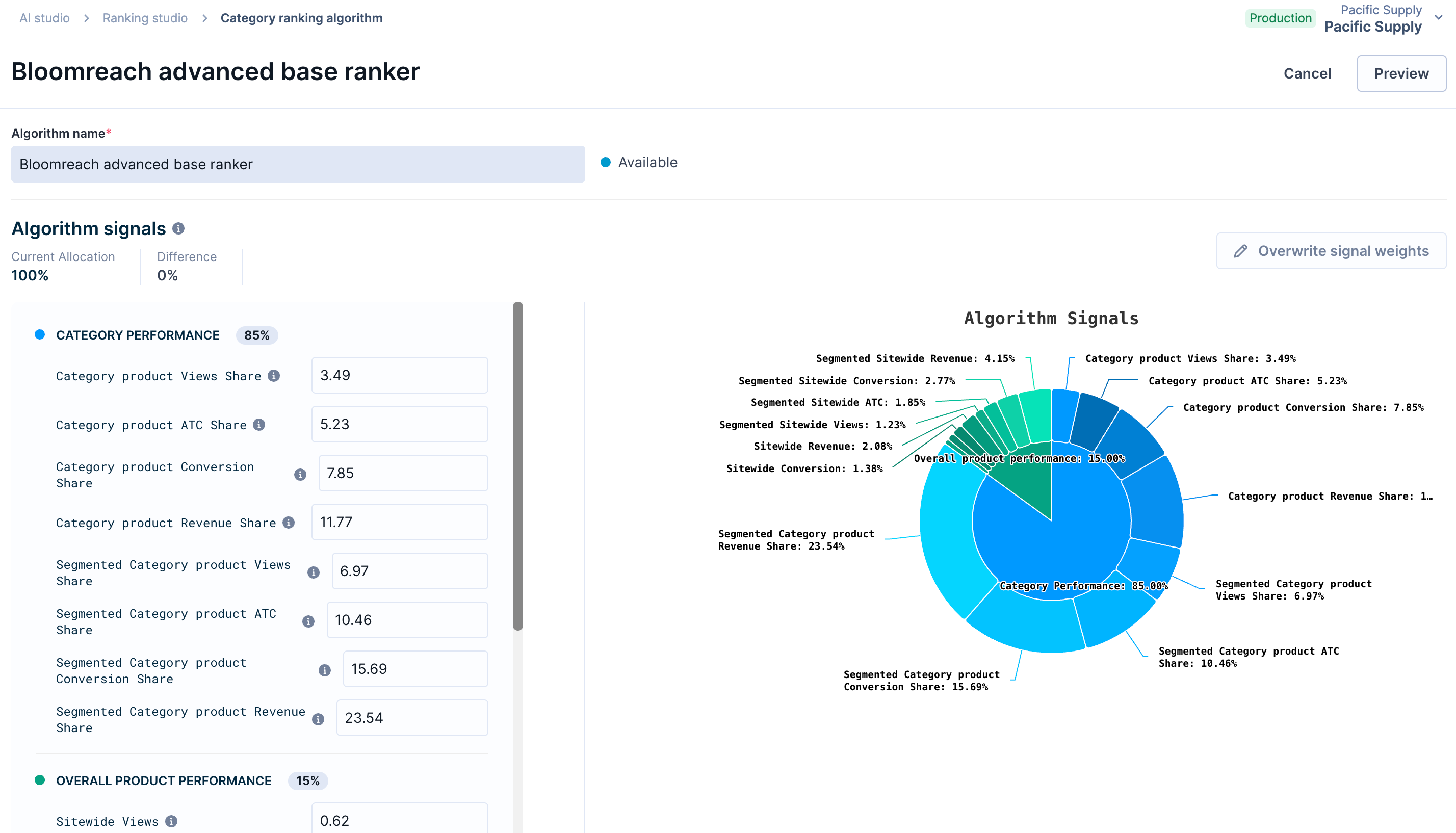
The detail panel shows:
-
Algorithm status: The state of the algorithm.
-
Algorithm signal weights: A breakdown of all category signals organized into signal groups. Each signal shows its learned weight as a percentage. A signal-mix chart on the right shows the overall weight distribution across signal families.
-
Preview: Click Preview to see how the algorithm influences category ranking.
The signal list, tooltips, and weights are specific to category ranking. Category-model weights aren't the same as keyword-model weights, even where a signal shares a name.
Read about the detailed breakdown of the signals.
Create custom algorithm
Custom signals are specific to a catalog. Train an algorithm on your catalog first, then add custom signals on top. You can create up to 5 custom category algorithms per catalog — the same limit as keyword ABR. Pass each custom signal in the expected format. Training fails if you pass a signal incorrectly.
-
Under the Algorithms tab, click + New algorithm.
-
In the Create new ranking algorithm modal, enter an Algorithm name.
-
Choose a catalog-specific Source algorithm. The signals from the source algorithm copy over to the new algorithm.
-
Add an optional Algorithm description.
-
Optionally, add one or more Custom data signals. Click + new signal to add more. Review the best-practice guidelines for sending signals.
-
Click Continue.
NoteAfter you send a custom signal, allow 24 hours for processing before you train ABR with a new catalog-specific algorithm.
Cloned signals don't sync with the source algorithm. Updates to the source algorithm don't carry over to the custom algorithm.
What happens next depends on whether you added custom data signals:
No custom signals added
The algorithm is created immediately using the source algorithm's signals. Tune the signal weights, if needed.
Custom signals added
Training begins on your catalog-specific catalog. The algorithm status changes to In training. Training typically takes 24-48 hours.
You can train 1 algorithm per catalog at a time. When training completes, the algorithm status changes to Available.
Tune signal weights
Signal weights for the Bloomreach advanced base ranker algorithm are read-only.
To edit signal weights for a catalog-specific or custom category algorithm:
-
Click Edit next to a catalog-specific or custom algorithm.
-
Click Overwrite signal weights.
-
Adjust the weights. Ensure all signal weights add up to 100.
-
Click Apply.
-
Click Preview to see how the weight changes influence category ranking.
-
Click Save.
-
The catalog-specific algorithm appears with the status Syncing, which takes about 20 minutes.
Delete a custom algorithm
In the Algorithms tab, click the action dropdown (v) next to View or Edit and select Delete algorithm. You can't delete the default or active category algorithm.
Configure category rules and A/B tests
Use the Rules tab to apply algorithms to Categories and set up A/B tests. The algorithm dropdown shows only category algorithms.
Apply an algorithm to all categories
-
Click Edit next to the All categories rule.
-
Choose the algorithm from the dropdown.
-
Click Save.
Apply an algorithm to select categories
-
Click + New rule.
-
Enter the target categories and choose the algorithm.
-
Click Save.
Category rules support dynamic Categories through the same path. You don't need a separate model or flow to rank a dynamic category with ABR.
Edit a rule
-
Click Edit next to the rule.
-
Choose a different algorithm from the dropdown.
-
Click Save.
Delete a rule
Click the action dropdown (v) next to the rule and click Delete rule.
Roll back to a previous algorithm
-
Go to the Rules tab.
-
Find the category rule and click Edit.
-
Choose the previous algorithm from the dropdown.
-
Click Save.
Set up an A/B test
-
Go to an existing rule and click Edit.
-
Make your category or algorithm changes.
-
Click Save as new variant to open the Rule variants modal.
-
Toggle ON the test variants.
-
Click Set up new test.
The same setup applies when you A/B test an algorithm with an All categories scope.
To see all test variants for a category rule, click the Variants icon or the dropdown next to View/Edit and choose View test variants.
Preview category ranking
Preview isn't available for A/B tests. Use the side-by-side preview to compare algorithms instead. Enter a category ID, then compare your current category algorithm with ABR Category. The preview shows the model actually used, so you can tell when results fall back to another algorithm rather than the one you selected.
To compare algorithms, open an algorithm's detail panel, click Preview, and go to the Side-by-Side Preview tab. The selected algorithm's results appear on the right. To compare another algorithm on the left, open the Ranking Preview dropdown and select it.
NoteTo find an algorithm's ID, click the dropdown next to View/Edit and click View ranking algorithm ID. Copy this ID to configure an A/B test through the API.
FAQs
When does the category ABR algorithm train on Bloomreach data?
ABR uses a fallback algorithm trained on aggregated Bloomreach data when your catalog doesn't yet have enough category behavior to train.
How long before ABR trains on your category data?
It depends on your catalog's category traffic and the data Bloomreach has collected. High-traffic catalogs reach enough behavioral data quickly; lower-traffic catalogs take longer.
Until your catalog has enough data, ABR ranks Categories using the Bloomreach data algorithm and switches to your catalog-trained algorithm automatically once there's enough data. Bloomreach handles the transition in the background, with no action from you and no change to your shoppers' experience.
What happens when training fails?
If training fails, your categories stay on their current ranking algorithm with no change to live traffic. Training can fail when:
-
The catalog has too little category behavior because of low traffic, a small catalog, or a very recent integration.
-
Pixel data is missing or isn't sent in the required format.
-
A custom signal isn't passed in the expected format.
Fix the data issues, then click Retry training. You can keep using the fallback Bloomreach data algorithm in the meantime. Contact Bloomreach Support if the issue persists.
Does enabling category ABR change keyword search?
No. Category ABR and keyword ABR are separate algorithms. Enabling category ABR doesn't change your keyword search ranking or keyword rules.
Updated about 2 months ago