

Create autosuggest exclusion rules
Autosuggest exclusion rules allow you to control which search suggestions appear when shoppers type in your search bar.
This guide illustrates how to create exclusion rules to remove specific suggestions from autosuggestions, helping you filter out irrelevant or unwanted terms.
How autosuggest exclusion rules work
Autosuggest exclusion rules exclude the terms you specify from the autosuggest experience. For example, if you exclude the suggestion “shoes”, it won’t show as a suggestion if the shopper types any query, such as "sho", "shoe", "shoes".
Prerequisites
Ensure you have the Global merchandising editor, Search merchandising editor, or Recommendations editor user role assigned to access autosuggest exclusion rules.
How to create autosuggest exclusion rule
1. Navigation
-
Navigate to Merchandising > Site search > Autosuggest exclusion rules.
-
Click + New exclusion rule.

2. Configure exclusion rule scope
- Enter a descriptive name.
- Add an optional Note to describe the rule's purpose.
- Select a catalog from the Catalog dropdown. Choose a specific catalog to apply the rule only to the sites associated with that catalog, or choose All catalogs to apply it across all your sites
- If you select a specific catalog, review the Associated sites to see which sites the rule affects.
3. Select suggestions to exclude
In the Excluded suggestions field, type the search term and select the suggestions from the dropdown.
To bulk add search terms, paste multiple suggestions separated by the vertical line/pipe symbol: suggestion 1 | suggestion 2 | suggestion 3 in the field.
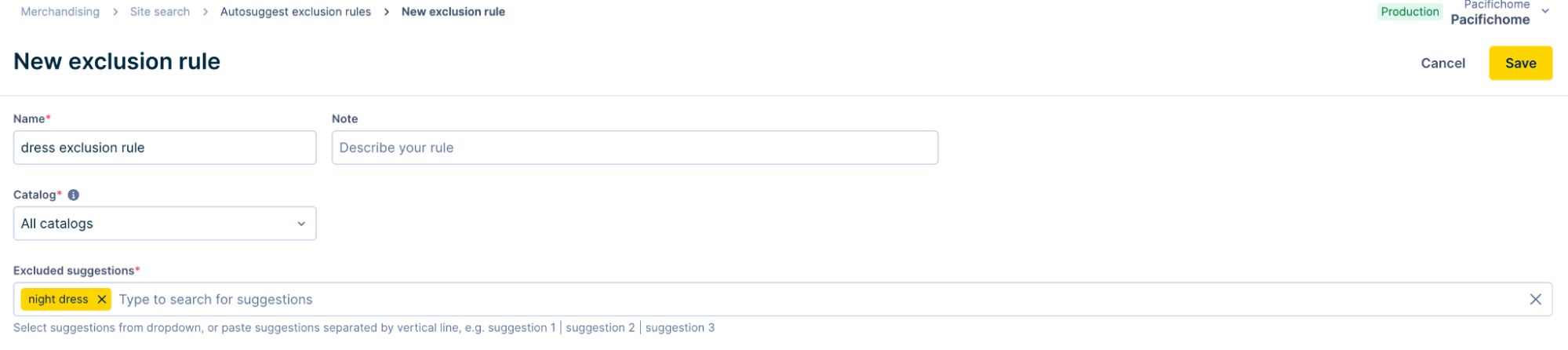
4. Save and preview the exclusion rule
Click Save. The system processes your rule within a few minutes. The rule will be active in preview and applies to your search once processing is complete.
To preview how your exclusion rule affects the search experience:
-
Go to the Autosuggest exclusion rules page and locate the Autosuggest preview section at the top.
-
Select a catalog from the Catalog dropdown. Choosing All catalogs uses your default catalog for preview. Choosing a specific catalog shows that catalog's autosuggest behavior.
-
Type a search term in the Preview field.
-
The dropdown displays suggestions exactly as shoppers would see them.
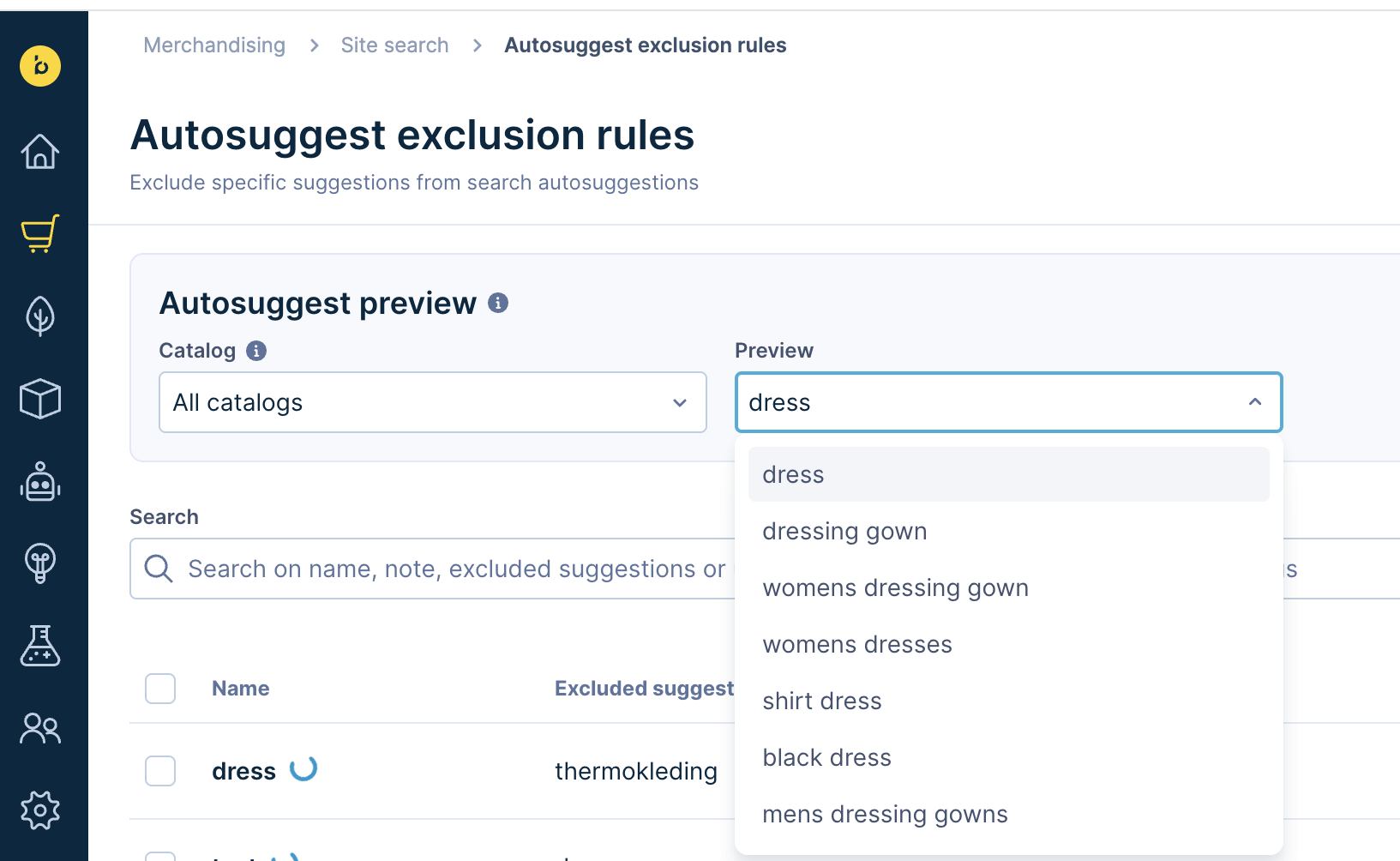
Manage autosuggest exclusion rules
Edit a rule
-
Locate the rule on the Autosuggest exclusion rules page.
-
Click Edit. Modify the field: name, note, or excluded suggestions.
-
Click Save.

Enable or disable a rule
- Locate the rule on the Autosuggest exclusion rules page.
- Click the toggle switch in the Enable column.
Disabled rules remain in the system but don't affect autosuggest behavior on your site.
Delete a rule
- Locate the rule on the Autosuggest exclusion rules page.
- Click the dropdown arrow next to Edit.
- Confirm and click Delete.
To enable, disable, or delete rules in bulk, check the boxes corresponding to the rules and select the action from the Actions dropdown menu.

After editing, disabling, or deleting a rule, use the Autosuggest preview section to verify the changes.
Troubleshooting
Expected suggestions missing in autosuggest
An exclusion rule might be blocking desired suggestions:
- Navigate to Merchandising > Site search > Autosuggest exclusion rules.
- Note which suggestions are missing. Check if an exclusion rule is blocking the missing suggestion.
- Disable the exclusion rule. When missing suggestions reappear, you've identified the problematic rule.
- Edit, disable, or delete the rule as needed.
- Click Save if you edited the rule.
Changes don't appear on live site
Rule changes can take up a few minutes to appear on your live site. The autosuggest preview shows changes immediately, so use it to verify your rule works correctly while waiting for the rule processing.
If the issue persists, contact Bloomreach Support.
Updated about 1 month ago