
Get started
This guide explains how to connect and use the Loomi Connect MCP server in various environments for development. It also provides sample custom client implementations.
Prerequisites
To connect to the Loomi Connect MCP server for development, make sure you have the following:
- Bloomreach Discovery account: An active Discovery subscription with the Search module.
- Bloomreach MCP key: Contact the Bloomreach Labs team ([email protected]) to request a new MCP key.
- Integration environment:
- LLM environment: Access to an LLM environment with support for MCP tools (Cursor, OpenAI Platform).
- Development environment: Preferred development environment for client implementation (Node.js, Python, TypeScript).
Choose your integration environment
Loomi Connect MCP supports integration with various LLMs and environments. The integration paths serve different use cases and development workflows. Choose the integration path that suits your needs and workflow.
-
The Client implementation path lets you build custom applications and agents by implementing your own MCP client, giving you complete control over the integration and functionality.
-
The Cursor IDE integration enables developers to access Bloomreach Discovery data directly within their code editor, streamlining development workflows and enabling AI-assisted coding with real commerce data context.
-
The OpenAI Platform option provides a no-code way to experiment with MCP capabilities, allowing you to test prompts and interactions with OpenAI models while connected to your Discovery instance—ideal for prototyping and validation before full implementation.
NoteBloomreach provides a quick-start ChatGPT app that you can connect with your Discovery account to get started. Refer the 'Create a ChatGPT app' guide for details on how a ChatGPT app works and the quick-start app setup.
Example MCP server request
The MCP server uses the Discovery Product and Category Search API to fetch your catalog data. It connects to clients over HTTP/SSE. Given below are example cURL requests to the search functionality endpoint of the server using path-based and header-based authentication methods.
See technical specifications for details on authentication and other supported parameters.
curl -s -X POST https://mcp.bloomreach.com/1234/documentation_site/${YOUR_MCP_KEY}/mcp \
  -H 'content-type: application/json' \
  -H 'accept: application/json, text/event-stream' \
  -d '{
    "jsonrpc":"2.0",
    "id":"search-1",
    "method":"tools/call",
    "params":{
      "name":"search",
      "arguments":{"params":{"q":"red","facet":"true","rows":24}}
    }
  }'
curl -s -X POST https://mcp.bloomreach.com/mcp \
-H 'content-type: application/json' \
-H 'accept: application/json, text/event-stream' \
-H 'account_id: 1234' \
-H 'domain_key: documentation_site' \
-H 'x-api-key: ${YOUR_MCP_KEY}' \
-d '{
"jsonrpc":"2.0",
"id":"search-1",
"method":"tools/call",
"params":{
"name":"search",
"arguments":{"params":{"q":"red","facet":"true","rows":24}}
}
}'This example shows a basic product search for 'red' items. Use this to verify your API credentials work before building a full integration.
The server returns product results in the same format as the Discovery Search API. If this works, you're ready to connect an AI application.
Client implementations
To connect with the MCP server in your development environment, implement a client that handles MCP calls within your custom agent or project.
Bloomreach provides sample clients for Node.js, Python, and TypeScript to accelerate your integration. These reference implementations demonstrate the requirements and best practices for custom client development, streamlining the process of incorporating the MCP server into your LLM applications.
Use the sample implementations as a template to start building your own custom clients.
NoteRefer to the README.md file of each sample client in GitHub for instructions on its setup and usage.
After setting up a client by following the README file, you can make test calls to the MCP server with desired parameter values from the terminal.
npm run start -- --q "shirt" --rows 12 --facetpython client/python/mcp_client.py --q "shirt" --rows 12 --facetnpm run build && npm run start -- \
--q "chair" \
--arg fq=category:living \
--arg fq=color:black \
--arg fl=url,pid,title,priceUse the MCP server in Cursor
Install Loomi Connect MCP in Cursor as an MCP tool to use it as a Context source inside the IDE.
Configure the MCP tool
Configure the MCP tool in Cursor's mcp.json config file. You can set it up globally (for all projects) or for a specific project.
Example configuration
Pass your authentication credentials in the configuration as headers or path parameters in the server URL.
The path-based configuration uses the following URL format: https://mcp.bloomreach.com/<account_id>/<domain_key>/<x-api-key>/mcp
{
  "mcpServers": {
    "bloomreach-discovery-mcp": {
      "type": "http",
      "url": "https://mcp.bloomreach.com/1234/documentation_site/<YOUR_MCP_KEY>/mcp"
    }
  }
}
{
"mcpServers": {
"bloomreach-discovery-mcp": {
"type": "http",
"url": "https://mcp.bloomreach.com/mcp",
"headers": {
"account_id": "1234",
"domain_key": "documentation_site",
"x-api-key": "<YOUR_MCP_KEY>"
}
}
}
}Alternatively, you can configure the authentication credential values as environment variables for additional security.
NoteRefer to the Cursor documentation to learn more about installing custom MCP servers.
Use the tool in chat
Your agent automatically decides to use the configured MCP tool when applicable in a conversation. The bloomreach-discovery-mcp tool should be listed under your Available tools, which can be used to toggle it on.
The agent asks for approval before using the MCP tool by default. If you enable auto-run for the agent, it uses the MCP tool without asking for permission.
Use the MCP server in OpenAI Platform
Loomi Connect MCP can be configured in OpenAI Platform in the Chat or Agent Builder modes.
Follow the steps given below to configure the MCP tool:
-
Click + Add in the Tools section.
-
Choose the MCP server hosted tool option.
-
In the Add MCP server modal, click + Server to configure the Loomi Connect MCP server.

-
Configure the MCP server using the following settings:
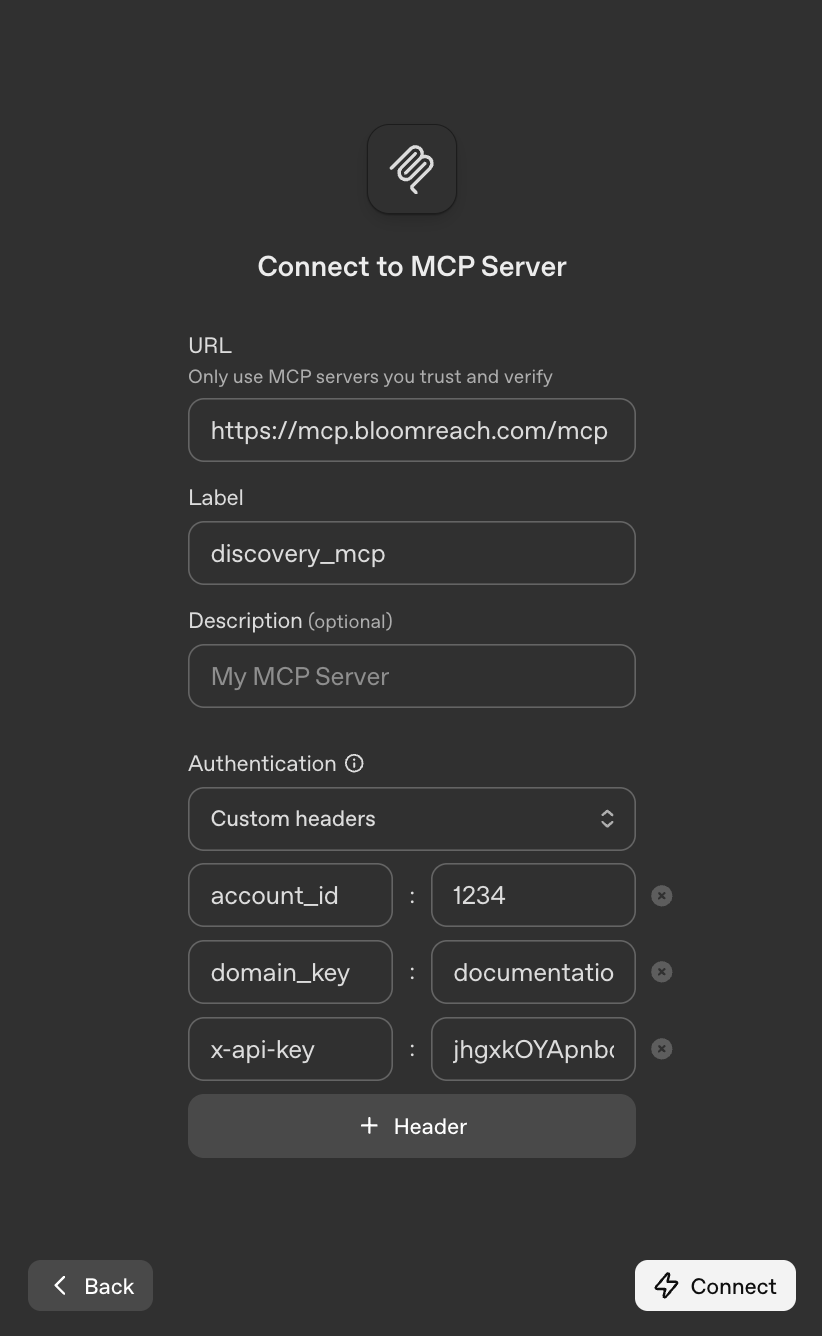
- URL:
https://mcp.bloomreach.com/mcp - Label:
discovery_mcp(or any other identifier for the tool) - Choose Custom headers as the Authentication method, and add the
account_id,domain_key, andx-api-keyheaders with the correct values for your Bloomreach Discovery account.
- URL:
-
Click Connect.
-
The tool is now available to the LLM and is called automatically when applicable in a conversation.
Technical specifications
The MCP server acts as a communication interface between AI applications and your Bloomreach Discovery instance. It allows LLMs to retrieve product information or execute searches without complex API integrations.
The following sections highlight the key specifications of the service.
Authentication
To connect your AI application to Discovery, you'll need to pass three authentication credentials in the headers or as path parameters. These specify which Bloomreach account and catalog the MCP server should access.
The MCP server supports the following Discovery API parameters in the headers or as path parameters, allowing for flexible and reliable authentication.
| Parameter | Required |
|---|---|
account_id | Yes |
domain_key | Yes |
x-api-key | Yes |
Find the values for account_id and domain_key in your Bloomreach dashboard under the API details. The x-api-key is your Bloomreach MCP key (Contact the Bloomreach Labs team at [email protected] for a new key if you don't have one already).
You must include these in your MCP configuration when setting up the connection.
Supported API parameters
The Loomi Connect MCP service supports the functionality provided by the following API parameters of the Discovery Product and Category Search API:
| Tool/Endpoint | Parameter | Required | Default value (if empty) |
|---|---|---|---|
| Search | q | Yes (must not equal *) | N/A |
search_type | No | keyword | |
start | No | 0 | |
rows | No | 12 | |
facet | No | N/A | |
fq | No | Omitted from API request | |
url | No | https://mcp.bloomreach.com/mcp | |
fl | No | url,pid,title,thumb_image,price,sale_price | |
_br_uid_2 | No | MCP_user | |
query.search_mode | No | N/A | |
vector_search.temperature | No | N/A | |
br_diagnostics | No | N/A | |
| | |||
| List all categories | parent_id | No | None (returns roots) |
limit | No | 50 (Max: 200) | |
offset | No | 0 | |
order_by | No | position | |
direction | No | asc | |
| | |||
| Get a category | include | No | N/A |
children_limit | No | 50 (Max: 200) | |
children_order_by | No | position | |
| | |||
| Search carousel (Only for ChatGPT Apps) | q | Yes | N/A |
NoteRefer to the Discovery Product and Category Search API reference to know more about each API parameter’s functionality and usage.
These parameters can be used to refine the Discovery API call to return more accurate and relevant results for the user’s natural language query.
WarningThe capabilities of the MCP service depend on your Bloomreach Discovery package, and the active features. If a feature supported by the MCP server isn't active in your Discovery account, it won't work through the MCP layer.
Updated about 2 months ago