

Customize search ranking with ABR
This guide covers how to use the Ranking studio application to customize the Bloomreach advanced base ranker (ABR) algorithm for keyword search ranking.
Prerequisites
-
Knowledge: Review Ranking studio and How to use Ranking studio for a feature overview.
-
Ensure you have the required permissions.
Overview
New customers
Your catalog gathers enough data to build the optimized ABR ranking algorithm. More options to train catalog-specific algorithms and create custom algorithms become available once there is enough data.
While your catalog gathers data, ABR ranks results using the fallback Bloomreach data algorithm. No action is needed from you. ABR switches to your default catalog-trained algorithm automatically once there's enough data.
Legacy ranking customers
Depending on your Ranking studio access, legacy algorithm users (those on Classic ranking or Bloomreach-Optimized search) see one of these scenarios:
ABR upgrade
For eligible legacy accounts, ABR is automatically enabled based on account state and access. The algorithm is already trained and is in use.
ABR available to test
If ABR is available for testing, click Set up Advanced base ranker to start training. After training is complete, its status shows as Available and you can configure the test.
If training is required, the current algorithm remains live until ABR training finishes.
Understand what your algorithm is trained on
You can see which algorithm a catalog uses in the Algorithms tab. The algorithm name tells you what it's trained on:
-
Catalog-specific algorithm: Trained on that catalog's own behavioral data. This is the most tailored option.
-
Default catalog algorithm: Trained on your account's default catalog — the primary catalog set up during the integration. It applies across all your catalogs until you train a catalog-specific algorithm.
-
Bloomreach data algorithm: Trained on aggregated Bloomreach data. ABR uses it as a fallback when your catalog doesn't yet have enough behavioral data to train its own algorithm.
Train Bloomreach advanced base ranker (ABR)
-
Click Set up Bloomreach advanced base ranker.
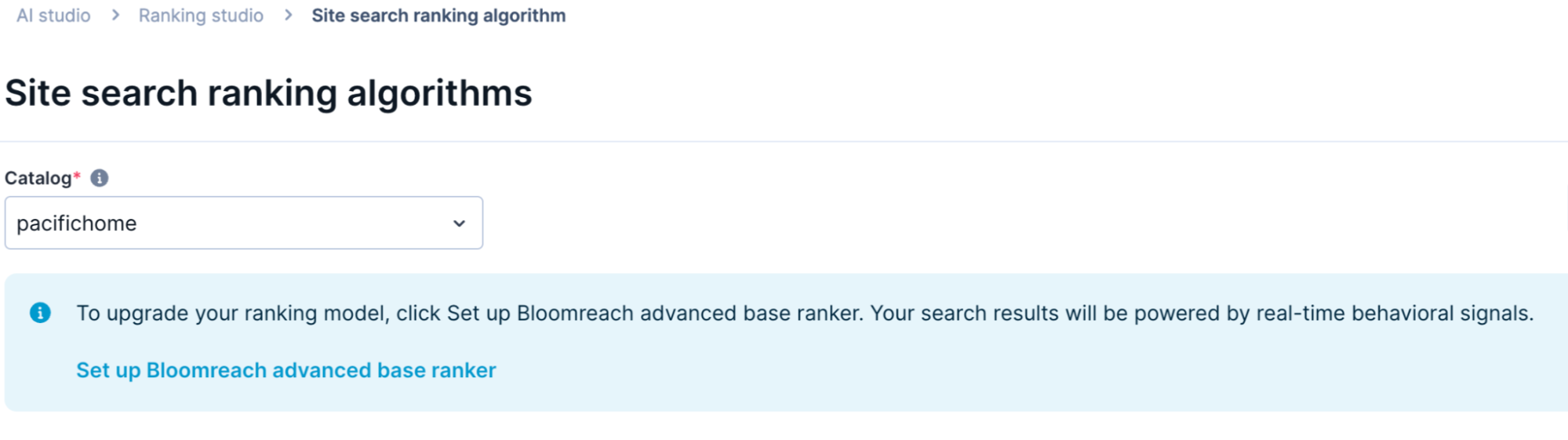
-
Confirm by clicking Set up. ABR appears in the algorithm list with the status In training. Training uses your default catalog or Bloomreach data catalog and typically runs for 24 to 48 hours, depending on your catalog size and data volume.
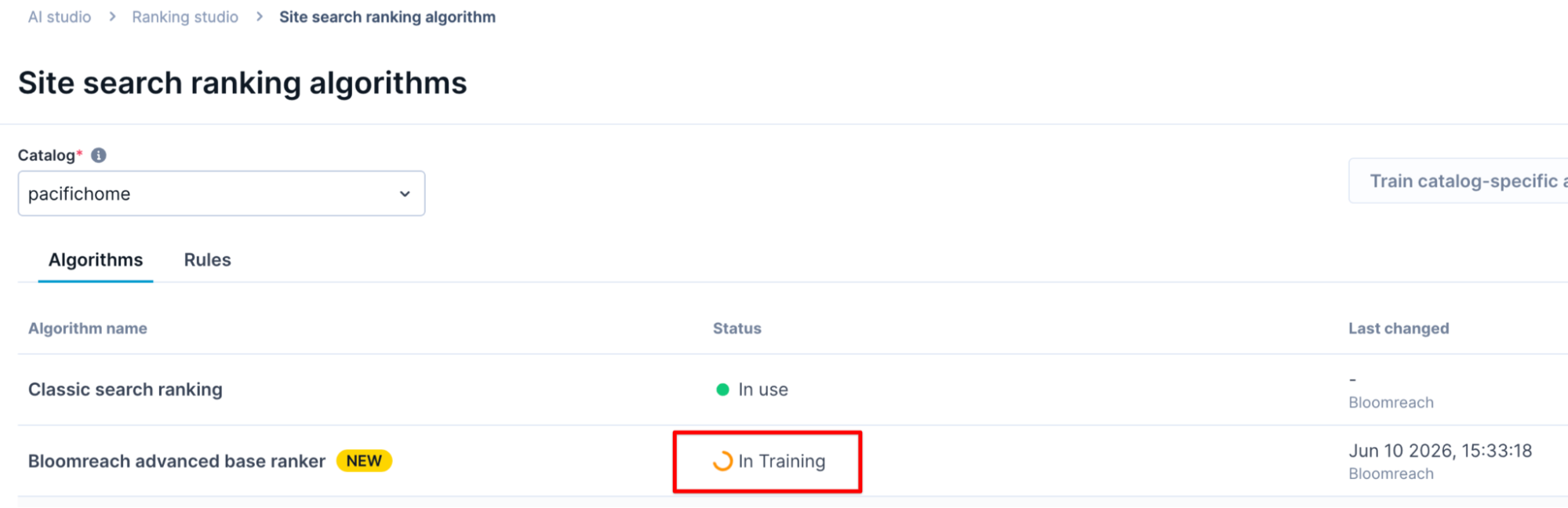
- Your current algorithm, say Classic search ranking, stays in use throughout. Your live search is unaffected.
- When training completes, the status changes to Available. The algorithm is ready to view.
ABR doesn't automatically retrain. Check FAQs.
Train catalog-specific algorithms
Once you have trained the base ranking algorithm, train catalog-specific algorithms when you want the ranking tuned to a specific catalog.
Train a catalog-specific algorithm for any catalog representing a different business (brand, region, language, or product line), so its ranking reflects that catalog's own shoppers rather than the default catalog's.
For example, a catalog for the France region, whose products and shopper behavior differ from your default English catalog.
- Click Train catalog-specific algorithm.
- Add Algorithm name and optional Description.
- The algorithm appears in the listing page with the status In training.
- When training completes, the status changes to Available. The algorithm is ready to view.
Create a custom algorithm on top of a catalog-specific algorithm to customize signal weights.
Cancel algorithm training
To cancel algorithm training while it's in progress:
- Find the algorithm you want to cancel.
- Click the action dropdown (v) and click Cancel algorithm training.
- Confirm by clicking Cancel and delete.
Retrain algorithms
ABR trains on your behavioral data across multiple overlapping 30-day windows. Using several windows instead of a single one gives steadier results across seasons, so a single sale period or an unusual week doesn't dominate the algorithm.
You still need to retrain an algorithm when:
- You add a custom signal. Adding a custom signal always starts a new training, and you add it by creating a new algorithm.
- Shopper behavior shifts meaningfully — for example, a seasonal transition or a catalog expansion.
- The last training period overlapped with atypical traffic, such as a flash sale or a bot spike, that skewed the algorithm.
View signal weights
Click View or Edit next to the algorithm to open the detail panel.
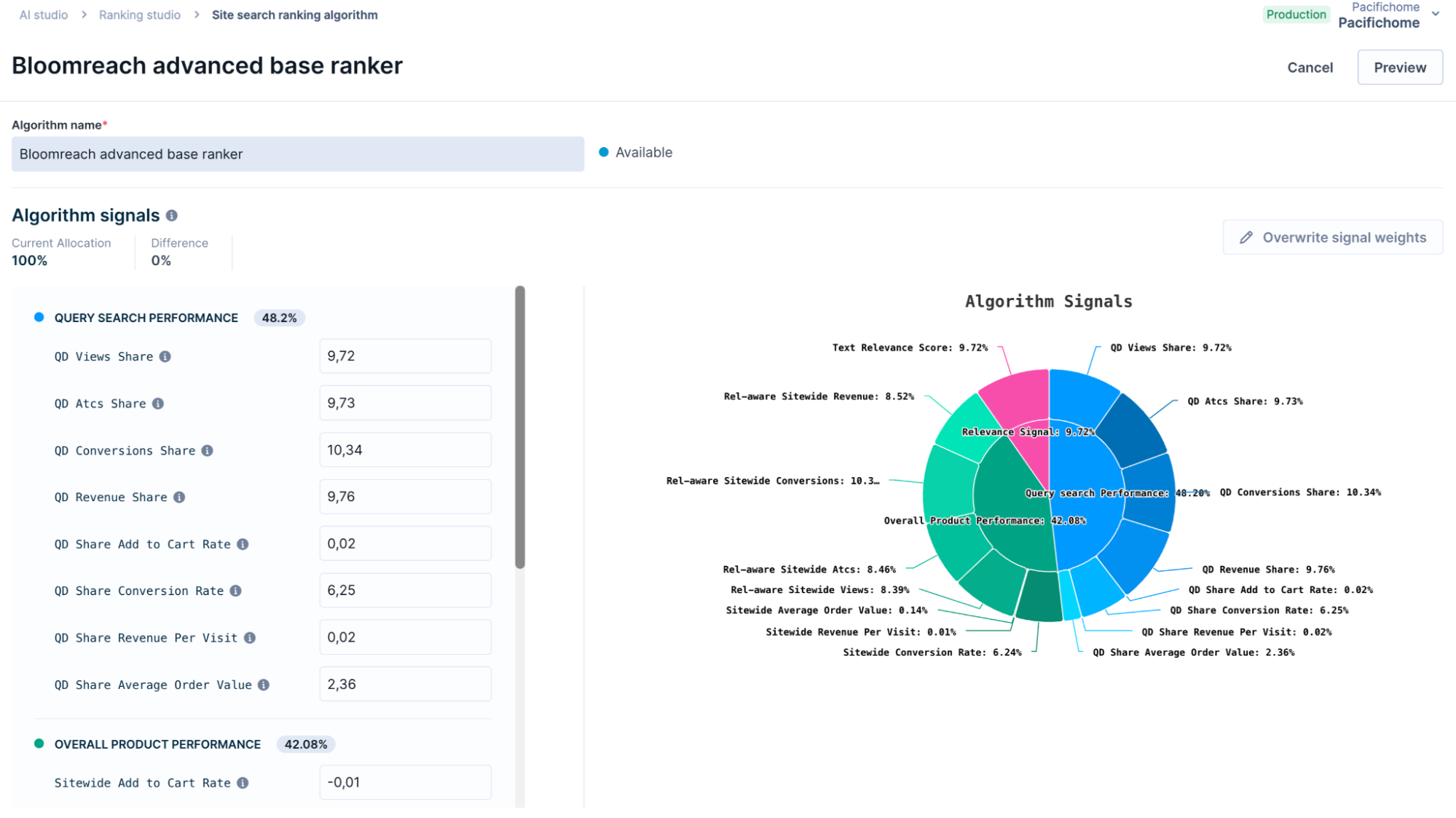
The detail panel shows:
- Algorithm status: The state of the algorithm.
- Algorithm signal weights: A breakdown of all signals organized into signal families. Each signal shows its learned weight as a percentage. A signal-mix chart on the right shows the overall weight distribution across signal families.
- Preview: Click Preview to see how the algorithm influences the search ranking.
Read about the detailed breakdown of the signals.
Create custom algorithm
Custom signals are specific to a catalog. Train an algorithm on your catalog first, then add custom signals on top. Pass each custom signal in the expected format. Training fails if you pass a signal incorrectly. You can create up to 5 custom algorithms per catalog.
- Under the Algorithms tab, click + New algorithm.
- In the Create new ranking algorithm modal, enter an Algorithm name.
- Choose a catalog-specific Source algorithm. The signals from the source algorithm copy over to the new algorithm.
- Add an optional Algorithm description.
- Optionally, add one or more Custom data signals. Click + new signal to add more. Review the best-practice guidelines for sending signals.
- Click Continue.
Cloned signals don't sync with the source algorithm. Updates to the source algorithm don't carry over to the custom algorithm.
What happens next depends on whether you added custom data signals:
No custom signals added
The algorithm is created immediately using the source algorithm's signals. Tune the signal weights, if needed.
Custom signals added
Training begins on your catalog-specific catalog. The algorithm status changes to In training. Training typically takes 24–48 hours.
You can train 1 algorithm per catalog at a time. When training completes, the algorithm status changes to Available.
ImportantOnce your catalog is enabled for Bloomreach advanced base ranker, it becomes the only base option available for new training. Create and customize algorithms on top of ABR.
You can't create new algorithms on Bloomreach-Optimized Search. Existing custom algorithms still work.
Although Bloomreach suggests that you keep using ABR, reach out to your Customer Success Manager if a rollback is necessary.
Tune signal weights
Signal weights for the Bloomreach advanced base ranker algorithm are read-only.
To edit signal weights for a catalog-specific or custom algorithm:
- Click Edit next to a catalog-specific or custom algorithm
- Click Overwrite signal weights.
- Adjust the weights. Ensure all signal weights add up to 100.
- Click Apply.
- Click Preview to see how the weight changes influence the search ranking.
- Click Save.
- The catalog-specific algorithm appears with the status Syncing, which takes about 20 minutes.
Delete a custom algorithm
In the Algorithms tab, click the action dropdown (v) next to View or Edit and select Delete algorithm.
Configure algorithm rules and A/B tests
Use the Rules tab to apply algorithms to queries and set up A/B tests.
Apply an algorithm to all queries
- Click Edit next to the All search queries rule.
- Choose the algorithm from the dropdown.
- Click Save.
Apply an algorithm to select queries
- Click + New rule.
- Enter the target queries and choose the algorithm.
- Click Save.
Edit a rule
- Click Edit next to the rule.
- Choose a different algorithm from the dropdown.
- Click Save.
Delete a rule
Click the action dropdown (v) next to the rule and click Delete rule.
Roll back to a previous algorithm
- Go to the Rules tab.
- Find the algorithm rule and click Edit.
- Choose the previous algorithm from the dropdown.
- Click Save.
Set up an A/B test
- Go to an existing rule and click Edit.
- Make your query or algorithm changes.
- Click Save as new variant to open the Rule variants modal.
- Toggle ON the test variants.
- Click Set up new test.
The same setup applies when you A/B test an algorithm with an All queries scope.
To see all test variants for a query rule, click the Variants icon or the dropdown next to View/Edit and choose View test variants.
Preview test variants
Preview isn't available for A/B tests. Use the side-by-side preview to compare algorithms instead. To compare variants, open an algorithm's detail panel, click Preview, and go to the Side-by-Side Preview tab.
The selected algorithm's results appear on the right. To compare another algorithm on the left, open the Ranking Preview dropdown and select it.
NoteTo find an algorithm's ID, click the dropdown next to View/Edit and click View ranking algorithm ID. Copy this ID to configure an A/B test through the API.
FAQs
Why is the ABR algorithm training on Bloomreach data algorithm?
ABR uses a fallback algorithm trained on aggregated Bloomreach data when your catalog doesn't yet have enough behavioral data to train.
How long before ABR trains on your catalog data?
It depends on your catalog's traffic and the data Bloomreach has collected. High-traffic catalogs reach enough behavioral data quickly; lower-traffic catalogs take longer.
Until your catalog has enough data, ABR ranks results using the Bloomreach data algorithm and switches to your catalog-trained algorithm automatically once there's enough data.
Bloomreach handles the transition in the background, with no action from you and no change to your shoppers' experience.
What happens when training fails?
If training fails, your catalog stays on its current ranking algorithm with no change to live traffic. Training can fail when:
- The catalog has too little behavioral data because of low traffic, a small catalog, or a very recent integration.
- Pixel data is missing or isn't sent in the required format.
- A custom signal isn't passed in the expected format.
Fix the data issues, then click Retry training. You can keep using the fallback Bloomreach data algorithm in the meantime. Contact Bloomreach Support if the issue persists.
Updated 3 months ago