

Query overrides
This guide explains how to configure, manage, and A/B test query override rules in Search control studio.
Prerequisites
- Permissions: Ensure that you have the required permissions.
- Knowledge: Review Search control studio before configuring query overrides. That guide provides an overview of the available search options.
Query overrides overview
There are use cases when you want certain queries to use a different algorithm than the default global setting.
For instance, if the global level uses category precision mode, but you want the query "tops" to use text match precision mode, you can set up a query override rule.
Query overrides take precedence over global algorithm rules.
The Query overrides tab shows the following columns. Use the Column selection dropdown to show or hide any of these:
- Queries: The query corresponding to the query override rule.
- Influence: The catalog (and its associated sites) to which the query override applies. At the account level, you can see overrides for all language-specific catalogs. If you have access to only one site, you can only modify overrides for catalogs linked to that site.
- Search options: The current algorithm settings for the override rule.
- Variants: The rule variants for the A/B test.
- Enable: Shows whether the control rule variant is enabled. For single-variant rules not in an A/B test, you can toggle this ON or OFF.
- Last changed: The date, time, and name of the last editor.
Configure a query override
-
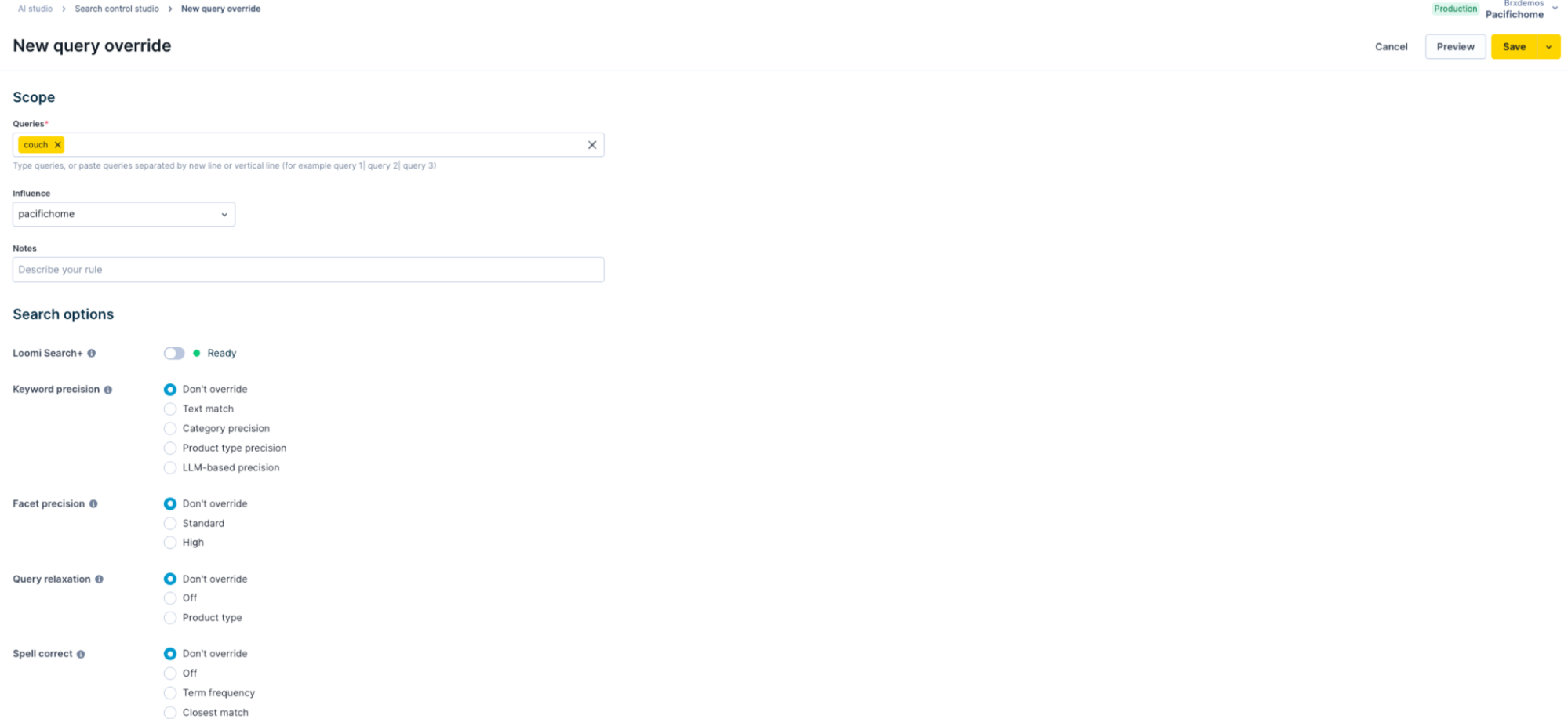
Click + New query override to open the New query override page.
-
In the Queries field, enter one or more queries. Press Enter/Return after each query to add multiple queries.
 Tip
TipTo specify many queries at once, list the queries vertically in a spreadsheet, copy them, and paste into the Queries field. Click any query to toggle between them.
-
Select the catalog Influence for the override rule from the dropdown. The Associated sites section shows which sites use this catalog and will be affected by the rule. If you have multiple catalogs, specify the catalog that the current rule targets.
-
Add an optional Note to describe your rule.
-
Most settings default to Don't override to retain the global settings. Select the appropriate algorithm override from the dropdown.
- Category precision, facet precision, and product type precision modes work only for top queries.
- LLM-based precision supports only queries with a valid product type. For example, the query "black shoes" has the product type "shoes."
-
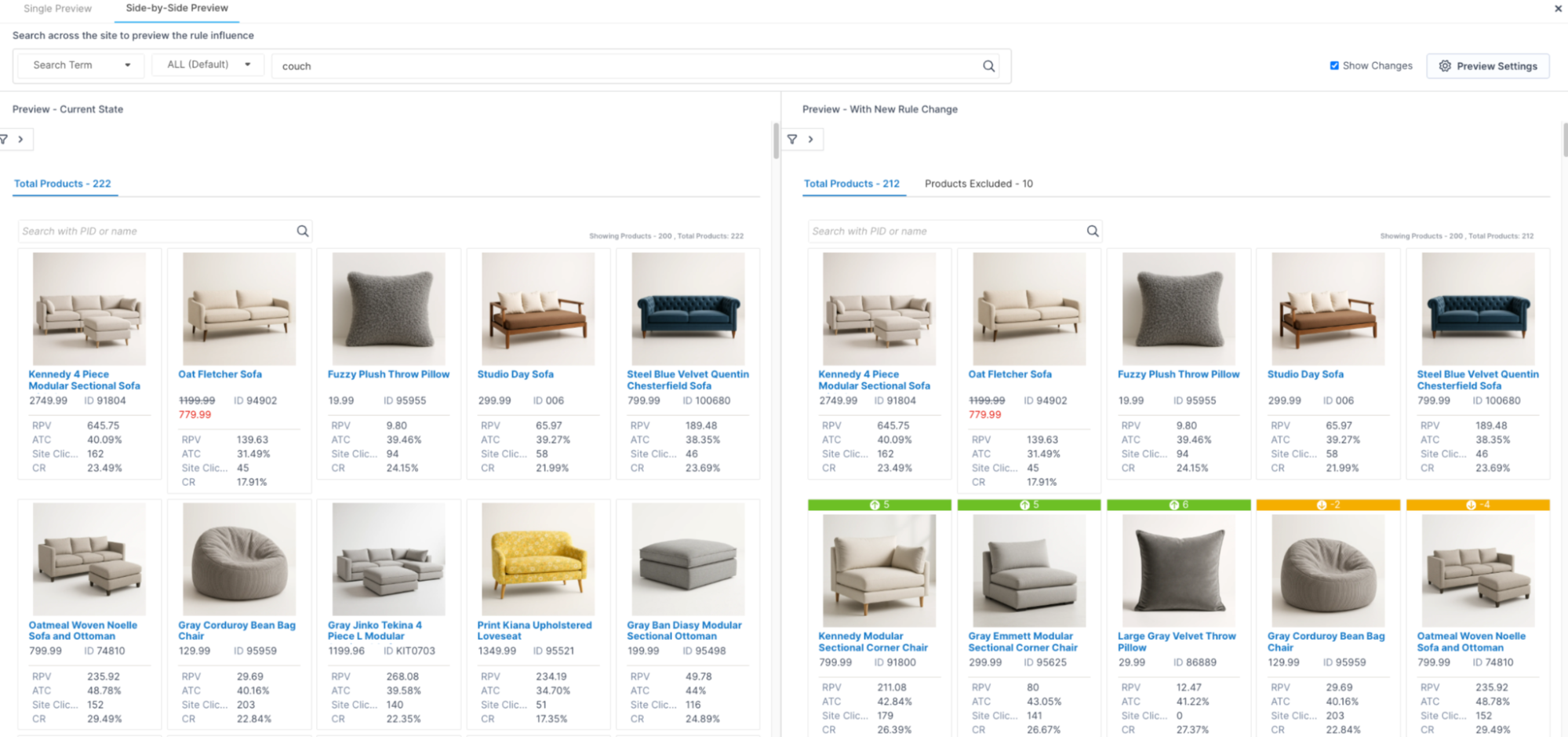
Click Preview to view product search results for this query override rule.
-
If the results look correct, click Save.
Conflict resolution
Review the conflict resolution order in the Search control studio guide.
Manage query override rules
Edit an existing query override rule
-
Hover over the query override rule and click Edit.

-
Select the appropriate algorithm setting from the dropdown.
-
Click Save.
Delete an existing query override rule
- Hover over the query override rule and click the down arrow button. Click Delete.
- Click Delete in the delete confirmation pop-up.
A/B test query override rules
-
Open the query override rule and make the changes required for the new test variant. Click the down arrow button and click Save new variant.

-
After variant creation, open the Rule variants modal using the variants icon.

-
Toggle ON the variants to include in the test and click Set up new test.
-
The Test setup page opens. Configure the test and click Save & start test.
-
The test is now active. The query rule displays an In testing status.
Updated 6 months ago