

Create exceptions to rules
This guide explains how exceptions to rules work, how to set and view them.
When create exceptions to rules
Global rules can affect all queries and categories on a site, or target specific queries or categories. Sites lower in the hierarchy inherit external rules from accounts and site groups above them.
In certain cases, a rule that improves results broadly can hurt performance for specific queries or categories.
For example, a global rule boosting products based on "newness" or "margin" might be beneficial for most categories, but not for a "New in" category, which should be merchandised to feature fresh inventory.
Exceptions to rules let you ignore any rules (global or inherited) that impact specific queries or categories without removing the rule entirely or duplicating it manually on individual pages.
How exceptions to rules work
When you set an exception on a query or category ranking rule, the ignored rule's configuration is disabled for that scope. The rule continues to apply everywhere else. Since exceptions disable the full configuration of a rule, you can’t partially disable a rule.
ImportantExceptions can only be set at the site level. Adding rule exceptions at the account or site group level is not supported.
The following aren't supported:
- Set exceptions to inherited rules that can apply to global rules.
- Set exceptions via API.
- Set exceptions to Recommendations rules.
Create an exception to rule
- Go to the query or category rule to set an exception at the site level:
- Merchandising > Site search > Ranking rules for search ranking rule.
- Merchandising > Categories > Ranking rules for category ranking rule.
You can also set an exception while creating a new rule.
-
Go to the External Changes tab. This tab shows global scope rules from this site and external rules (rules inherited from account or site group levels).
-
Switch the toggle from Apply to Ignore.
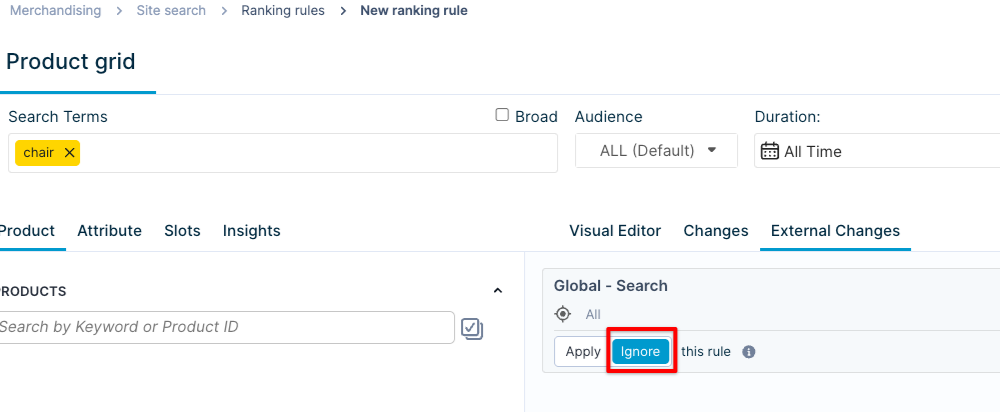
Toggle set to Ignore for an external global rule.
NoteFor active A/B tests, the External Changes tab lists every variant. For instance, if there are 3 global rules, each with 3 variants, a total of 9 variants appear. Apply or ignore each variant individually.
- Click Save.
The rule is now ignored for that query or category. Results for all other queries and categories are unaffected.
View exceptions
The ranking rules listing pages for both queries and categories show the Exception tag for rules with active exceptions.
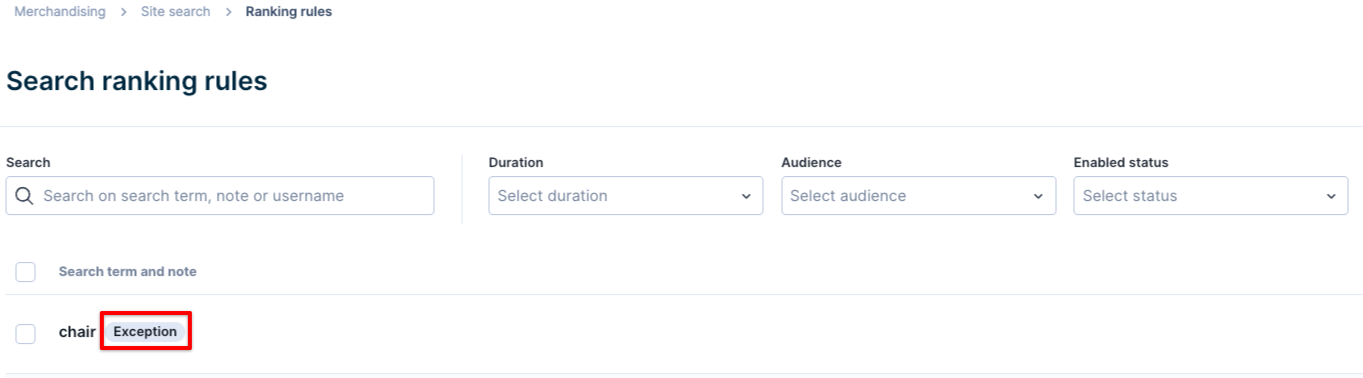
The ranking rules listing page shows the Exception tag.
Manage exceptions
To edit or remove the exception, go to the query or category rule with the exception. Under the External Changes tab, switch the toggle back from Ignore to Apply. Click Save.
Conflict resolution
When multiple customizations are active for the same request, the system merges all their exception settings and applies the combined result.
Example
Say you have two ranking customizations active for the query "running shoes":
- A single-query rule for "running shoes" with an exception that ignores all global category rules.
- A broad rule covering "running shoes" and "blue shoes" with an exception that ignores a specific rule by ID.
Both exceptions apply to "running shoes." The system doesn't drop the broad rule's exception just because a more specific rule is also active.
You must account for what the broader rule contributes when configuring your query-level exception. To learn more about how the system generally resolves conflicts between rules, see Conflict resolution for ranking rules.
Updated 3 months ago