

Event alerts
In this guide, you will learn about the event alerts dashboard, how to use these alerts, and how to debug them.
The event alerts dashboard lets you know how healthy your Bloomreach pixel integration is.
It answers the following questions:
- Is my site sending the appropriate number of page views and events?
- Are my page views and events sending their associated required parameters?
- Which Bloomreach features are affected by event data issues?
During integration, the event alerts dashboard helps you understand if your site is sending the appropriate pixel fires and required information so that you know your development work is complete. Post integration, it helps you track and ensure that your site is behaving as expected.
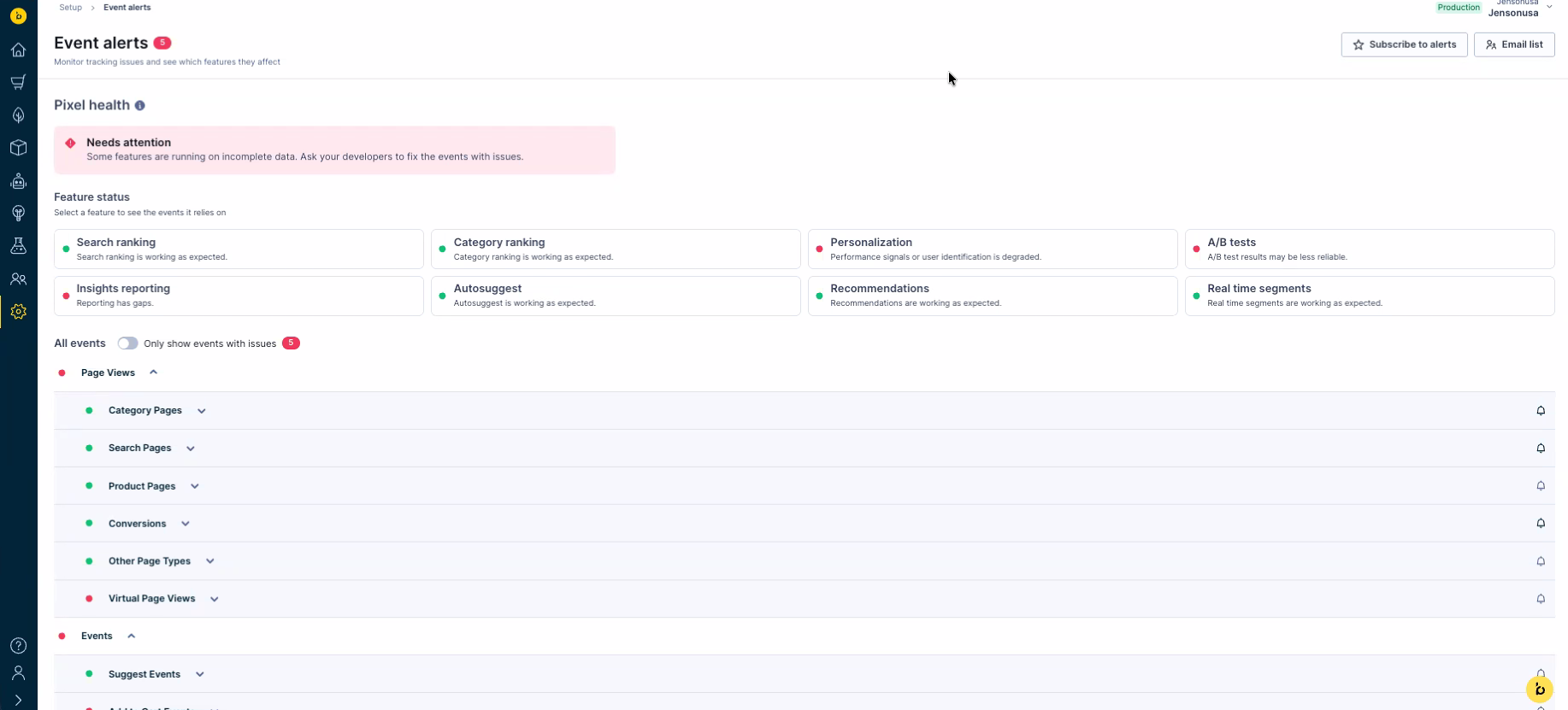
To view the event alerts dashboard, go to Setup > Event alerts
-
See the feature status section to learn which features are affected by your current event alerts.
-
See the dashboard actions section to learn how to filter out healthy events, set custom thresholds, and subscribe to email notifications.
-
See the debugging section to understand pixel alerts and learn how to resolve pixel issues.
Permissions required
- If you're assigned the Catalogs & events admin role, you have read and write access to the dashboard. You can view the email list (adding or removing other users' subscriptions) and change the alert threshold.
- If you're assigned any other role for the Search product, you have read-only access to the dashboard. These roles let you see the dashboard and subscribe to alerts.
Feature status
The Feature status section shows which Bloomreach features rely on events that currently have issues. Use it to decide which pixel fixes to prioritize and to explain the business impact to your technical team.
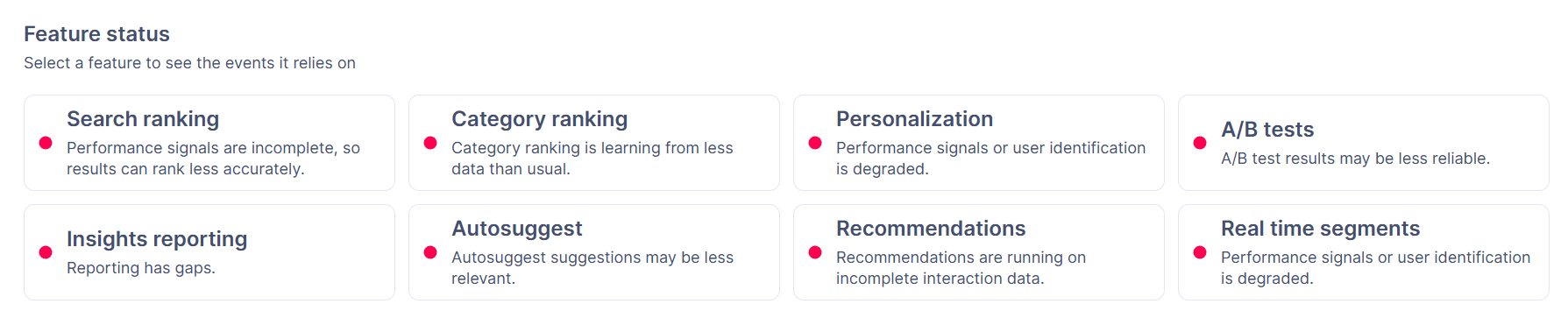
Each feature has a status indicator:
- Red: at least one event alert that the feature relies on is failing.
- Green: none of the event alerts that the feature relies on is failing.
A red feature also shows a short message describing the impact, for example “Performance signals or user identification is degraded.”
Feature status covers the following features: Search ranking, Category ranking, Personalization, A/B tests, Insights reporting, Autosuggest, Recommendations, and Real time segments.
To see what each event alert means, see Event alert definitions.
NoteFeature status is calculated from the same checks and thresholds as the event alerts. A feature can show red if it relies on an event you don’t track, such as Quick View. A green status means no alert has fired, not that every value is correct: many checks only test for missing or empty parameters. If the data still looks wrong, use Event diagnostics.
Dashboard actions
This section introduces you to the operations that you can perform in the event alerts dashboard.
See only events with issues
By default, the dashboard lists every event and its alerts. To focus on what needs fixing, turn on the Only show events with issues toggle. The list then shows only events that have at least one failing alert. Turn it off to see all events again.

Expand an alert to see its failure count and a 30-day chart of failed events.
Set error thresholds for pixel alerts
For each event alert, the error threshold can be customized for each pixel alert. The default error threshold is different for each type of pixel alert.
To set the error threshold, go to a pixel alert and input a value in the Adjust Threshold section. You can leave an optional comment in the Reason for change box. Click Update to save the custom error threshold.
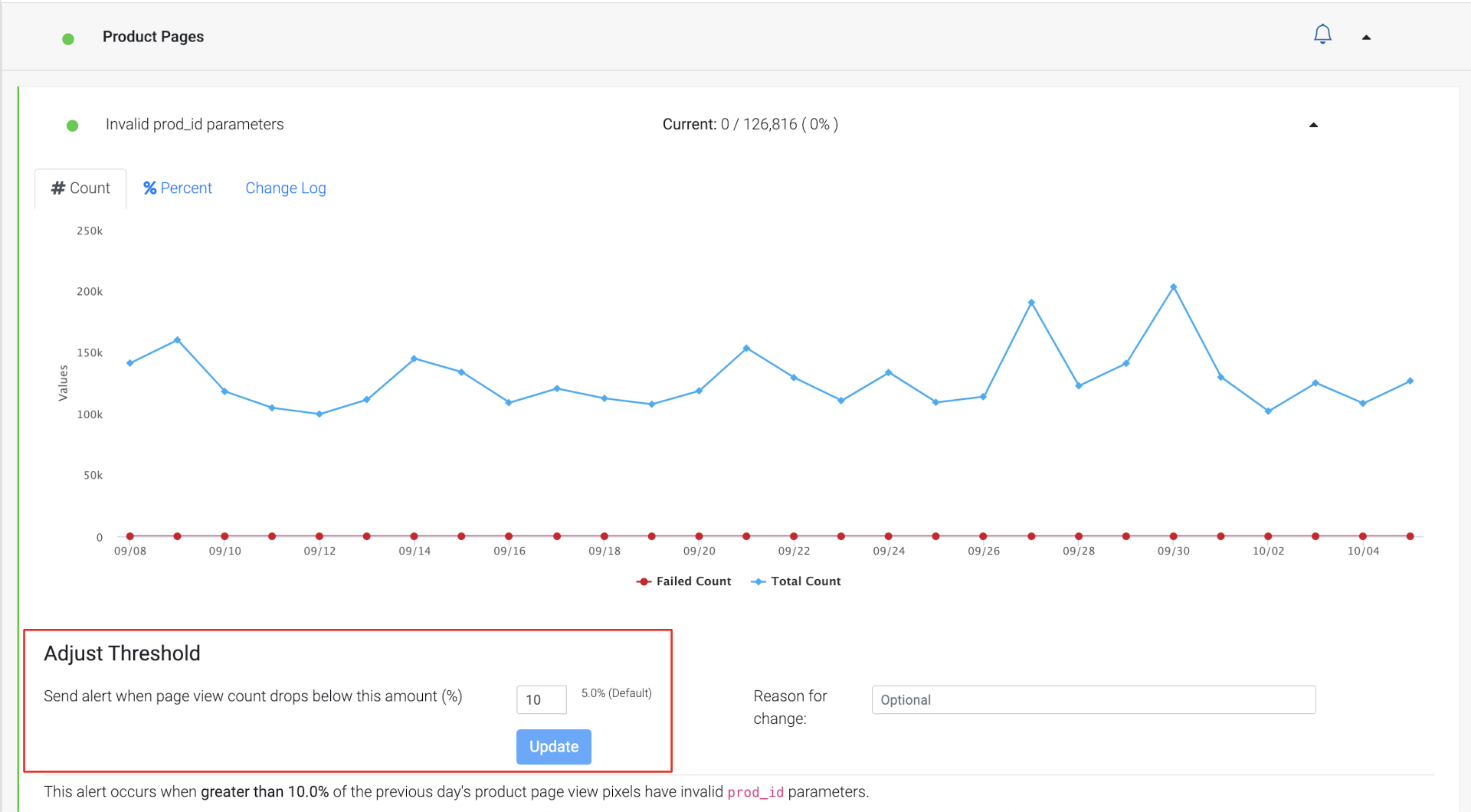
NoteChanging a threshold only changes when the alert fires. It doesn’t fix the underlying issue, and the affected features keep using the same incomplete or incorrect data. Don’t change a threshold to silence an alert that points to a real problem on your site, adjust a threshold only when you know a certain level of variation is normal for your site.
Get email notifications
You can subscribe to email notifications that inform you of pixel failures. Click Subscribe to alerts to subscribe to email notifications.
You get notifications only for event alerts that are enabled.

If you have the Catalogs & events admin role, you can view the email list. This list contains the emails of all subscribed users. From the email List, you can subscribe or unsubscribe users and adjust the frequency of notifications (daily or weekly).
All registered users for an account, regardless of the role, are eligible to subscribe to email notifications.

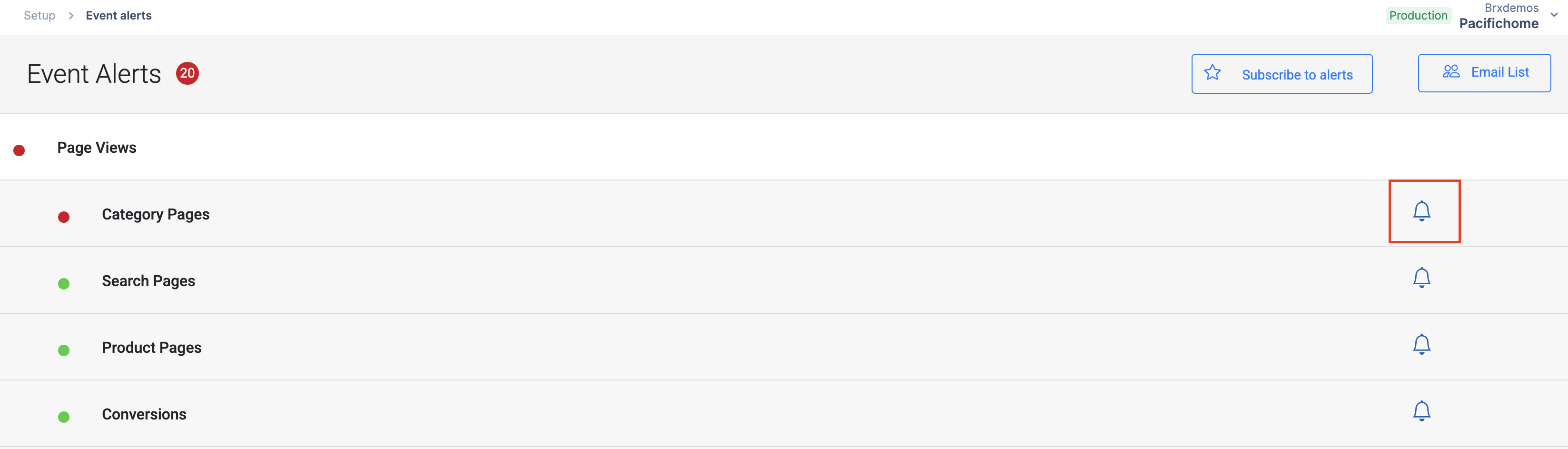
To change monitoring settings for event alerts, click the bell icon (see the screenshot below). A blue icon indicates the event alert is currently enabled, and a grey icon indicates it's currently disabled.
Permissions requiredYou must be assigned the
Catalogs & events adminrole to enable or disable the alerts.
Debugging pixel issues
Page view and event volume alerts
The following alerts use this check:
Page views
- Category page view volume
- Search page view volume
- Product page view volume
- Conversion page view volume
- Homepage page view volume
- Thematic page view volume
- Other page view volume
- Content page view volume
Events
- Search event volume
- Add to Cart event volume
- Suggest event volume
- Quick View event volume
This traffic monitor compares the average number of page views or events over the past 14 days of a particular page or event type (for example, product page, category page, or search page) and alerts when a greater than 80% drop in page views occurs. You can customize this threshold.
For example, the alert turns red if your product page view count average over the past 14 days is 7,500 and today's count of product page views is 1,500 or less. There's no alert if you have less than 14 days of data.
The page view or event volume chart shows a 30-day historical view and allows you to switch between a Total Count View and a Percentage Change from Moving Average view.
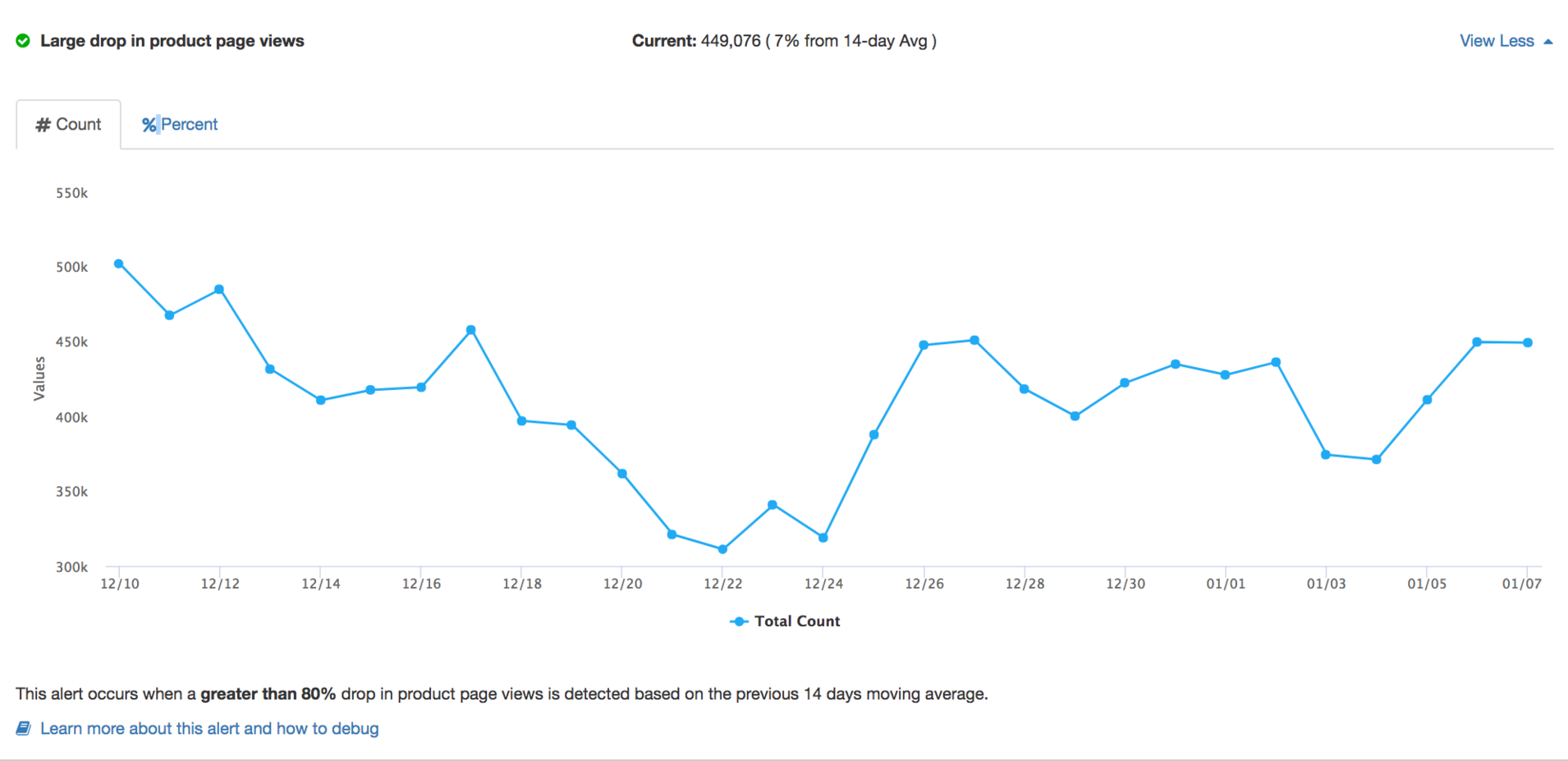
To debug this traffic alert, it's important to understand where the drop comes from. Sometimes, your site may have a lot less views or conversions that day, and it's advisable to check with your in-house analytics systems to see if this is the case. If your site doesn't have a significant drop that day, go to the next level of debugging other potential root causes.
The Bloomreach pixel dropped on pages or events
| Root cause | Debugging guidelines |
|---|---|
| Traffic drop on all page types | If you see a traffic drop alert on all page types (Product, Category, Search, Conversion), the Bloomreach pixel could have been dropped on all page types or the entire site. |
| Traffic drop on a specific page type | If your product pages show a large traffic drop, check if the Bloomreach pixel still fires on product pages. If you have different product page templates, check at least one URL from each template. You can use the Bloomreach Pixel Validator Chrome Extension for easy debugging. If you can confirm that the USER.BR Pixel no longer fires:
|
The Bloomreach pixel dropped on top traffic pages
| Root cause | Debugging guidelines |
|---|---|
| Traffic drop on top traffic pages | This may indicate that the Bloomreach pixel has been dropped on your top traffic pages. Check your analytics system to find your top traffic pages for the particular page type and check if the pixel still fires. You can use the Bloomreach Pixel Validator Chrome Extension for easier debugging. |
The Bloomreach pixel page type classification has changed
| Root cause | Debugging guidelines |
|---|---|
The ptype parameter in the page view pixel has changed | The Bloomreach pixel expects a ptype parameter for each page type. The valid page types are 'product', 'category', 'search', or 'thematic'. If there's no classification, the parameter defaults to 'other'. For a detailed list of ptype classifications, see the Global Variables Checklist. The alert may indicate that a ptype classification has changed. For example, a product page whose ptype parameter was 'product', now is 'other'. Go to a page type that shows the alert and verify the ptype parameter. You can use the Bloomreach Pixel Validator Chrome Extension for debugging. |
The drop is caused by weekend or promotion fluctuations
| Root cause | Debugging guidelines |
|---|---|
| Weekend fluctuations | This happens especially on B2B sites where the traffic on weekends drops significantly. If you observe this as a regular pattern, you can ignore the alert. |
| Promotion fluctuations | A sale or promotion can cause a large spike in traffic, which raises the 14-day average. When the promotion ends and traffic returns to normal, the alert can show this as a drop. If the alert starts shortly after a promotion ends and traffic is back to its usual level, you can ignore it. |
The drop is caused by testing
| Root cause | Debugging guidelines |
|---|---|
| Fluctuations caused by testing | A drop & spike pattern can happen if you perform load or stress tests on your site and the test IP is not blocklisted on the Bloomreach analytics system. Let your Bloomreach Integrations Project Manager know about any IPs that you are using for load and performance testing on your production site, so they can be blocklisted from event alerts. |
If none of the above root causes explain the issue, contact your Bloomreach Integrations Project Manager during integration or your Customer Success Manager post-integration.
Invalid or Missing Parameters
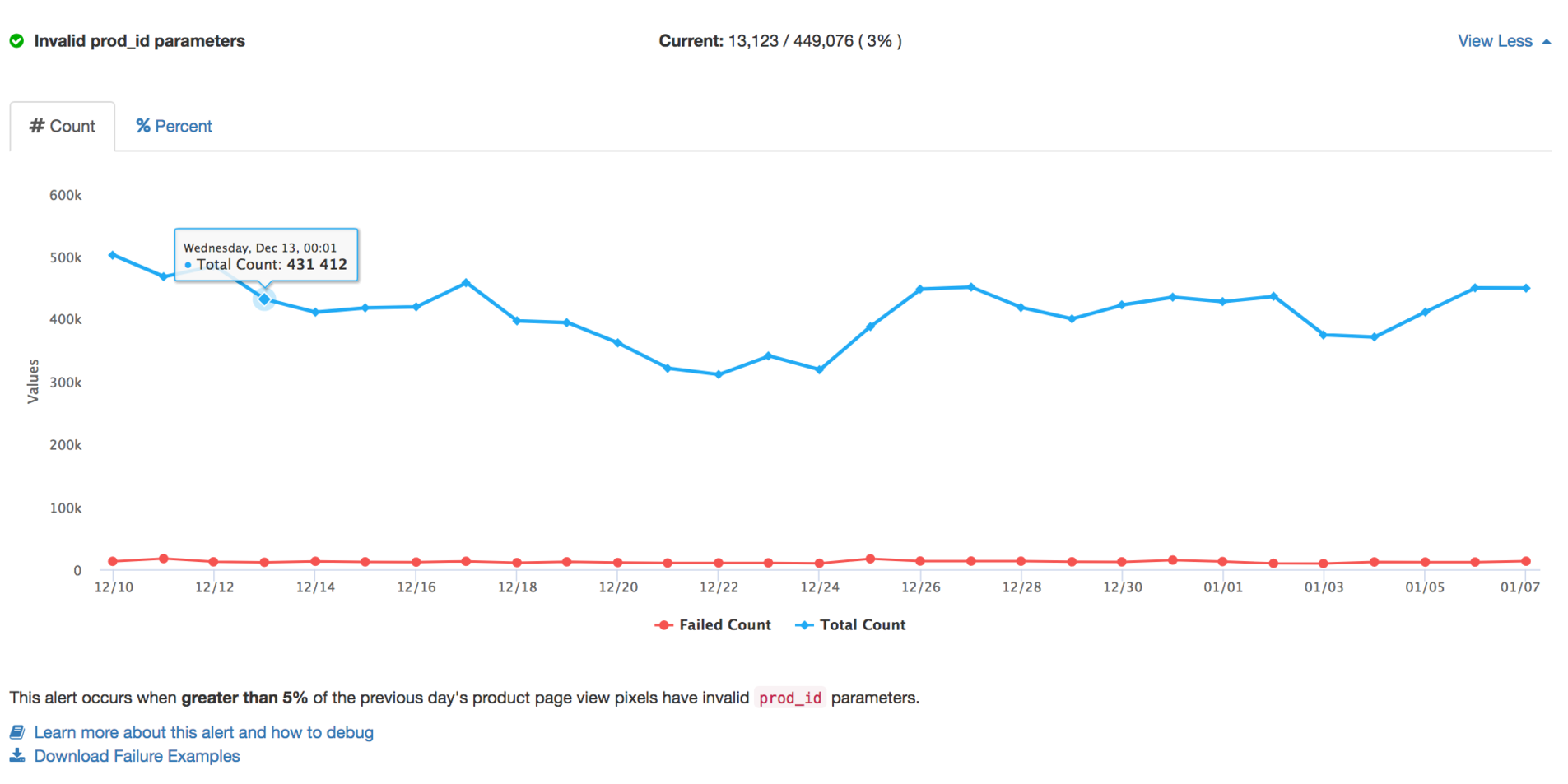
This parameter monitor tells you how many pixel requests Bloomreach received the previous day where a required parameter was missing or did not pass our validation and what percentage of the total requests are impacted.
The chart shows a 30-day historical view and allows you to switch between a Total Count and a Percentage Change from Moving Average view.
It also provides a Download Failure Examples link with pixel requests that failed the parameter validation to help with your debugging.
Debugging parameter alerts
All parameter alerts follow the same debugging steps. Use the table in the next section to find the parameter each alert checks and what a valid value looks like.
- Expand the alert and check the chart. A sudden jump often points to a recent site release or tag manager change. A steady rate usually means the parameter has never been sent correctly.
- Click Download Failure Examples below the alert graph. The file lists the URLs where the pixel fired without a valid value for the parameter.
- Sort the file by
device_typeto see whether the issue is limited to one device type, such as mobile or a native app. - Open some of the URLs from the
URLcolumn and check the parameter with the Bloomreach Pixel Validator Chrome extension. Check whether the value is missing, sent as an empty string, or in the wrong format. - After your technical team fixes the pixel, check that the events arrive with valid values in Event diagnostics (Live mode, up to 2 hours’ delay). The alert updates after the next daily check.
NoteMost parameter checks only test whether a value is missing, empty or badly formatted. They don’t check that IDs match your catalog. If an alert is green but your data still looks wrong, check the values in Event diagnostics.
For details on what each parameter should contain, see the Pixel parameter reference.
Parameters checked by each alert
| Pixel | Alert | Parameter | Valid value |
|---|---|---|---|
| Category page view | Missing cat_id parameters | cat_id | The category ID |
| Category page view | Missing cat parameters | cat | The category name |
| Search page view | Invalid search_term parameters | search_term | The search term |
| Product page view | Missing prod_id parameters | prod_id | The product ID |
| Conversion page view | Invalid basket parameters | basket | The list of ordered items, in the documented format |
| Conversion page view | Invalid basket_value parameters | basket_value | The order total, as a number greater than 0 |
| Conversion page view | Invalid quantity / sku / price / prod_id parameters (in basket items) | quantity, sku, price, prod_id in each basket item | Quantity and price greater than 0; a valid variant ID and product ID |
| Conversion page view | Non-unit pricing for basket item price parameters | price in each basket item | The price of one unit, not price × quantity |
| Virtual page view | Empty / Invalid orig_ref_url parameters | orig_ref_url | The URL of the previous page |
| Search event | Invalid q parameters | q | The search term |
| Add to Cart event | Invalid prod_id parameters | prod_id | The product ID (not a category ID, such as one starting with cat_) |
| Add to Cart event | Invalid sku parameters | sku | The variant ID |
| Suggest event | Invalid q parameters | q | The suggested term the shopper clicked |
| Suggest event | Invalid aq parameters | aq | The text the shopper typed before clicking |
| Quick View event | Invalid prod_id parameters | prod_id | The product ID |
| Widget pixels (view, click, add to cart) | Invalid WRID / WTY / WID / WQ parameters | wrid, wty, wid, wq | The recommendation response ID, widget type, widget ID and widget query |
| Widget pixels (click, add to cart) | Invalid item_id parameters | item_id | The product ID |
| Widget pixels (add to cart) | Invalid SKU (variant) parameters | sku | The variant ID |
| Content page view | Invalid catalogs parameter | catalogs | The content catalog name |
| All pixels | Invalid uid in Cookie parameters | uid in the _br_uid_2 cookie | A valid visitor ID |
Event alerts for multisite accounts
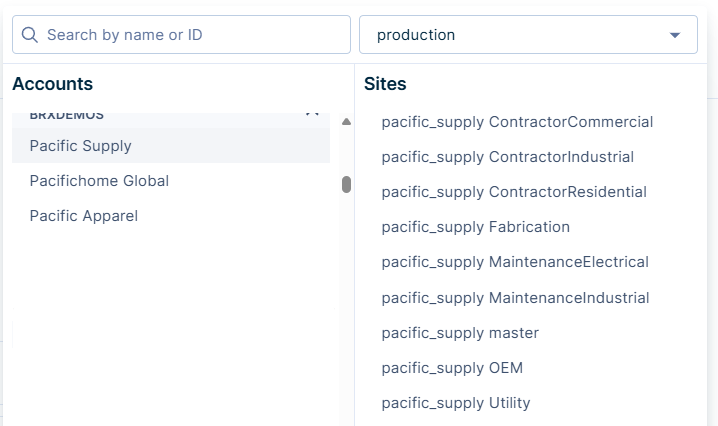
If your account has multiple sites, each site is monitored separately. For example, Pacific Supply has multiple sites: Pacific Supply Master, Pacific Supply Industrial, and Pacific Supply Electrical, among others. The event alerts dashboard shows the pixel integration health of each of these sites on its own.
Updated 27 minutes ago