

Loomi for Shopify Recommendations
Loomi for Shopify recommendations adds product recommendation widgets to your storefront, helping you drive more sales with personalized suggestions tailored to each shopper. This guide walks you through installing the required apps, adding a widget to your theme, and configuring its settings.
Prerequisites
Before you set up Collections, ensure you:
- Have access to recommendations. Recommendations are available to:
- Marketing) customers.
- Search) customers require Data hub integration to support the unified setup.
- Install Loomi for Shopify from the Shopify App Store.
- Complete the integration and sync your data with Bloomreach.
- Enable the Bloomreach Web SDK.
Add the recommendations widget
-
In your Shopify admin, go to Online Store > Themes > Edit theme.
-
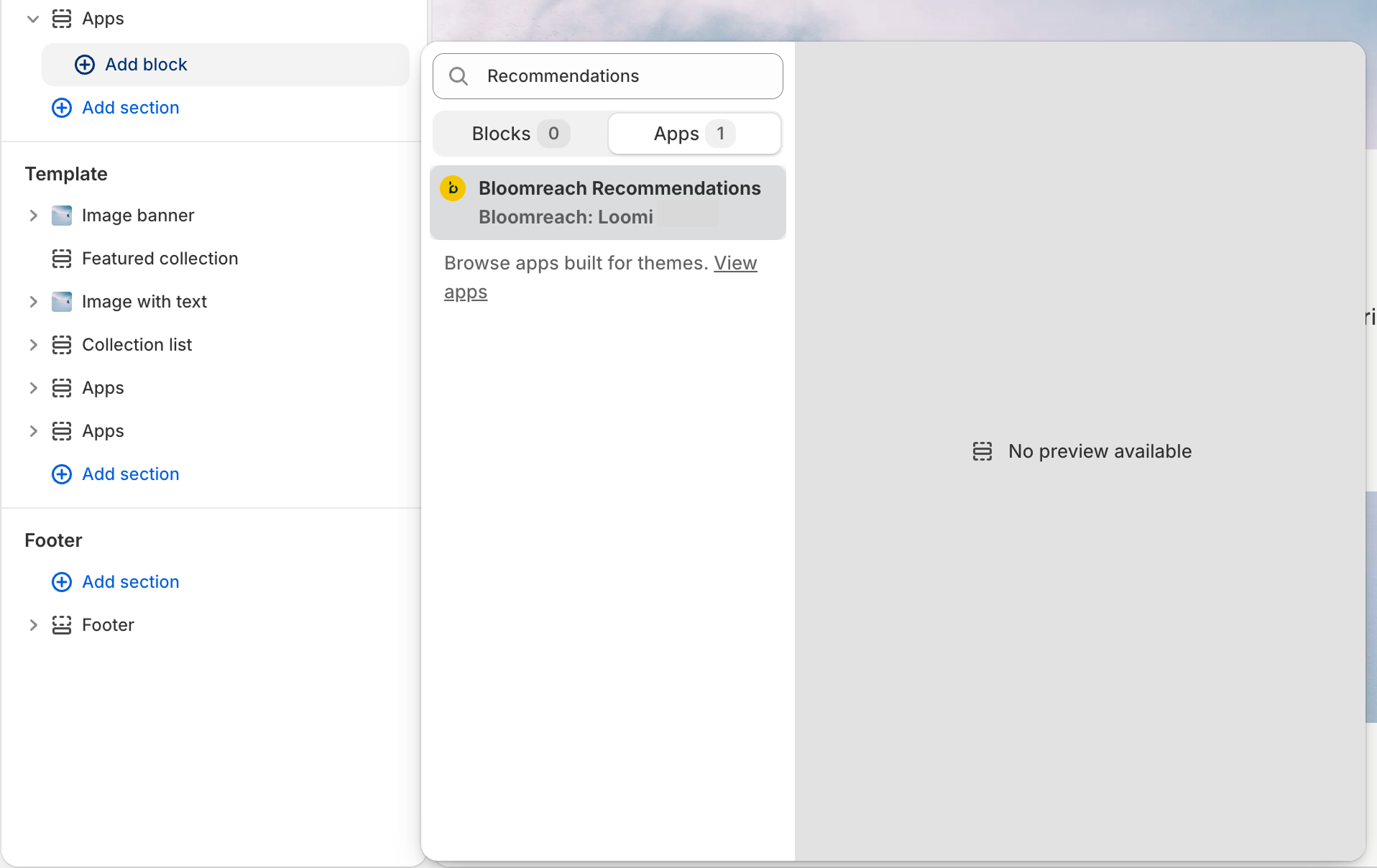
Choose a section, click + Add Block, and from the Apps tab, add Bloomreach Recommendations to your theme.
-
In the widget details panel, configure the Recommendations settings.
-
Click Save.
Configure recommendation settings
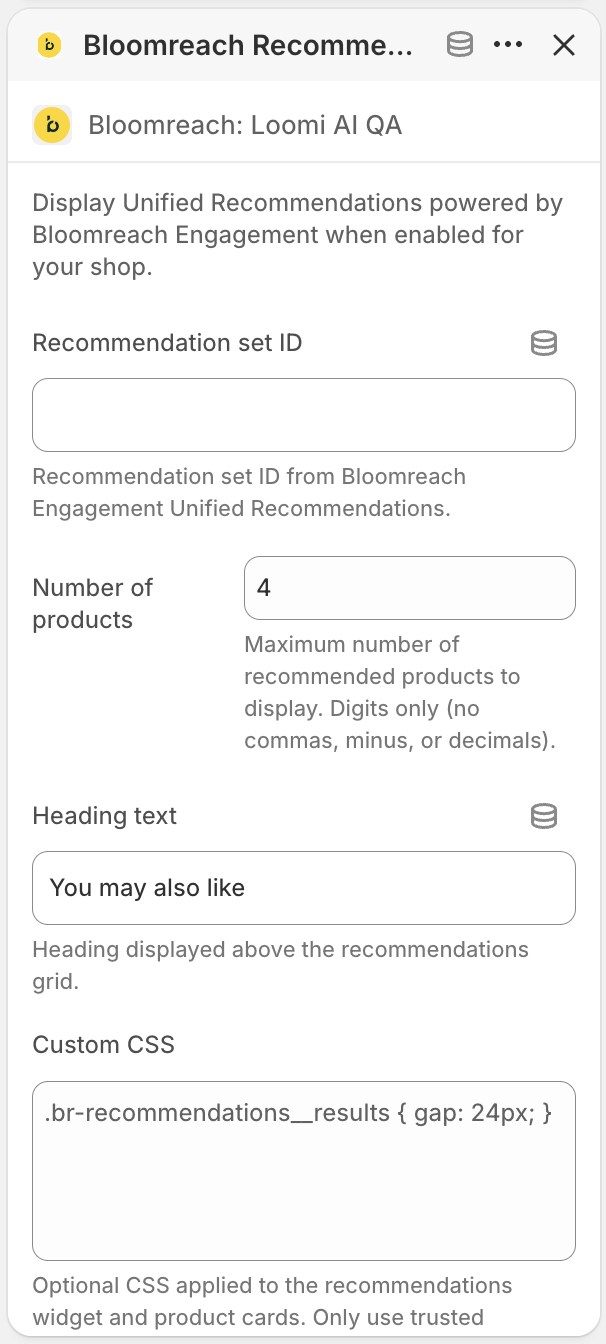
After adding the widget to your template, configure the following settings in the Loomi for Shopify app:
| Setting | Description |
|---|---|
| Recommendations set ID | ID of your recommendations set. The ID can be found in Bloomreach. Go Campaigns > Recommendations. Select your recommendation and switch to the Web Deployment tab. Scroll down to Recommendations set ID and copy the value. For more information, see Deploy Recommendations. |
| Number of products | Define how many products appear in the widget. Enter a whole number (for example, 4). Decimals and special characters aren't supported. |
| Heading text | Title of the page section containing the widget. |
| Custom CSS | Apply custom CSS to style the widget without modifying your theme's core code. See the CSS class reference. |
Click Save to apply your settings.
Supported fields
The following Solr field names are available for the Fields setting:
pidtitlesku_titlevariant_titlebrandpricethumb_imagevariantsskuidsku_color_groupsku_colorsku_swatch_imagessku_thumb_imagesurlsale_priceSku_sale_price
Customize the widget appearance
To adjust the visual style of the recommendation banner — layout, colors, fonts, and product card structure — use Experience customization in the Loomi for Shopify app. Experience customization is a built-in editor that lets you modify the widget's HTML and EJS templates without editing your theme's connector code.
To open it, go to Experience customization in the app and select the Recommendations component.
For full details on what you can customize and how templates work, see Experience customization for Loomi for Shopify.
Limitations
Keep the following in mind when placing the recommendations widget on your storefront:
- Checkout page: The widget can't be placed on the checkout page. Shopify restricts third-party app blocks from that surface.
- Cart drawer and side cart: The widget can't be placed in the cart drawer or side cart for the same reason.
- No caching: The widget calls the API on every page load. Render time depends on API response time.
- Theme-specific: The widget is bound to the theme where it was added. Switching or publishing a new theme requires re-adding the app block and reconfiguring your settings.
- Requires Web SDK: The widget won't render on pages where the Web SDK is blocked or not initialized.
- Licensed feature: Recommendations must be enabled on your account. Contact your account manager if access is unavailable.
Related articles
Updated about 1 month ago