

Side panel
This guide explains what the side panel is, the shopper experience it creates, and how to get access.
What is the side panel
The side panel is a desktop layout for Conversational agent that places the conversation in a panel on the left or right side of the screen. Instead of floating over the page, the chat becomes a column next to your site, and your page content shifts over to make room for it.
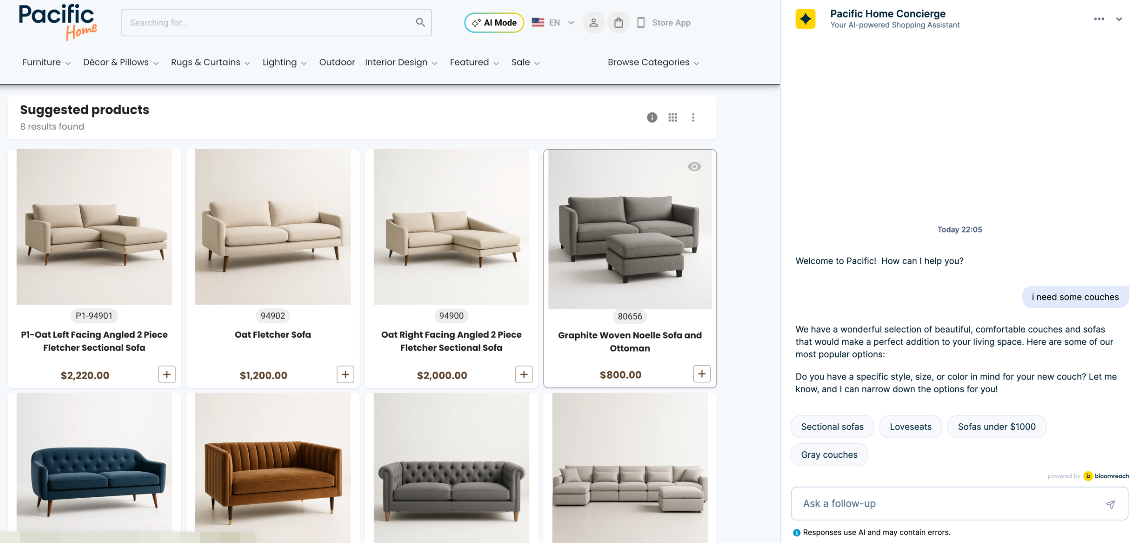
Shoppers keep browsing the site while the conversation stays open beside them. Search results from the conversation can appear on your own product grid, so they look and behave like the rest of your site. As shoppers move between product pages, the conversation follows along and offers questions about the product they are viewing.
How it helps your business
Benefits for shoppers
- Keep browsing products while the conversation stays visible.
- Get answers and refine the search in natural language, side by side with the products.
- See questions about the product shoppers are currently viewing as they move between product pages.
- Adjust the panel width by dragging its edge to give more room to the chat or to the products.
Benefits for your business
- Offer a conversational experience that feels integrated into your site, rather than a chat window floating over it.
- Show conversation results on your own product grid, keeping your site's design and layout.
- Keep shoppers engaged as they browse, with relevant product questions offered at the right moment.
- Use the extra space on desktop screens to give products more room alongside the conversation.
How it works
- The shopper opens the chat, for example from the chat button or a CTA in the Header. The panel slides open on the side of the screen, and the page content moves over to make room.
- The shopper types a question or a search, for example "show me waterproof hiking jackets."
- Conversational agent responds in the panel. Matching products appear on your site's product grid, next to the conversation, and Conversational agent displays similar products in the chat.
- The shopper keeps browsing and scrolling the page while the conversation stays open in the panel. They can drag the panel's edge to make it wider or narrower.
- When the shopper opens a product page, the conversation shows a "Now viewing" banner with suggested questions about that product.
- The shopper continues the conversation, asking follow-up questions or comparing products, until they find the right product.
- When the shopper closes or minimizes the chat, the panel collapses and the page returns to its full width.
Enable the side panel
The side panel is available for Conversational agent on desktop. Enabling it requires development work on your website. Contact your Product Engagement Manager, who will provide the implementation instructions.
This is a desktop-only experience. For a full-page experience on mobile, see Full page mobile conversational experience.
Requirements
Before enabling the side panel, be sure that:
- The Conversational agent chat experience is fully set up and working on your site.
- Conversational agent is delivered to your site through a Bloomreach Engagement weblayer.
- Your development team is available to complete the site-side setup, such as showing conversation results on your product grid and keeping page context up to date on single-page applications.
Considerations
The side panel moves your page content into its own scrolling area next to the panel. Review the following with your development team before enabling it:
- Code that relies on window scrolling, such as scroll listeners, "back to top" buttons, or infinite scroll, needs to target the new page area.
- Fixed-position elements, such as headers or cookie banners, may overlap the panel unless adjusted.
Updated about 1 hour ago