

Conversational agent data storage and expiration
This article outlines Conversational agent data storage and expiration guidelines to help you achieve optimal performance and regulatory compliance.
While we share general recommendations, you own your shopper data and are responsible for deciding your data expiration policies.
Data captured and stored by Conversational agent
- Events: Aggregated data about the shopper and Conversational agent interactions. The two Conversational agent event types are
clarityandclarity_safety. These don't contain any personally identifiable information (PII). - Transcripts: Messages shared between the shoppers and Conversational agent. These may contain PII. Note that Conversational agent doesn't require nor ask the shoppers to share any PII. However, shoppers may accidentally share sensitive information over the chat.
Conversational agent data settings
PII data (transcripts)
Set user permissions to limit access to transcripts. Only users with Conversational agent User and Personal Data Viewer permissions can view transcripts and customer IDs. This restriction protects customer privacy and ensures compliance with data protection laws.
Events
We recommend that you set the expiration period for the clarity and clarity_safety events to 13 months. This expiration period helps:
- Remove PII regularly.
- Store data for sufficient time to perform an in-depth analysis of the data, such as year-over-year (YoY) comparisons.
Adjust event expiration
-
Go to Data & Assets > Data manager > Customer properties. Click the dropdown next to the Save changes button and choose the Data expiration.

Click the Data expiration option.
-
Input the expiration limit corresponding to the
clarityandclarity_emergencyevents. Set the expiration period to 13 months.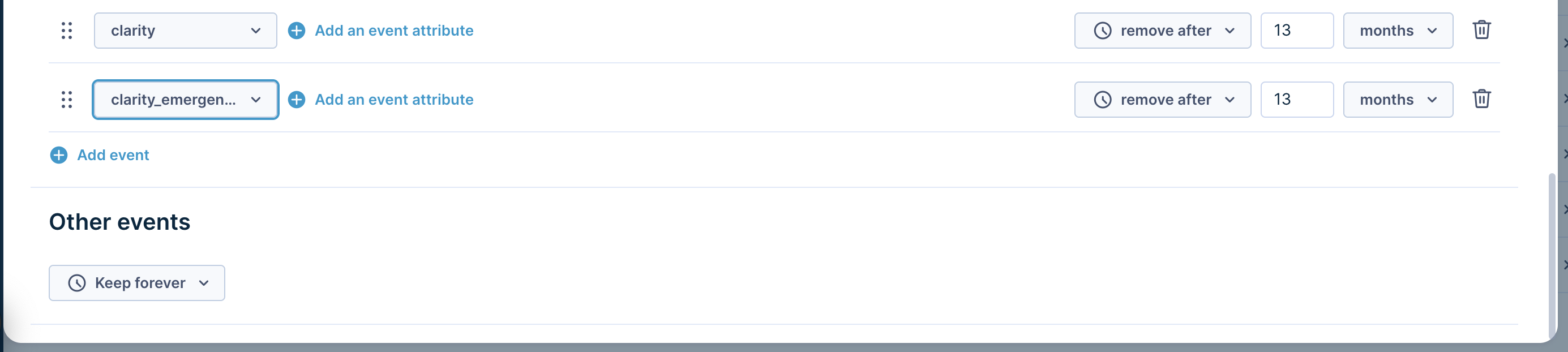
Specify the expiration period for Conversational agent events.
Event tracking with data manager
The Allow tracking of events not defined in the Data Manager setting controls which events are tracked:
- Enabled (default): All events are tracked automatically, including Conversational agent events.
- Disabled: Only events defined in Data Manager are tracked. All other events are blocked.

Allow for tracking of events not defined in Data Manager.
If you have the Allow tracking of events not defined in the Data Manager set to Disabled:
- Open Data Manager in your Marketing project.
- Go to the Events tab.
- Manually add
clarityandclarity_safetyevents to allow for their tracking. - Click Save.
Updated 21 days ago