

How to view Conversational agent transcripts
This guide explains how to view Conversational agent transcripts after you open Conversational agent's back office. Filter transcripts and examine interaction patterns to understand how shoppers engage with Conversational agent.
Prerequisites
Permissions
Ensure you have the following permissions:
- Conversational agent User permission to view transcripts. This permission is necessary to access the Conversational agent application, which includes the transcripts.
- (Optional) Personal Data Viewer permission to view the customer filters. The permission is required to access the customer filter.
Knowledge
If you have the Personal Data Viewer permission, we recommend reviewing the filtering data article.
Access Conversational agent transcripts
-
Navigate to the Conversational agent > Conversations > Transcripts.
-
Review the tabular view showing all shopper interactions. The transcript table displays:
- Last message received by the shopper
- Agent name
- Chat timestamp
- Events associated with the interaction (purchase, cart update, product view)
-
Find the transcript you want to review. For quality analysis, each transcript shows:
-
Time of the chat
-
Detailed chat record
-
Events
-
Shopper cookie ID and transcript ID
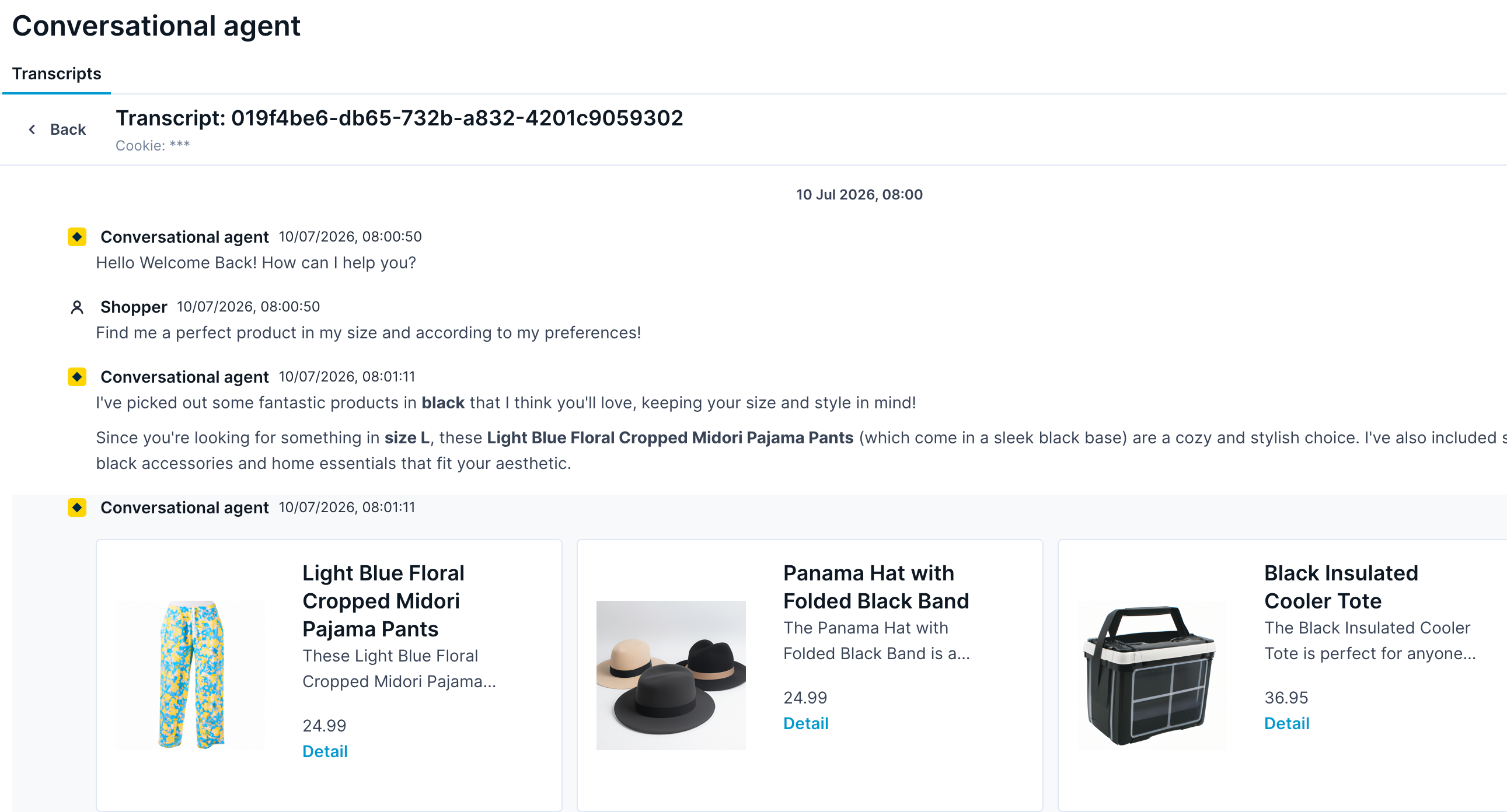
View the agent's interaction with your shoppers.
-
-
Examine event attributes. The attributes vary by event type.
Event types in transcripts: Transcripts contain two types of events that help you verify whether shoppers
purchased items recommended by Conversational agent or understand the context of their interactions:- Browse behavior events show how shoppers interact with your website outside of Conversational agent. These events include purchase, cart update, product and category views, and checkout events.
- Conversational agent events provide detailed information about interactions with Conversational agent beyond the text messages you see in the transcript. For example, when you click on a "trigger clicked" event, you can see:
- The buttons Conversational agent presents to the shopper.
- Whether the buttons were AI-generated.
- The buttons the shopper clicked.
-
Click Customer profile to analyze a customer's profile. A list of all customers with their attributes and event details opens.
Filters
Understand filter types
The filters apply in the following order:
1. Customer filter
With the Personal Data Viewer permission, filter customer profiles by attributes. The system always applies this filter first and then returns all transcripts associated with the matched customers.
Filter customers with multiple transcripts
Optionally filter out customers who have multiple transcripts to focus on single-session interactions. Each time a shopper clicks Clear Chat, the system generates a new transcript ID. This results in multiple transcripts for that shopper.
To remove customers with multiple transcripts, click Apply filter to exclude users with 2 or more transcripts, then click Apply filters.

Remove customers with multiple transcripts.
NoteWhen applying customer filters, the system displays transcripts for the first 1000 matching customers.
2. Transcript filter
After identifying the customer profiles, you can further filter transcripts by date range and conversational search.
Customer filters use case examples
Apply customer filters and use funnels to filter customer profiles that align with specific business goals. Here are common scenarios:
Product view after Conversational agent interaction
Business goal
Identify profiles where shoppers viewed a product detail page within 30 minutes of interacting with Conversational agent. This helps you understand whether Conversational agent successfully drives product discovery.
Build filter
-
Add the
clarityevent and set the action attribute touser_respond. This identifies customers who sent a message to Conversational agent. -
Add the
view_itemevent. This identifies customers who viewed a product detail page. -
Set a 30-minute completion window. This ensures you only see customers who viewed the product within 30 minutes of their Conversational agent interaction.
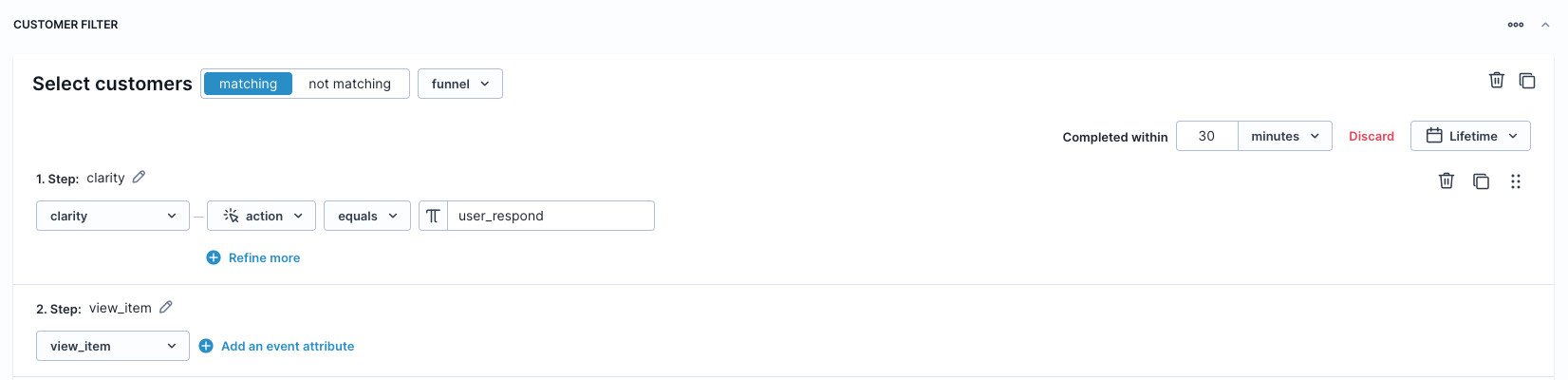
Product view within 30 minutes of Conversational agent interaction.
Cart abandonment analysis
Business goal
Find profiles where shoppers added items to their cart shortly after interacting with Conversational agent, but this didn’t result in an attributed purchase. This helps you identify potential friction points in the checkout process.
Build filter
Add to cart
- Add the
clarityevent and set the action attribute touser_respond. This identifies customers who interacted with Conversational agent. - Add the
cart_updateevent, set the action attribute toadd, and specify a 30-minute funnel constraint. This finds customers who added items to their cart within 30 minutes of the Conversational agent interaction.
Cart abandonment
-
Add the
clarityevent and set the action attribute touser_respond. -
Add the
purchaseevent. -
Specify the negative condition (not matching) that corresponds to the cart abandonment. This excludes customers who completed a purchase.
-
Specify a 7-day funnel constraint to attribute purchases within this window.
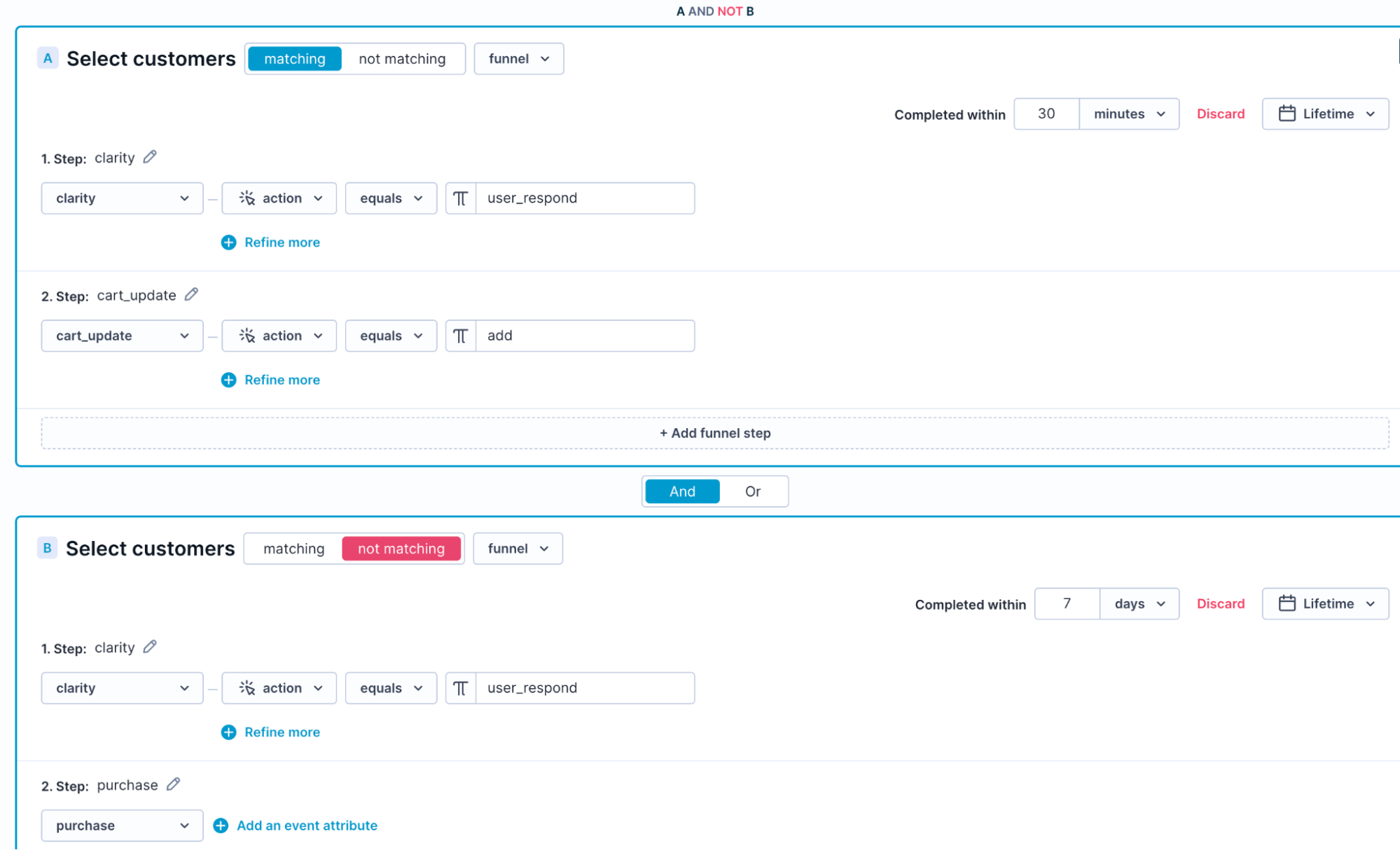
Add to cart with no attributed purchase.
Save and reuse filters
You can save and reuse filters as templates for quick access. Bloomreach recommends saving filters you expect to use frequently.
Filter transcripts by date range
To filter only transcripts where conversations occurred within the selected date range:
- Click the date range selector.
- Choose your start and end dates.
- Click Apply filters to view transcripts from that period.
Filter transcripts with conversational search
Find transcripts using the conversational context. This filter searches broadly using full-text matching and returns either agent or user messages that contain the defined keywords.
To filter transcripts using keywords:
- Enter one or more words in the conversational search bar.
- Use “ ” quotes to match exact phrases and “-” to exclude terms.
- Search is insensitive to case and accent marks.
- Special characters work as separators and don’t match exactly.
- Click Apply filters.
Analyze transcripts with Conversational agent AI
This feature lets you ask the Conversational agent AI a direct question about a filtered set of conversations.
-
Filter the set of conversations you want to analyze.
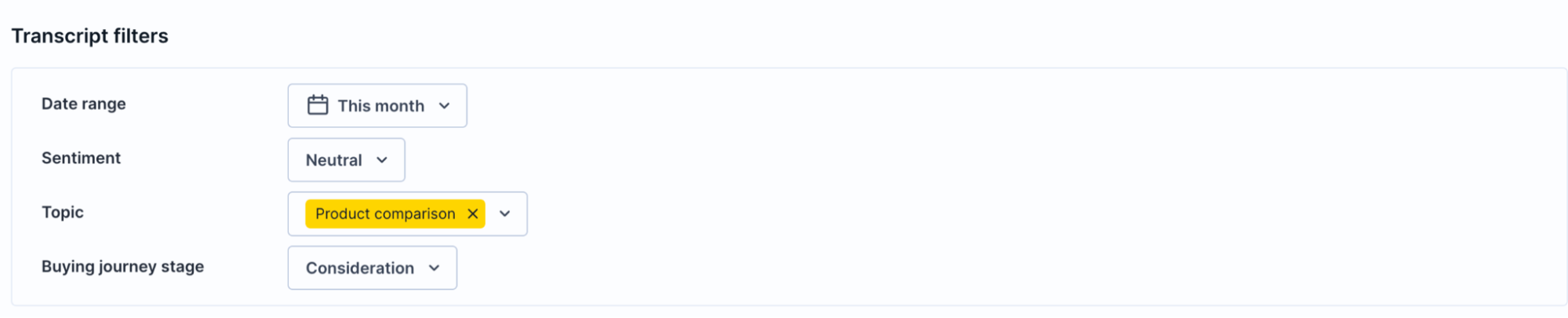
Apply the filter to transcripts.
-
Click Analyze transcripts.

This opens a modal. The date range and number of conversations being analyzed show at the top. The Conversational agent AI always analyzes the maximum number of conversations it can process in a single run, using Gemini models.
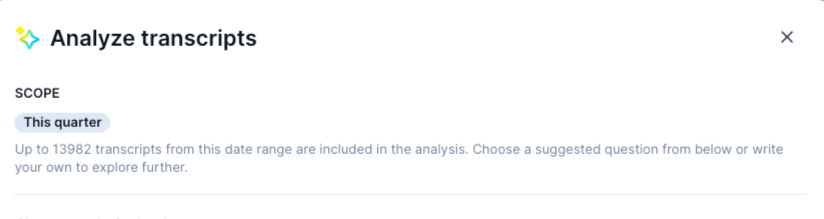
View the date range and number of conversations analyzed.
-
Set the analysis depth for the AI:
- Shopper messages only: Best for identifying frequent questions or complaints.
- Shopper and agent messages: Best for evaluating conversational quality, like what percentage of questions the agent answered.
- Shopper, agent, and product information: Best for finding product feed gaps causing incomplete answers. Works best on a narrower filtered set, since it adds more data per transcript.
-
Type any question about the transcripts. Optionally, choose one of the preset Suggested topics questions.
-
Click Analyze. The agent answers based on the filtered transcripts. Each question is answered independently; there's no follow-up thread. Optionally, start a new analysis.
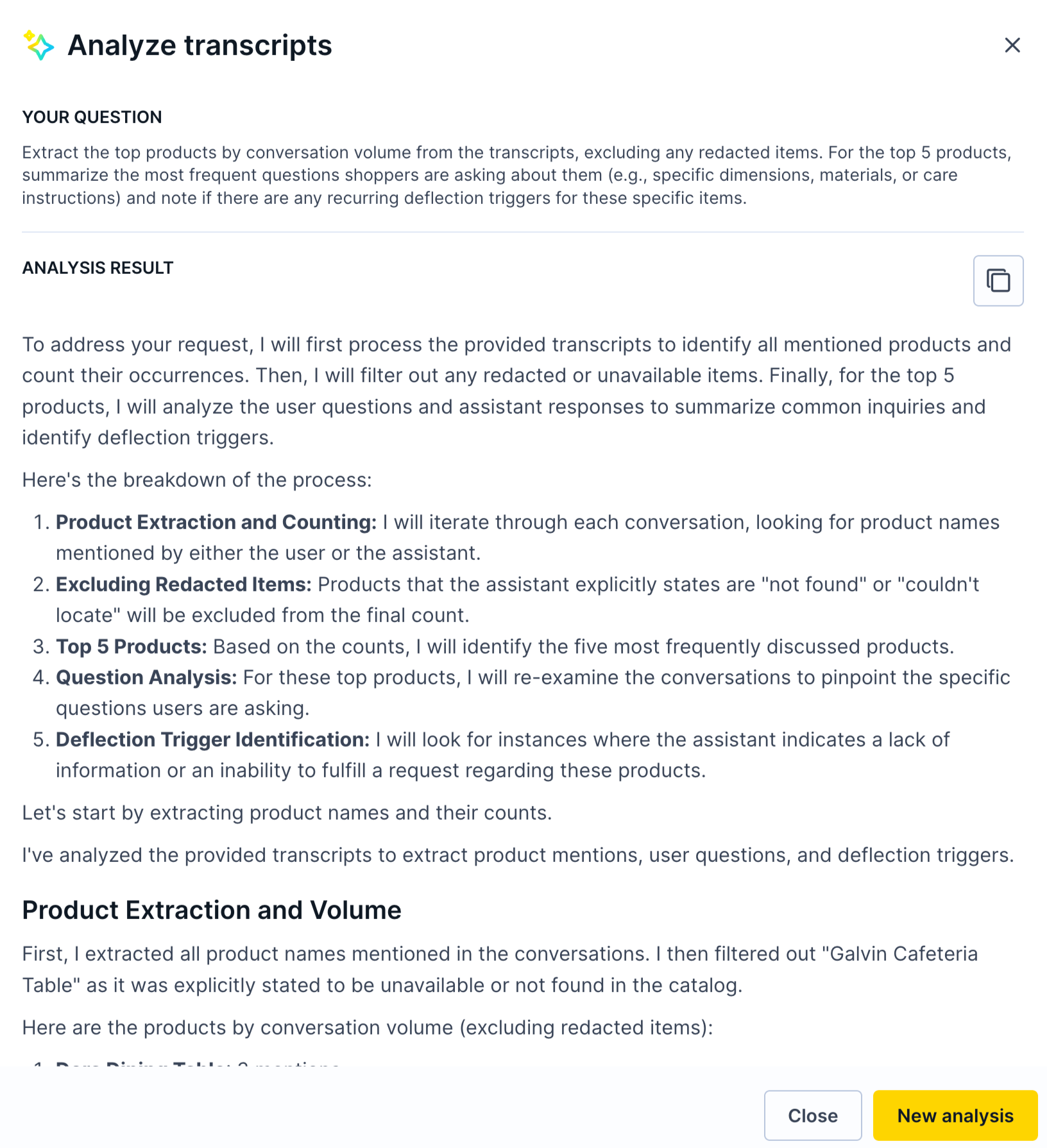
View the agent's answer.
Manage transcripts
To ensure GDPR compliance and manage your transcripts:
- Retrieve and permanently delete their Conversational agent transcripts.
- Set transcripts to expire automatically after a retention period.
Contact your Product Engagement Manager to help with the above.
PII in transcripts
Conversational agent doesn't ask customers for personally identifiable information (PII), but PII may be shared by customers via chat and stored in transcripts. To minimize risks associated with storing PII, follow the data storage and expiration guidelines.
Updated 21 days ago