

Authenticate MCP connection
This guide walks you through signing in to Bloomreach via Loomi Connect from your AI application. Authentication uses your existing Bloomreach login, so there are no separate credentials to manage.
Overview
Loomi Connect uses Bloomreach single sign-on (OIDC) to authenticate each session. The first time your AI application calls a Loomi Connect tool, the server opens a browser window to the Bloomreach login page. Once you sign in, your AI application can read live data from your Bloomreach workspace, and the session persists for up to 30 days.
Prerequisites
-
The Loomi Connect MCP server is connected to your AI application. For setup instructions, see Get started with MCP.
-
A Bloomreach account with access to the workspace you want to query. The MCP server respects your existing Bloomreach IAM permissions, including PII masking.
Authenticate to the MCP server
The authentication flow is the same across Claude Code, Cursor, or VS Code. You don't trigger it manually—your AI application starts it the first time a tool runs.
-
Open your AI application and start a new conversation.
-
Send a prompt that requires a Loomi Connect tool. For example:
List the Bloomreach organizations I have access to. -
You get an authentication URL, or a browser window opens, which redirects to the Bloomreach login page.
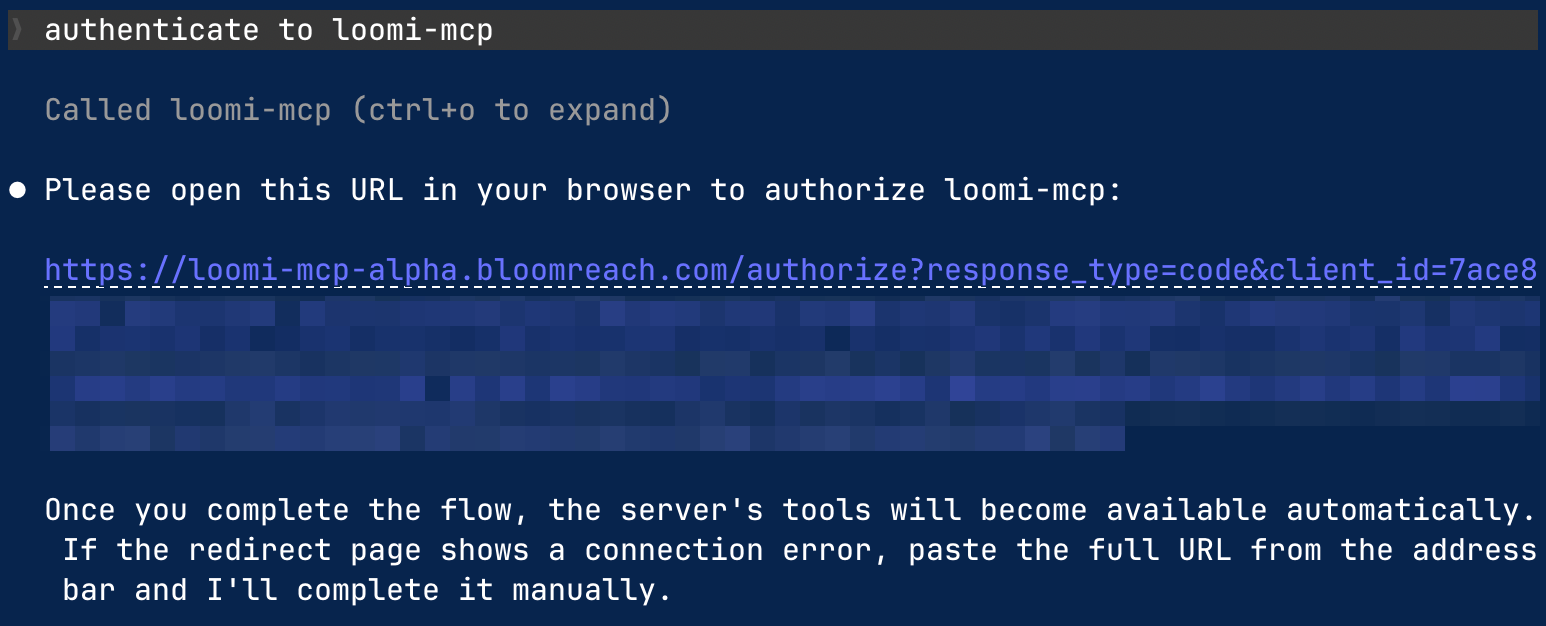
-
Sign in with the same Bloomreach credentials you use for the Bloomreach dashboard.
-
After you sign in, the browser confirms the connection, and you can return to your AI application to use the tools.
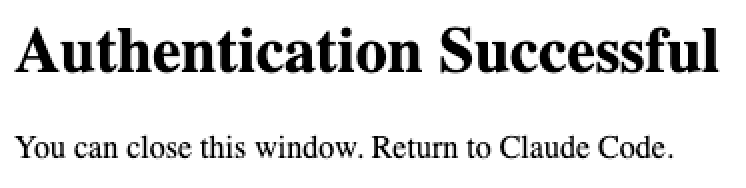
Your session is now active. You won't be prompted to sign in again until the session expires or you switch accounts.
Session duration
Authenticated sessions last up to 30 days. During that window, every tool call reuses the same session.
When a session expires, the next tool call re-opens the Bloomreach login page. Sign in again with the same credentials to start a new 30-day session.
Switch Bloomreach accounts
Each session is tied to the first Bloomreach account you sign in with. To use Loomi Connect with a different account, sign out of the current session first, then trigger a new tool call to reopen the login page and sign in with the other account.
Common issues
The login page won't accept your credentials
Confirm you're using the same email and password that work for the Bloomreach dashboard. Loomi Connect doesn't issue separate credentials. If you can't sign in to the dashboard, you won't be able to sign in to Loomi Connect either. Contact your Bloomreach representative to check that your account has access to the workspace you're trying to query.
Your AI application keeps prompting you to sign in
Repeated authentication prompts or 401 errors usually mean the cached session state is stale. Remove the Loomi Connect server from your AI application's MCP configuration, add it again using the steps in Get started with MCP, then trigger a new tool call to start a fresh session.
You signed in, but the tool call returns no data
Loomi Connect only returns data that your Bloomreach account has permission to access. If the result is empty or limited, check your IAM permissions in the Bloomreach admin. Users without the required permissions also see masked values (******) for PII fields—this is expected behavior, not an authentication problem.
Next steps
- Test MCP capabilities: Review what your AI application or agent can do once authenticated.
Updated 2 months ago