---
updatedAt: 2026-09-17T12:40:49.000Z
agentTools:
siteIndex: https://documentation.bloomreach.com/llms.txt
projectIndex: https://documentation.bloomreach.com/engagement/llms.txt
---
# Push notifications for Android SDK
Enable push notifications in your app using the Android SDK
Marketing enables sending push notifications to your app users using [scenarios](https://documentation.bloomreach.com/engagement/docs/scenarios-1). The mobile application handles the push message using the SDK and renders the notification on the customer's device.
Push notifications can also be silent, used only to update the app’s interface or trigger some background task.
> 📘
>
> Refer to [Mobile push notifications](https://documentation.bloomreach.com/engagement/docs/mobile-push-notifications#creating-a-new-notification) to learn how to create push notifications in the Marketing web app.
> 📘
>
> Also see [Mobile push notifications FAQ](https://support.bloomreach.com/hc/en-us/articles/18152713374877-Mobile-Push-Notifications-FAQ) at Bloomreach Support Help Center.
## Integration
This section describes the steps to add the minimum push notification functionality (receive alert notifications) to your app.
### Standard (Firebase) integration
To be able to send [push notifications](https://documentation.bloomreach.com/engagement/docs/mobile-push-notifications) from the Marketing platform and receive them in your app on Android devices, you must:
1. Set up a Firebase project.
2. Implement Firebase messaging in your app.
3. Configure the Firebase Cloud Messaging integration in the Marketing web app.
> 📘
>
> Follow the instructions in [Firebase Cloud Messaging for Android SDK](https://documentation.bloomreach.com/engagement/docs/android-sdk-firebase).
> 👍
>
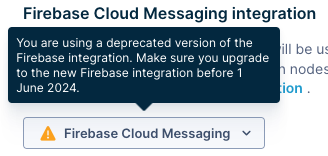
> Please note that with Google deprecating and removing the FCM legacy API in June 2024, Marketing is now using Firebase HTTP v1 API. Refer to [Firebase upgrade to HTTP v1 API](https://support.bloomreach.com/hc/en-us/articles/18931691055133-Firebase-upgrade-to-HTTP-v1-API) at the Bloomreach Support Help Center for upgrade information.
>
> If your Marketing project uses a deprecated version of the Firebase integration, you must [read and reconfigure the FCM integration following the current instructions](https://documentation.bloomreach.com/engagement/docs/android-sdk-firebase#configure-the-firebase-cloud-messaging-integration-in-engagement).
>
> 
### Huawei integration
To be able to send [push notifications](https://documentation.bloomreach.com/engagement/docs/mobile-push-notifications) from the Marketing platform and receive them in your app on Huawei devices, you must:
1. Set up Huawei Mobile Services (HMS)
2. Implement HMS in your app.
3. Configure the Huawei Push Service integration in the Marketing web app.
> 📘
>
> Follow the instructions in [Huawei Mobile Services](https://documentation.bloomreach.com/engagement/docs/android-sdk-huawei).
### Request notification permission
As of Android 13 (API level 33), a new runtime notification permission `POST_NOTIFICATIONS` must be registered in your `AndroidManifest.xml` and must also be granted by the user for your application to be able to show push notifications.
The SDK already registers the `POST_NOTIFICATIONS` permission.
The runtime permission dialog to ask the user to grant the permission must be triggered from your application. You can use the SDK API for that purpose:
```kotlin
Exponea.requestPushAuthorization(requireContext()) { granted ->
Log.i("PushNotifications", "Push notifications are allowed: $granted")
}
```
The behavior of this callback is as follows:
* For Android API level <33:
* Permission is not required, return `true` automatically.
* For Android API level 33+:
* Show the dialog, return the user's decision (`true`/`false`).
* In case of previously granted permission, don't show the dialog return `true`.
#### Notification permission and token validity
On Android 13 and higher, the app may not be able to send normal push notifications, even though a freshly generated token (at application start) is valid, if the user didn't grant permission to receive notifications. The same applies on any Android version when the user disables notifications for the app in system settings.
The SDK tracks the push token regardless of the user's notification permission. Every `notification_state` event reflects the current status in its `valid` and `description` properties:
* `valid: true`, `description: "Permission granted"` - the user has granted notification permission. The token can be used to send both normal and silent push notifications.
* `valid: false`, `description: "Permission denied"` - the user has denied (or not yet granted) notification permission, or notifications are disabled for the app in system settings. The token can only be used to send silent push notifications until the user authorizes notifications.
Learn more about [Token tracking via notification\_state event](#token-tracking-via-notification_state-event).
## Customization
This section describes the customizations you can implement once you have integrated the minimum push notification functionality.
### Configure automatic push notification tracking
By default, the SDK tracks push notifications automatically. In the [Configuration for Android SDK](https://documentation.bloomreach.com/engagement/docs/android-sdk-configuration), you can set the desired frequency using the `tokenTrackFrequency` property (default value is `ON_TOKEN_CHANGE`). You can also disable automatic push notification tracking by setting the Boolean value of the `automaticPushNotification` property to `false`.
If `automaticPushNotification` is enabled, the SDK will display push notifications from Marketing and track a "campaign" event for every delivered/opened push notification with the relevant properties.
> ❗️Important
>
> SDK versions 4.6.0 and higher use event-based token tracking to support multiple mobile applications per project. Learn more about [Token tracking via notification\_state event](#token-tracking-via-notification_state-event).
### Respond to push notifications
When [creating a push notification](https://documentation.bloomreach.com/engagement/docs/mobile-push-notifications#creating-a-new-notification) in the Marketing web app, you can choose from three different actions to be performed when tapping the notification or additional buttons displayed with the notification.
#### Open app
The "Open app" action generates an intent with action `com.exponea.sdk.action.PUSH_CLICKED`. The SDK automatically responds to it by opening your app's launcher activity.
> ❗️
>
> Previous SDK versions (<=2.9.7) required the creation of your own broadcast receiver to handle the open action, but since notification trampolining (opening activity from a receiver or a service) is no longer allowed since Android S, your activity intent will be opened directly from the notification, and this receiver is no longer needed on the application side.
#### Deep link
The "Deep link" action creates a "view" intent that contains the URL specified when setting up the action in Marketing. To respond to this intent, create an intent filter on the activity that handles it in your Android manifest file. For details, refer to [Create Deep Links to App Content](https://developer.android.com/training/app-links/deep-linking) in the official Android documentation.
```xml
```
> ❗️
>
> If deep link intent is sent to an Activity that is currently active, the default behavior is that the intent is delivered to [onNewIntent](https://developer.android.com/reference/android/app/Activity#onNewIntent\(android.content.Intent\)) method rather than [onCreate](https://developer.android.com/reference/android/app/Activity#onCreate\(android.os.Bundle\)).
#### Open web browser
The "Open web browser" action is handled automatically by the SDK and no work is required from the developer to handle it.
### Handle additional data payload
When [creating a push notification](https://documentation.bloomreach.com/engagement/docs/mobile-push-notifications#creating-a-new-notification) in the Marketing web app, you can set it up to contain additional data. Whenever a notification arrives, the SDK will call `pushNotificationsDelegate`, which you can set on the `Exponea` object.
```kotlin
Exponea.pushNotificationsDelegate = object : PushNotificationDelegate {
override fun onSilentPushNotificationReceived(notificationData: Map) {
// handle the additional data of silent push notification
}
override fun onPushNotificationReceived(notificationData: Map) {
// handle the additional data of normal push notification
}
override fun onPushNotificationOpened(
action: ExponeaNotificationActionType,
url: String?,
notificationData: Map
) {
// handle the additional data of clicked push notification action
}
}
```
Note that if the SDK previously received any additional data while no listener was attached to the callback, it will dispatch up to 100 most recently received and clicked push notification data as soon as a listener is attached.
> ❗️
>
> Using of `notificationDataCallback` is now deprecated. Please consider to use new `pushNotificationsDelegate` with these benefits:
>
> * multiple received push notifications are kept until listener is set
> * clicked push notification actions are delivered to listener also (with multiple records keeping feature too)
> * you are able to determine if received notification is silent or was shown to user
When [creating a push notification](https://documentation.bloomreach.com/engagement/docs/mobile-push-notifications#creating-a-new-notification) in the Marketing web app, you can set it up to contain additional data. Whenever a notification arrives, the SDK will call `notificationCallback`, which you can set on the `Exponea` object. The additional data is provided as a `Map`.
```kotlin
Exponea.notificationDataCallback = {
extra -> // handle the additional data
}
```
Note that if the SDK previously received any additional data while no listener was attached to the callback, it will dispatch last received push notification data as soon as a listener is attached.
> 👍
>
> `Exponea.notificationDataCallback` callback will be called after you attach the listener (next app start) and the SDK is initialized. If you need to respond to the notification received immediately, implement your own `FirebaseMessagingService` and set the notification data callback in `onMessageReceived` function before calling `Exponea.handleRemoteMessage`.
> ❗️
>
> The behaviour of `trackDeliveredPush` may be affected by the tracking consent feature, which in enabled mode considers the requirement of explicit consent for tracking. Read more in [tracking consent documentation](https://documentation.bloomreach.com/engagement/docs/tracking-consent).
### Custom processing of notification actions
When a user clicks on a notification or its buttons, the SDK automatically performs the configured action (open app, browser, etc.). If you require additional processing when this event occurs, you can create a receiver for this purpose. The SDK broadcastings `com.exponea.sdk.action.PUSH_CLICKED`, `com.exponea.sdk.action.PUSH_DEEPLINK_CLICKED`, and `com.exponea.sdk.action.PUSH_URL_CLICKED` actions, and you can specify them in an intent filter to respond to them.
Registration in `AndroidManifest.xml`:
```xml
```
Receiver class:
```kotlin
class MyReceiver : BroadcastReceiver() {
// React on push action click
override fun onReceive(context: Context, intent: Intent) {
// Extract push data
val data = intent.getParcelableExtra(ExponeaExtras.EXTRA_DATA)
val actionInfo = intent.getSerializableExtra(ExponeaExtras.EXTRA_ACTION_INFO) as? NotificationAction
val customData = intent.getSerializableExtra(ExponeaExtras.EXTRA_CUSTOM_DATA) as Map
// Process push data as you need
}
}
```
### Silent push notifications
The Marketing web app allows you to set up silent push notifications, that are not displayed to the user. The SDK tracks a `campaign` event when a silent push notification is delivered. Silent push notifications cannot be opened but if you have set up extra data in the payload, the SDK will call `Exponea.notificationDataCallback` as described in [Handle extra data payload](#handle-extra-data-payload).
### Push notification alert sound
Received push notifications handled by `Exponea.handleRemoteMessage()` will play a default or customized sound when the notification is displayed.
To use the default sound for a notification, keep empty or enter `default` as value for `Media > Sound` in your push notification scenario in the Marketing web app.
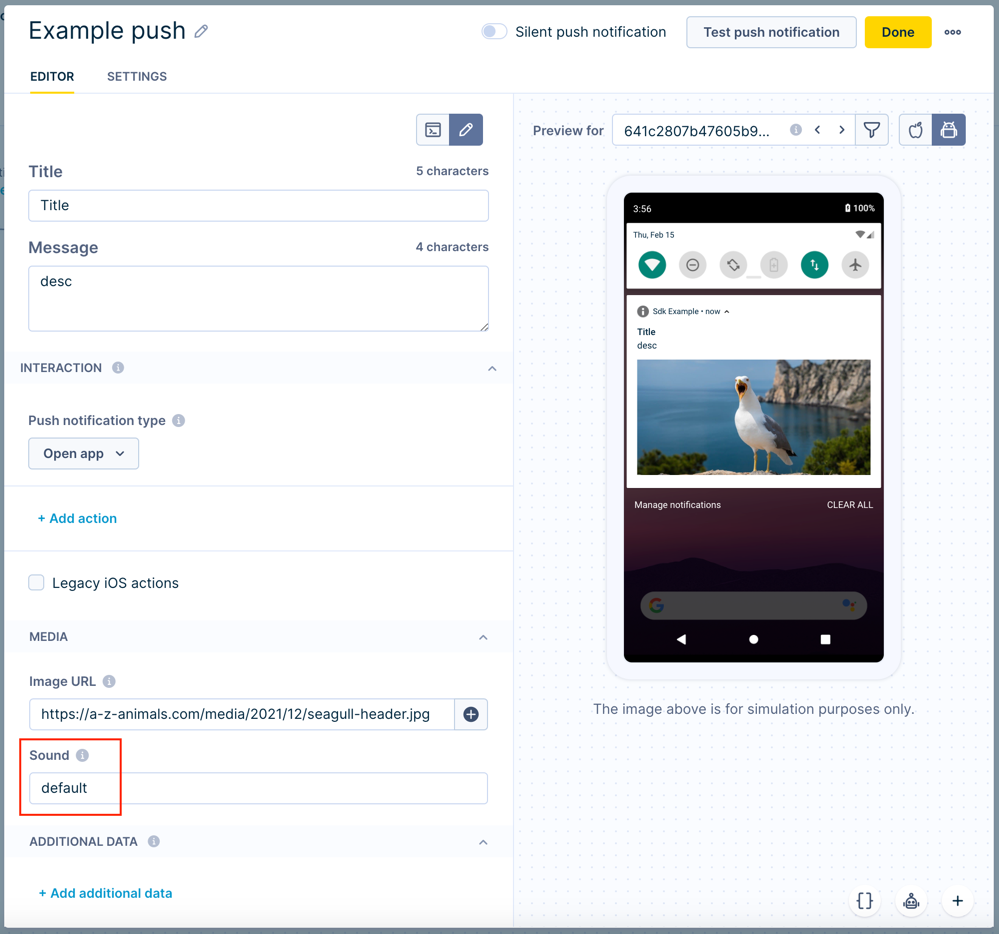
To use a custom sound for a notification, you must create a sound file that [Android supports](https://developer.android.com/media/platform/supported-formats#audio-formats). Include the sound file in your 'raw' Android resources.
Once the custom sound is in place in your app, enter the file name of the sound file as value for `Media > Sound` in your push notification scenario in the Marketing web app. Ensure that you enter the exact file name (case sensitive) without extension.
> ❗️
>
> Playing of the notification sound may be affected by the notification channel importance, the user's app notification behaviour setup, or by active Do Not Disturb mode. Read more in the [notifications overview](https://developer.android.com/develop/ui/views/notifications) in the Android documentation.
### Manually track push notifications
If you disable [automatic push notification tracking](#configure-automatic-push-notification-tracking) or if you want to track push notification from other providers, you can manually track events related to push notifications.
#### Track push token (FCM)
Use the [`trackPushToken`](https://documentation.bloomreach.com/engagement/docs/android-sdk-tracking#track-token-manually) method to manually track the FCM push token:
```kotlin
Exponea.trackPushToken(
token = "382d4221-3441-44b7-a676-3eb5f515157f"
)
```
Invoking this method will track the push token immediately regardless of the [Configuration for Android SDK](https://documentation.bloomreach.com/engagement/docs/android-sdk-configuration) for `tokenTrackFrequency`.
> ❗️Important
>
> SDK versions 4.6.0 and higher use event-based token tracking to support multiple mobile applications per project. Learn more about [Token tracking via notification\_state event](#token-tracking-via-notification_state-event).
> ❗️ Re-track the push token after `stopIntegration()`
>
> If your app re-initializes the SDK by calling `init()` after a previous `stopIntegration()`, you must re-track the push token after each re-initialization. Refer to [Re-tracking the push token after stopIntegration](https://documentation.bloomreach.com/engagement/docs/android-sdk-tracking#re-tracking-the-push-token-after-stopintegration) for details.
#### Track delivered push notification
Use the [`trackDeliveredPush`](https://documentation.bloomreach.com/engagement/docs/android-sdk-tracking#track-push-notification-delivery-manually) method to manually track a delivered push notification:
```kotlin
// create NotificationData from your push payload
val notificationData = NotificationData(
dataMap = hashMapOf(
"platform" to "android",
"subject" to "Subject",
"type" to "push",
...
),
campaignMap = mapOf(
"utm_campaign" to "Campaign name",
"utm_medium" to "mobile_push_notification",
"utm_content" to "en",
...
)
)
Exponea.trackDeliveredPush(
data = notificationData
timestamp = currentTimeSeconds()
)
```
> ❗️
>
> The behaviour of `trackDeliveredPush` may be affected by the tracking consent feature, which, when enabled, requires explicit consent for tracking. Read more in the [Tracking consent for Android SDK](https://documentation.bloomreach.com/engagement/docs/android-sdk-tracking-consent).
#### Track clicked push notification
Use the [`trackClickedPush`](https://documentation.bloomreach.com/engagement/docs/android-sdk-tracking#track-push-notification-click-manually) method to manually track a clicked push notification:
```kotlin
// create NotificationData from your push payload
val notificationData = NotificationData(
dataMap = hashMapOf(
"platform" to "android",
"subject" to "Subject",
"type" to "push",
...
),
campaignMap = mapOf(
"utm_campaign" to "Campaign name",
"utm_medium" to "mobile_push_notification",
"utm_content" to "en",
...
)
)
Exponea.trackClickedPush(
data = notificationData
timestamp = currentTimeSeconds()
)
```
> The behaviour of `trackClickedPush` may be affected by the tracking consent feature, which, when enabled, requires explicit consent for tracking. Read more in the [Tracking consent for Android SDK](https://documentation.bloomreach.com/engagement/docs/android-sdk-tracking-consent).
### Custom push notification data processing
If the provided `Exponea.handleRemoteMessage` method does not fit the requirements of your app, or you decide to disable automatic push notifications, you must handle push notifications and process their payload yourself.
Notification payloads are generated from (possibly complex) scenarios in the Marketing platform and contain all data for Android, iOS and web platforms. Therefore, the payload itself can be complex.
Notification payloads use a JSON data structure.
#### Payload example
```json
{
"notification_id": 123,
"url": "https://example.com/main_action",
"title": "Notification title",
"action": "app|browser|deeplink|self-check",
"message": "Notification message",
"image": "https://example.com/image.jpg",
"actions": [
{"title": "Action 1", "action": "app|browser|deeplink", "url": "https://example.com/action1"}
],
"sound": "default",
"aps": {
"alert": {"title": "Notification title", "body": "Notification message"},
"mutable-content": 1
},
"attributes": {
"event_type": "campaign",
"campaign_id": "123456",
"campaign_name": "Campaign name",
"action_id": 1,
"action_type": "mobile notification",
"action_name": "Action 1",
"campaign_policy": "policy",
"consent_category": "General consent",
"subject": "Subject",
"language": "en",
"platform": "ios|android",
"sent_timestamp": 1631234567.89,
"recipient": "user@example.com"
},
"url_params": {"param1": "value1", "param2": "value2"},
"source": "xnpe_platform",
"silent": false,
"has_tracking_consent": true,
"consent_category_tracking": "Tracking consent name"
}
```
## Token tracking via notification\_state event
Starting with SDK version 4.6.0, push notification tokens are tracked using `notification_state` events instead of customer
profile properties. This change enables support for multiple mobile applications per project,
allowing you to track multiple push tokens for the same customer across different apps and devices.
### Token storage by SDK version
#### SDK versions below 4.6.0:
* Tokens are stored in customer profile properties: `google_push_notification_id` or `huawei_push_notification_id`
* One token per customer profile
* Single application per project
#### SDK versions 4.6.0 and higher:
* Tokens are stored as `notification_state` events
* Multiple tokens per customer (grouped by Application ID)
* Multiple applications per project supported
* Backward compatibility maintained for Application ID `default-application`
### When notification\_state events are tracked
The SDK automatically tracks `notification_state` events in the following scenarios:
* SDK initialization
* App transitions from background to foreground (only if notification permission status changed)
* SDK version changes (app update)
* `application_id` changes in the SDK configuration
* New token received from Firebase or Huawei
* Manual token tracking using `Exponea.trackPushToken(...)` or `Exponea.trackHmsPushToken(...)` (this method allows you to force tracking/sending the current push token via notification\_state event)
* User anonymization via `Exponea.anonymize()` or `Exponea.stopIntegration()`
* Notification permission requested via `Exponea.requestPushAuthorization(...)`
```kotlin
Exponea.requestPushAuthorization(requireContext()) { granted ->
Log.i("PushNotifications", "Push notifications are allowed: $granted")
}
```
The frequency of `notification_state` event tracking depends on the `tokenTrackFrequency` configuration property. [See Configuration for Android SDK](https://documentation.bloomreach.com/engagement/docs/android-sdk-configuration).
> 📘 Note
>
> When `tokenTrackFrequency` is set to `ON_TOKEN_CHANGE` (the default), the SDK also refreshes the `notification_state` event every 30 days, even when the token hasn't changed.
> 📘 Note
>
> When you set `tokenTrackFrequency` to `EVERY_LAUNCH`, the SDK tracks the push token once per app launch (process start). All other SDK operations during that launch reuse this tracking, so each launch produces a single `notification_state` event.
>
> Some operations bypass this limit and always trigger tracking:
>
> * Manual tracking through `trackPushToken()`.
> * Receiving a new token from FCM or HMS.
> * Calling `anonymize()` or `stopIntegration()`.
### notification\_state event properties
| Property | Description | Example values |
| ------------------------- | --------------------------------------------- | ----------------------------------------------------------- |
| `push_notification_token` | Current push notification token | Token string |
| `platform` | Mobile platform | `android` or `huawei` |
| `valid` | Token validity status | `true` or `false` |
| `description` | Token state description | `Permission granted`, `Permission denied`, or `Invalidated` |
| `application_id` | Application identifier from SDK configuration | Custom ID or `default-application` (default) |
| `device_id` | Unique device identifier | UUID string |
In addition to the properties above, each `notification_state` event includes device-related properties: `os_name`, `os_version`, `sdk`, `sdk_version`, `device_model`, `device_type`, and `app_version`.
> 📘 Note
>
> If you don't specify an `application_id` in your SDK configuration, the default value `default-application` is used. [See Configuration for Android SDK](https://documentation.bloomreach.com/engagement/docs/android-sdk-configuration).
### Understanding token states
The combination of `valid` and `description` properties indicates the token's current state:
| Valid | Description | When this occurs |
| ------- | -------------------- | ------------------------------------------------------------------------------------- |
| `false` | `Invalidated` | New token received (old token becomes invalid) or `Exponea.anonymize()` called. |
| `false` | `Permission denied` | User denied notification permission or notifications are disabled in system settings. |
| `true` | `Permission granted` | User has granted notification permission and notifications are enabled. |
### Configuring Application ID
> 📘 Note
>
> See this section to configure `application_id`. [Configure Application ID](https://documentation.bloomreach.com/engagement/docs/android-sdk-setup#configure-application-id).
> ❗️Important
>
> The SDK can automatically generate `notification_state` events,
> but your Marketing project must have event creation enabled. If your project uses custom event schemas
> or restricts event creation, add `notification_state` to the list of allowed events. Otherwise, push token registration will fail silently.
### Verifying token tracking
You can verify that tokens are being tracked correctly in the Marketing web application:
1. Navigate to Data & Assets > Customers
2. Locate the customer profile
3. Check for `notification_state` events in the customer's event history
4. Verify the `push_notification_token` property contains a valid token value
For SDK versions below 4.6.0, check the customer profile properties `google_push_notification_id` or `huawei_push_notification_id` instead.
## Troubleshooting
> 📘
>
> Refer to [Mobile Push Notifications FAQ](https://support.bloomreach.com/hc/en-us/articles/18152713374877-Mobile-Push-Notifications-FAQ) in our support portal for frequently asked questions related to push notifications.
If push notifications aren't working as expected in your app, consider the following frequent issues and their possible solutions:
### Clicking on a push notification does not open the app on Xiaomi Redmi devices
Xiaomi MIUI handles battery optimization in its own way, which can sometimes affect the behavior of push notifications.
If battery optimization is on for devices running MIUI, it can make push notifications stop showing or not working after the click. Unfortunately, there is nothing we can do on our end to prevent this, but you can try this to solve the issues:
* Turn off any battery optimizations in `Settings` > `Battery & Performance`.
* Set the "No restrictions" option in the battery saver options for your app.
* And (probably) most important, turn off `Memory and MIUI Optimization` under `Developer Options`.
### Push notification token is missing after stopIntegration()
`Exponea.stopIntegration()` clears the locally stored push notification token. The SDK cannot recover the token, and a subsequent `init()` is called without a stored token — even though the host app may still hold a valid token it received earlier from the push service.
After `stopIntegration()` followed by a later `init()`, the host app must call `trackPushToken()` (FCM) or `trackHmsPushToken()` (HMS) again after each `init()`, passing the token it already holds. See [Re-tracking the push token after stopIntegration()](https://documentation.bloomreach.com/engagement/docs/android-sdk-tracking#re-tracking-the-push-token-after-stopintegration).
> 📘 Note
>
> Unlike `stopIntegration()`, `Exponea.anonymize()` does not clear the locally stored push token. The SDK automatically invalidates the token on the previous customer profile and re-tracks the same token against the new anonymous customer profile. No manual token re-tracking is required after `anonymize()`.
> 📘
>
> Refer to [Firebase Cloud Messaging for Android SDK](https://documentation.bloomreach.com/engagement/docs/android-sdk-firebase) and [Huawai Mobile Services](https://documentation.bloomreach.com/engagement/docs/android-sdk-huawei) for information on how to retrieve a valid push notification token.
### Multiple customer profiles have the same push notification token assigned
This is most likely because your app does not detach the push token from the signed-out customer profile on logout.
Call either [`anonymize()`](https://documentation.bloomreach.com/engagement/docs/android-sdk-tracking#anonymize) or [`stopIntegration()`](https://documentation.bloomreach.com/engagement/docs/android-sdk-tracking#stop-sdk-integration) when a user logs out so the push token is removed from that user's profile.
Prefer `stopIntegration()` whenever your integration should avoid anonymous events after logout — the typical example is a `StreamConfig` integration with an [SDK auth token (JWT)](https://documentation.bloomreach.com/engagement/docs/android-sdk-authorization#sdk-auth-token-authorization) on a Data hub event stream configured with [signed-only permissions](https://documentation.bloomreach.com/data-hub/docs/set-up-event-stream-security-and-permissions#configure-permissions).
If neither `stopIntegration()` nor `anonymize()` is called, the same token can end up on multiple customer profiles when a different user signs in.
### Push notification click events are too rare on production (low conversion)
Android 8 (API level 26) introduced the concepts "notification channel" and "importance level". The importance level determines the visual and auditory behavior of a channel's notifications, as [defined by the Android system](https://developer.android.com/develop/ui/views/notifications/channels#importance).
Developers set a default importance level when creating a notification channel. However, users have the option to configure how visible and intrusive a channel is, overriding its default importance. This may result in notifications not being shown to a user at all, even if you set a channel's default importance to `IMPORTANCE_MAX`.
If a user overrides a notification channel's importance with `IMPORTANCE_NONE`, notifications won't be shown. This means a "campaign" event with `status=clicked` won't be tracked as the notification can't be clicked or interacted with.
The SDK is not able to avoid this. However, it will still track a "campaign" event with `status=delivered` and the following additional properties that may be helpful in analyzing and filtering:
* **state** contains the value `shown` if the notification was shown to the customer successfully. If not, the value is `not_shown`.
* **notification\_importance** contains a readable value of the current notification channel importance. Possible values are:
* **importance\_none** reflects value of `NotificationManager.IMPORTANCE_NONE`.
* **importance\_min** reflects value of `NotificationManager.IMPORTANCE_MIN`.
* **importance\_low** reflects value of `NotificationManager.IMPORTANCE_LOW`.
* **importance\_default** reflects value of `NotificationManager.IMPORTANCE_DEFAULT`.
* **importance\_high** reflects value of `NotificationManager.IMPORTANCE_HIGH`.
* **importance\_max** reflects value of `NotificationManager.IMPORTANCE_MAX`.
* **importance\_unspecified** reflects value of `NotificationManager.IMPORTANCE_UNSPECIFIED`.
* **importance\_unspecified** reflects value of `NotificationManager.IMPORTANCE_UNSPECIFIED`.
* **importance\_unknown** is tracked in case the notification channel could not be found due to invalid registration or an old Android version that doesn't support notification channels.
* **importance\_unsupported** is tracked in case the notification channel exists but the `importance` feature is unsupported by Android (pre API level 26).