---
updatedAt: 2026-09-17T12:40:47.000Z
agentTools:
siteIndex: https://documentation.bloomreach.com/llms.txt
projectIndex: https://documentation.bloomreach.com/engagement/llms.txt
---
# In-app content blocks for Android SDK
Display native in-app content blocks based on definitions set up in Marketing using the Android SDK
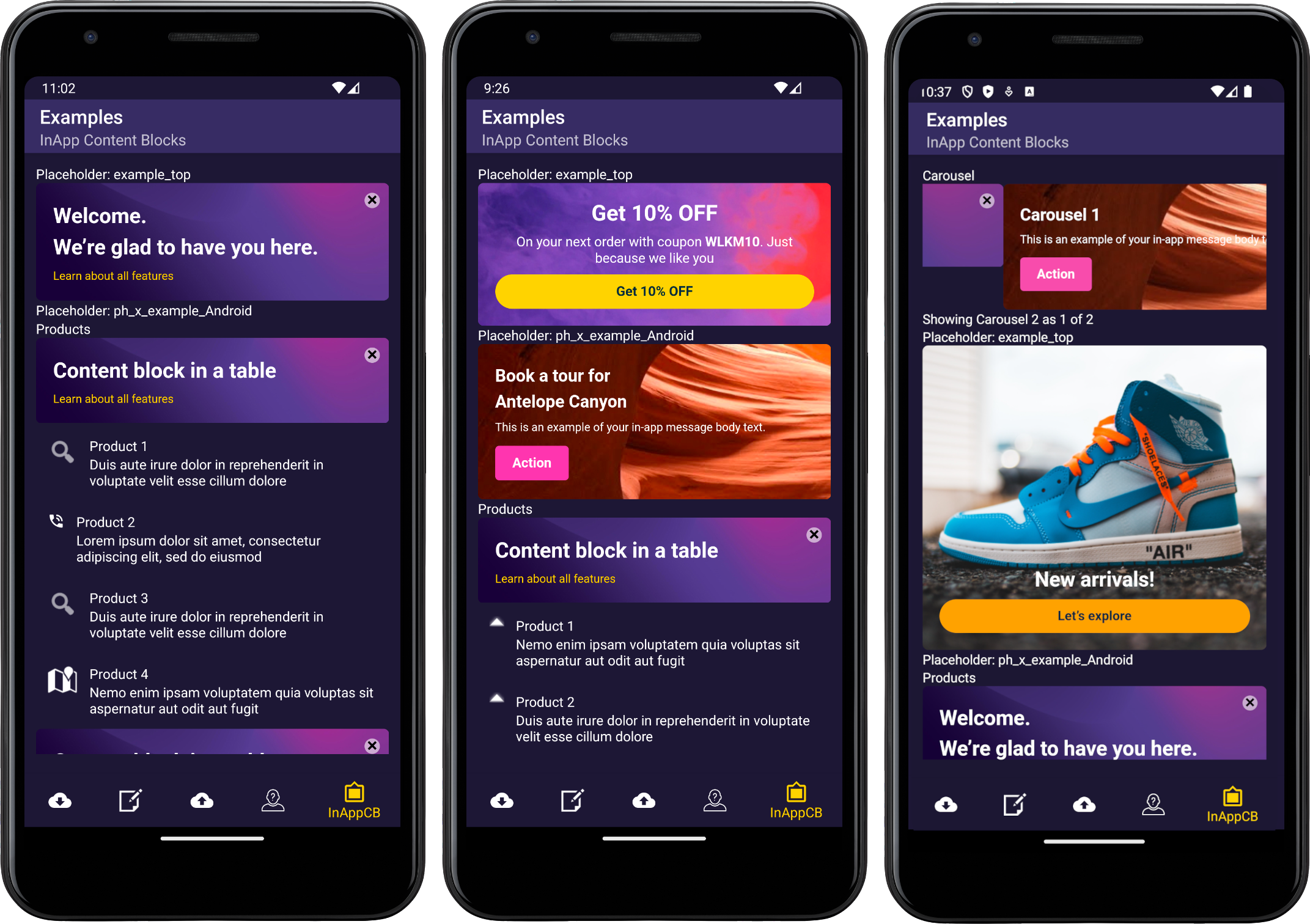
In-app content blocks provide a way to display campaigns within your mobile applications that seamlessly blend with the overall app design. Unlike [In-app messages for Android SDK](https://documentation.bloomreach.com/engagement/docs/android-sdk-in-app-messages) that appear as overlays or pop-ups demanding immediate attention, in-app content blocks display inline with the app's existing content.
You can strategically position placeholders for in-app content blocks within your app. You can customize the behavior and presentation to meet your specific requirements.
> 📘
>
> Refer to the [In-app content blocks](https://documentation.bloomreach.com/engagement/docs/in-app-content-blocks) user guide for instructions on how to create in-app content blocks in Marketing.
## Runtime prefetch and targeted invalidation
For navigation flows where a CMS screen is known before it is shown, use the optional runtime
controller after SDK initialization. It resolves the static list and warms eligible content while
selection, rendering, and tracking remain inside the SDK's existing placeholder view:
```kotlin
val controller = Exponea.inAppContentBlocksController ?: return
controller.prefetch(listOf("article_hero")) { availability ->
// This callback runs on the main thread. Load re-renders from the warmed cache;
// it does not start another request when the content is already fresh.
placeholderView.load()
}
```
For a bounded navigation decision, use `availability(id, deadlineMillis)`. Its callback receives
`Resolved(Ready)` or `Resolved(Empty)` when content is available, or `TimedOut` when the caller's
deadline expires. A timeout does not cancel the shared background fetch.
Use `invalidate(ids, reason, EAGER) { ... }` when an individual CMS placement has changed. It
clears only that placement's derived content, performs an unconditional refresh, and calls back
with final `Ready` or `Empty` states. Call `placeholderView.load()` in that callback to render the
fresh cache. `LAZY` clears cache only, immediately returns `Loading`, and waits for a later
prefetch, availability request, or legacy placeholder `load()` to start the next load.
SDK-owned runtime rendering (`RuntimeICBView`) and long-lived availability observation are deferred
from this first runtime-control slice. Use the existing `InAppContentBlockPlaceholderView` or
carousel to render content.
## Integration of a placeholder view
You can integrate in-app content blocks by adding one or more placeholder views in your app. Each in-app content block must have a `Placeholder ID` specified in its [settings](https://documentation.bloomreach.com/engagement/docs/in-app-content-blocks#3-fill-the-settings) in Marketing. The SDK will display an in-app content block in the corresponding placeholder in the app if the current app user matches the target audience. In-app content block is shown until user interacts with it or placeholder view instance is reloaded programmatically.
### Add a placeholder view
Get a placeholder view for the specified `placeholderId` from the API using the `getInAppContentBlocksPlaceholder` method:
```kotlin
val placeholderView = Exponea.getInAppContentBlocksPlaceholder("example_content_block", activityContext)
```
Then, place the placeholder view at the desired location by adding it to your layout:
```kotlin
yourLayout.addView(placeholderView)
```
After the SDK [initializes](https://documentation.bloomreach.com/engagement/docs/android-sdk-setup#initialize-the-sdk), it will identify any in-app content blocks with matching placeholder ID and select the one with the highest priority to display within the placeholder view.
> 📘
>
> Refer to [InAppContentBlocksFragment](https://github.com/exponea/exponea-android-sdk/blob/main/app/src/main/java/com/exponea/example/view/fragments/InAppContentBlocksFragment.kt) in the [Example app for Android SDK](https://documentation.bloomreach.com/engagement/docs/android-sdk-example-app) for a reference implementation.
> 👍
>
> Always us descriptive, human-readable placeholder IDs. They are tracked as an event property and can be used for analytics within Marketing.
## Integration of a carousel view
If you want to show multiple in-app content blocks to the user for the same `Placeholder ID`, consider using `ContentBlockCarouselView`. The SDK will display the in-app content blocks for the current app user in a loop, in order of `Priority`. The in-app content blocks are displayed in a loop until the user interacts with them or until the carousel view instance is reloaded programmatically.
If the carousel view's placeholder ID only matches a single in-app content block, it will behave like a static placeholder view with no loop effect.
### Add a carousel view
Get a carousel view for the specified `placeholderId` from the API using the `getInAppContentBlocksCarousel` method:
```kotlin
val carouselView = Exponea.getInAppContentBlocksCarousel(
context = activityContext,
placeholderId = "example_content_block",
maxMessagesCount = 5, // max count of visible content blocks; 0 for show all; default value is 0
scrollDelay = 5 // delay in seconds between automatic scroll; 0 for no scroll; default value is 3
)
```
Then, place the placeholder view at the desired location by adding it to your layout:
```kotlin
yourLayout.addView(carouselView)
```
Or you may add the carousel view directly into your layout XML:
```xml
```
> 📘
>
> Refer to [InAppContentBlocksFragment](https://github.com/exponea/exponea-android-sdk/blob/main/app/src/main/java/com/exponea/example/view/fragments/InAppContentBlocksFragment.kt) and [`fragment_inapp_content_blocks.xml`](https://github.com/exponea/exponea-android-sdk/blob/main/app/src/main/res/layout/fragment_inapp_content_blocks.xml) in the [Example app for Android SDK](https://documentation.bloomreach.com/engagement/docs/android-sdk-example-app) for a reference implementation.
> 👍
>
> Always us descriptive, human-readable placeholder IDs. They are tracked as an event property and can be used for analytics within Marketing.
## Tracking
The SDK automatically tracks `banner` events for in-app content blocks with the following values for the `action` event property:
* `show`
In-app content block has been displayed to user.
Event is tracked everytime if Placeholder view is used. Carousel view tracks this event only if content block is shown for first time after `reload` (once per rotation cycle).
* `action`
User clicked on action button inside in-app content block. The event also contains the corresponding `text` and `link` properties.
* `close`
User clicked on close button inside in-app content block.
* `error`
Displaying in-app content block failed. The event contains an `error` property with an error message.
> ❗️
>
> The behavior of in-app content block tracking may be affected by the tracking consent feature, which in enabled mode requires explicit consent for tracking. Refer to the [Tracking consent for Android SDK](https://documentation.bloomreach.com/engagement/docs/android-sdk-tracking-consent) documentation for details.
## Customization
### Prefetch in-app content blocks
The SDK can only display an in-app content block after it has been fully loaded (including its content, any images, and its height). Therefore, the in-app content block may only show in the app after a delay.
You may prefetch in-app content blocks for specific placeholders to make them display as soon as possible.
```kotlin
val configuration = ExponeaConfiguration(
// your configuration goes here
)
configuration.inAppContentBlockPlaceholdersAutoLoad = listOf("placeholder_1", "placeholder_2", ...)
Exponea.init(App.instance, configuration)
```
> **Note:** Calling `anonymize()` clears all in-memory ETag values alongside the personalized content cache. This ensures that requests issued under a new customer identity never carry an ETag derived from a previous identity's response.
### Defer in-app content blocks loading
Placing multiple placeholders on the same screen may have a negative impact on performance. We recommend only loading in-app content blocks that are visible to the user, especially for large scrollable screens using `RecyclerView`.
To add a placeholder to your layout but defer loading of the corresponding in-app content block, enable `deferredLoad` in its `InAppContentBlockPlaceholderConfiguration`.
The example below shows how to load the in-app content block in the `onBindViewHolder` method, however, you can call `load()` whenever it is appropriate (for example, after a 'shimmer' animation).
```kotlin
override fun onCreateViewHolder(parent: ViewGroup, viewType: Int): ViewHolder {
...
var placeholderView = Exponea.getInAppContentBlocksPlaceholder(
PLACEHOLDER_ID_1,
parent.context,
InAppContentBlockPlaceholderConfiguration(
defferedLoad = true
)
)
return ViewHolder(placeholderView)
}
override fun onBindViewHolder(holder: ViewHolder, position: Int) {
// do nothing, content will load itself OR trigger content load:
(holder.itemView as InAppContentBlockPlaceholderView).load()
}
```
> **`load()` vs `reload()`**
>
> Use `load()` for the initial trigger and for re-checking content when navigating back to a screen. Use `reload()` only when an explicit force-refresh is required, for example a pull-to-refresh action.
>
> `load()` uses the server-side TTL to decide whether a network request is needed. When the TTL has expired, the SDK sends a conditional request with an `If-None-Match` header. If the server responds with `304 Not Modified`, cached content is displayed without re-downloading the full payload.
>
> `reload()` always sends a fresh unconditional network request without an `If-None-Match` header and updates the in-memory ETag from the resulting `200 OK` response.
### Refresh content on screen re-appearance
To ensure a placeholder re-checks its content when the user navigates back to a screen, call `load()` in `onResume`:
```kotlin
override fun onResume() {
super.onResume()
placeholderView.load()
}
```
> 👍
>
> Carousel view has deferred loading set automatically and cannot be changed.
### Display in-app content block in placeholder view after content has loaded
You may want to render your app's UI differently depending on whether an in-app content block is available. For example, your layout may depend on the exact dimensions of the in-app content block, which are only known once it has been loaded.
In such use cases you can use the `setOnHeightUpdateListener` callback on the placeholder view to get notified when an in-app content block changed its height.
```kotlin
val placeholderView = Exponea.getInAppContentBlocksPlaceholder("placeholder_1", activityContext)
placeholderView?.let {
it.setOnHeightUpdateListener { height ->
Log.i("InAppContentBlocks", "InApp CB has height ${height}px")
// update your layout according to `height` in pixels
}
}
```
For more complex cases you can use the `setOnContentReadyListener` callback on the placeholder view to get notified when an in-app content block has been successfully loaded or no content was found.
```kotlin
val placeholderView = Exponea.getInAppContentBlocksPlaceholder("placeholder_1", activityContext)
placeholderView?.let {
it.setOnContentReadyListener { contentLoaded ->
if (contentLoaded) {
// you now know the exact dimensions for the loaded content block
Log.i("InAppContentBlocks", "InApp CB has dimens width ${it.width}px height ${it.height}px")
} else {
// you can hide this view because no in-app content block is available right now
it.visibility = View.GONE
}
}
}
```
### Customize action behavior for placeholder view
When an in-app content block action (show, click, close, error) is performed, by default, the SDK tracks the appropriate event and, in case of a button click, opens a link.
You can override or customize this behavior by setting `behaviorCallback` on the `InAppContentBlockPlaceholderView` object.
The callback behavior object must implement `InAppContentBlockCallback`. The example below calls the original (default) behavior. This is recommended but not required.
```kotlin
val placeholderView = Exponea.getInAppContentBlocksPlaceholder(
"placeholder_1",
activityContext,
// it is recommended to postpone message load if `onMessageShown` usage is crucial for you
// due to cached messages so message could be shown before you set `behaviourCallback`
InAppContentBlockPlaceholderConfiguration(true)
)
// you can access original callback and invokes it anytime
val origBehaviour = placeholderView.behaviourCallback
placeholderView.behaviourCallback = object : InAppContentBlockCallback {
override fun onMessageShown(placeholderId: String, contentBlock: InAppContentBlock) {
origBehaviour.onMessageShown(placeholderId, contentBlock) // tracks 'show'
Log.i("ContentBlockCallback", "Content block with HTML: ${contentBlock.htmlContent}")
// you may set this placeholder visible
}
override fun onNoMessageFound(placeholderId: String) {
origBehaviour.onNoMessageFound(placeholderId) // just log
// you may set this placeholder hidden
}
override fun onError(placeholderId: String, contentBlock: InAppContentBlock?, errorMessage: String) {
if (contentBlock == null) {
return
}
// !!! invoke origBehaviour.onError to track 'error' or call it yourself
Exponea.trackInAppContentBlockError(
placeholderId, contentBlock, errorMessage
)
// you may set this placeholder hidden and do any fallback
}
override fun onCloseClicked(placeholderId: String, contentBlock: InAppContentBlock) {
// !!! invoke origBehaviour.onCloseClicked to track 'close' or call it yourself
Exponea.trackInAppContentBlockClose(placeholderId, contentBlock)
// placeholder may show another content block if is assigned to placeholder ID
}
override fun onActionClicked(placeholderId: String, contentBlock: InAppContentBlock, action: InAppContentBlockAction) {
// content block action has to be tracked for 'click' event
Exponea.trackInAppContentBlockAction(
placeholderId, action, contentBlock
)
// content block action has to be handled for given `action.url`
handleUrlByYourApp(action.url)
}
}
```
> 📘
>
> Refer to [InAppContentBlocksFragment](https://github.com/exponea/exponea-android-sdk/blob/main/app/src/main/java/com/exponea/example/view/fragments/InAppContentBlocksFragment.kt) in the [Example app for Android SDK](https://documentation.bloomreach.com/engagement/docs/android-sdk-example-app) for a reference implementation.
### Override button action type in HTML message
The SDK automatically processes button action URLs as follows:
* If the URL starts with `http` or `https`, the action type is set to `browser`.
* In all other cases, the action type is set to `deep-link`.
It's possible to override this behavior by explicitly specifying the optional attribute `data-actiontype` with one of the following values:
* `browser` - web URL, to be opened in a browser
* `deep-link` - custom URL scheme or Universal Link, to be processed by the app accordingly
You can do this in the HTML builder by inserting the `data-actiontype` attribute as in the example below:
```html
```
The SDK also supports the `data-actiontype` attribute in `` elements for compatibility with the Visual builder:
```html
```
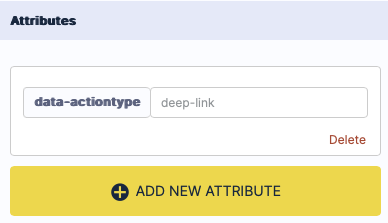
In the Visual builder, you can set the action type as follows:
1. In the preview, select the button you want to override the action type for
2. In the editor on the right side, scroll down to the `Attributes` section
3. Click on `ADD NEW ATTRIBUTE`
4. Select `data-actiontype`
5. Insert a value (either `browser` or `deep-link`)
### Handle carousel presentation status
If you need to access additional information about content blocks displayed in a carousel, you can use the following methods:
```kotlin
// returns complete InAppContentBlock structure of shown content block or null
val blockName = carouselView.getShownContentBlock()?.name
// returns zero-base index of shown content block or -1 for empty list
val index = carouselView.getShownIndex()
// returns count of content blocks available for user
val count = carouselView.getShownCount()
```
You can register a `behaviourCallback` to a carousel view instance to retrieve information for each update and change behaviour by setting the `trackActions` and `overrideDefaultBehavior` flags.
* trackActions
* If `false`, events "close" and "click" on banners won't be tracked by the SDK. Events "show" and "error" are tracked regardless from this flag.
* If `true`, events "close" and "click" are tracked by the SDK.
* Default behaviour is as with value `true`, all events are tracked by the SDK
* overrideDefaultBehavior
* If `true`, deep-links and universal links won't be opened by SDK. This does not affect tracking behaviour.
* If `false`, deep-links and universal links will be opened by SDK.
* Default behaviour is as with value `false`, action links are opened by SDK.
The callback behavior object must implement `ContentBlockCarouselCallback`.
```kotlin
carouselView.behaviourCallback = object : ContentBlockCarouselCallback {
// If overrideDefaultBehavior is set to true, default action will not be performed (deep link, universal link, etc.)
override val overrideDefaultBehavior = false
// If trackActions is set to false, click and close in-app content block events will not be tracked automatically
override val trackActions = true
override fun onMessageShown(placeholderId: String, contentBlock: InAppContentBlock, index: Int, count: Int) {
// This is triggered on each scroll so 'contentBlock' parameter represents currently shown content block,
// so as 'index' represents position index of currently shown content block
}
override fun onMessagesChanged(count: Int, messages: List) {
// This is triggered after 'reload' or if a content block is removed because interaction has been done
// and message has to be shown until interaction.
}
override fun onNoMessageFound(placeholderId: String) {
// This is triggered after `reload` when no content block has been found for a given placeholder.
}
override fun onError(placeholderId: String, contentBlock: InAppContentBlock?, errorMessage: String) {
// This is triggered when an error occurs while loading or showing of content block.
// Parameter `contentBlock` is the content block which caused the error or null in case of general problem.
// Parameter `errorMessage` is the error message that describes the problem.
}
override fun onCloseClicked(placeholderId: String, contentBlock: InAppContentBlock) {
// This is triggered when a content block is closed.
}
override fun onActionClicked(
placeholderId: String,
contentBlock: InAppContentBlock,
action: InAppContentBlockAction
) {
// This is triggered when a content block action is clicked.
// Parameter `action` contains the action information.
}
override fun onHeightUpdate(placeholderId: String, height: Int) {
// This is triggered when height of Carousel view has changed:
// - only once if you configure static height (i.e. `android:layout_height="100dp"`)
// - for every relayout for dynamic layout (i.e. `android:layout_height="wrap_content"` or in ConstraintLayout)
// Parameter `height` is new height of view in pixels.
}
}
```
### Customize presentation of placeholder view
If the default UI presentation of the placeholder view doesn't fit the UX design of your app, you can create a `View` element that wraps the existing `InAppContentBlockPlaceholderView` instance.
The exact implementation will depend on your use case but should, in general, have the following four elements:
1. Create a `CustomView` class. In its constructor, prepare an `InAppContentBlockPlaceholderView` instance with deferred loading enabled and add it to your layout so it's on the same `View` lifecycle:
```kotlin
class CustomView : FrameLayout {
private lateinit var placeholderView: InAppContentBlockPlaceholderView
constructor(context: Context) : super(context) {
placeholderView = Exponea.getInAppContentBlocksPlaceholder(
"placeholder_1",
context,
InAppContentBlockPlaceholderConfiguration(true)
) ?: return
overrideBehaviour(placeholderView)
addView(placeholderView, LayoutParams(ViewGroup.LayoutParams.MATCH_PARENT, ViewGroup.LayoutParams.WRAP_CONTENT))
placeholderView.load()
}
}
```
2. Add an `overrideBehaviour` method in your `CustomView` class. Inside the method, set `behaviourCallback` and implement `InAppContentBlockCallback` with the desired behavior:
```kotlin
private fun overrideBehaviour(placeholderView: InAppContentBlockPlaceholderView) {
val originalBehavior = placeholderView.behaviourCallback
placeholderView.behaviourCallback = object : InAppContentBlockCallback {
override fun onMessageShown(placeholderId: String, contentBlock: InAppContentBlock) {
// Calling originalBehavior tracks 'show' event and opens URL
originalBehavior.onMessageShown(placeholderId, contentBlock)
showMessage(contentBlock)
}
override fun onNoMessageFound(placeholderId: String) {
showNoMessage()
}
override fun onError(placeholderId: String, contentBlock: InAppContentBlock?, errorMessage: String) {
// Calling originalBehavior tracks 'error' event
originalBehavior.onError(placeholderId, contentBlock, errorMessage)
showError()
}
override fun onCloseClicked(placeholderId: String, contentBlock: InAppContentBlock) {
// Calling originalBehavior tracks 'close' event
originalBehavior.onCloseClicked(placeholderId, contentBlock)
hideMe()
}
override fun onActionClicked(placeholderId: String, contentBlock: InAppContentBlock, action: InAppContentBlockAction) {
// Calling originalBehavior tracks 'click' event
originalBehavior.onActionClicked(placeholderId, contentBlock, action)
}
}
}
/**
* Update your customized content.
* This method could be called multiple times for every content block update, especially in case that multiple messages are assigned to given "placeholder_1" ID
*/
fun showMessage(data: InAppContentBlock) {
//...
}
```
3. Invoke `invokeActionClick` on the placeholder view manually. For example, if your `CustomView` contains a `Button` that is registered with `View.OnClickListener` and is calling a method `onMyActionClick`:
```kotlin
fun onMyActionClick(url: String) {
placeholderView.invokeActionClick(url)
}
```
Your `CustomView` will now receive all in-app content block data.
> ❗️
>
> Ensure that the `InAppContentBlockPlaceholderView` instance is added to the `Layout`. It could be hidden but it relies on the [attachToWindow](https://developer.android.com/reference/android/view/View#onAttachedToWindow\(\)) lifecycle to be able to refresh content on a data update. Otherwise, invoke `load()` manually after `invokeActionClick()`.
### Customize carousel view filtration and sorting
A carousel view filters available content blocks in the same way as a placeholder view:
* The content block must meet the `Schedule` setting configured in the Marketing web app
* The content block must meet the `Display` setting configured in the Marketing web app
* The content must be valid and supported by the SDK
The order in which content blocks are displayed is determined by:
1. By the `Priority` setting, descending
2. By the `Name`, ascending (alphabetically)
You can implement additional filtration and sorting by registering your own `contentBlockSelector` on the carousel view instance:
```kotlin
carouselView.contentBlockSelector = object : ContentBlockSelector() {
// if you want keep default filtration, do not override this method
override fun filterContentBlocks(source: List): List {
// you can add your own filtration, for example ignore any item named "Carousel 3"
return super.filter { it.name != "Carousel 3" }
}
// if you want to keep default sort, do not override this method
override fun sortContentBlocks(source: List): List {
// you can still invoke default/super implementation
return super.sortContentBlocks(source)
// and/or bring your own sorting, for example reverse default sorting result
.asReversed()
}
}
```
> ❗️
>
> A carousel view accepts the results from the filtration and sorting implementations. Ensure that you return all wanted items as result from your implementations to avoid any missing items.
> ❗️
>
> A carousel view can be configured with `maxMessagesCount`. Any value higher than zero applies a maximum number of content blocks displayed, independently of the number of results from filtration and sorting methods. So if you return 10 items from filtration and sorting method but `maxMessagesCount` is set to 5 then only first 5 items from your results.
## Troubleshooting
This section provides helpful pointers for troubleshooting in-app content blocks issues.
> 👍 Enable verbose logging
> The SDK logs a lot of information in verbose mode while loading in-app content blocks. When troubleshooting in-app content block issues, first ensure to [set the SDK's log level](https://documentation.bloomreach.com/engagement/docs/android-sdk-setup#log-level) to `VERBOSE`.
### In-app content block not displayed
* The SDK can only display an in-app content block after it has been fully loaded (including its content, any images, and its height). Therefore, the in-app content block may only show in the app after a delay.
* Always ensure that the placeholder IDs in the in-app content block configuration (in the Marketing web app) and in your mobile app match.
### In-app content block shows incorrect image
* To reduce the number of API calls and fetching time of in-app content blocks, the SDK caches the images contained in content blocks. Once the SDK downloads an image, an image with the same URL may not be downloaded again. If a content block contains a new image with the same URL as a previously used image, the previous image is displayed since it was already cached. For this reason, we recommend always using different URLs for different images.
### Log messages
While troubleshooting in-app content block issues, you can find useful information in the messages logged by the SDK at verbose log level. Look for messages similar to the ones below:
1. ```
InAppCB: Placeholder ["placeholder"] has invalid state - action or message is invalid.
```
Data for the message is empty. Try to call `.load()` to trigger a non-forced re-check, or `.reload()` to force a full re-fetch.
2. ```
InAppCB: 304 Not Modified — cache hit, TTL reset for placeholder
```
The server confirmed that cached content is still current. No new payload was downloaded; the existing cached content is being re-displayed. This is expected behavior after a TTL-driven re-fetch when content has not changed on the backend.
3. Backend without ETag support:
If the backend environment does not return an `ETag` header, the SDK operates identically to its previous behavior: no `If-None-Match` header is sent and the full payload is downloaded on every TTL re-fetch. No configuration change is needed.
4. ```
[HTML] Unknown action URL: ["url"]
```
Invalid action URL. Verify the URL for the content block in the Marketing web app.
5. ```
InAppCB: Manual action ["actionUrl"] invoked on placeholder ["placeholder"]
```
This log message informs you which action/URL was called.
6. ```
Invoking InApp Content Block action 'actionName'
```
Everything is set up correctly.