---
updatedAt: 2026-08-07T10:32:38.000Z
agentTools:
siteIndex: https://documentation.bloomreach.com/llms.txt
projectIndex: https://documentation.bloomreach.com/engagement/llms.txt
---
# App Inbox for Android SDK
Add a message inbox to your app using the Android SDK
The App Inbox feature creates a mobile communication channel that lives directly in your app. This inbox can receive messages from marketing campaigns and stores mobile push notifications for a set time period.
You can configure the inbox to receive messages from multiple projects by setting the `applicationId` parameter during setup.
> ❗️
>
> The SDK can only retrieve App Inbox messages when the current app user has a customer profile with a [hard ID](https://documentation.bloomreach.com/engagement/docs/customer-identification#hard-id). Without this identification, the feature won't work.
> ❗️
>
> When using `StreamConfig` integration, the App Inbox requires a valid SDK auth token. Make sure to set the token using `setSdkAuthToken()` or by including it in `CustomerIdentity` before fetching App Inbox messages. Refer to [SDK auth token authorization](https://documentation.bloomreach.com/engagement/docs/android-sdk-authorization#sdk-auth-token-authorization) for details.
Refer to the [App Inbox](https://documentation.bloomreach.com/engagement/docs/app-inbox) documentation for information on creating and sending App Inbox messages in the Marketing web app.
> 👍
>
> App Inbox is a separate module that can be enabled on request in your Marketing account by your Bloomreach CSM.
## Integrate the App Inbox
You can integrate the App Inbox through a button provided by the SDK, which opens the App Inbox messages list view.
Use the `getAppInboxButton()` method to retrieve the button:
```kotlin
val button = Exponea.getAppInboxButton(context)
```
You can then add the button anywhere in your app. For example:
```kotlin
button?.let {
yourContainerView.addView(it, LayoutParams(LayoutParams.WRAP_CONTENT, LayoutParams.WRAP_CONTENT))
}
```
The App Inbox button registers a click action to show an activity `AppInboxListActivity`.
That's all that's required to integrate the App Inbox. Optionally, you can [customize](#customize-app-inbox) it to your needs.
> 📘
>
> See [FetchFragment](https://github.com/exponea/exponea-android-sdk/blob/main/app/src/main/java/com/exponea/example/view/fragments/FetchFragment.kt) in the [Example app for Android SDK](https://documentation.bloomreach.com/engagement/docs/android-sdk-example-app) for a reference implementation.
## Default App Inbox behavior
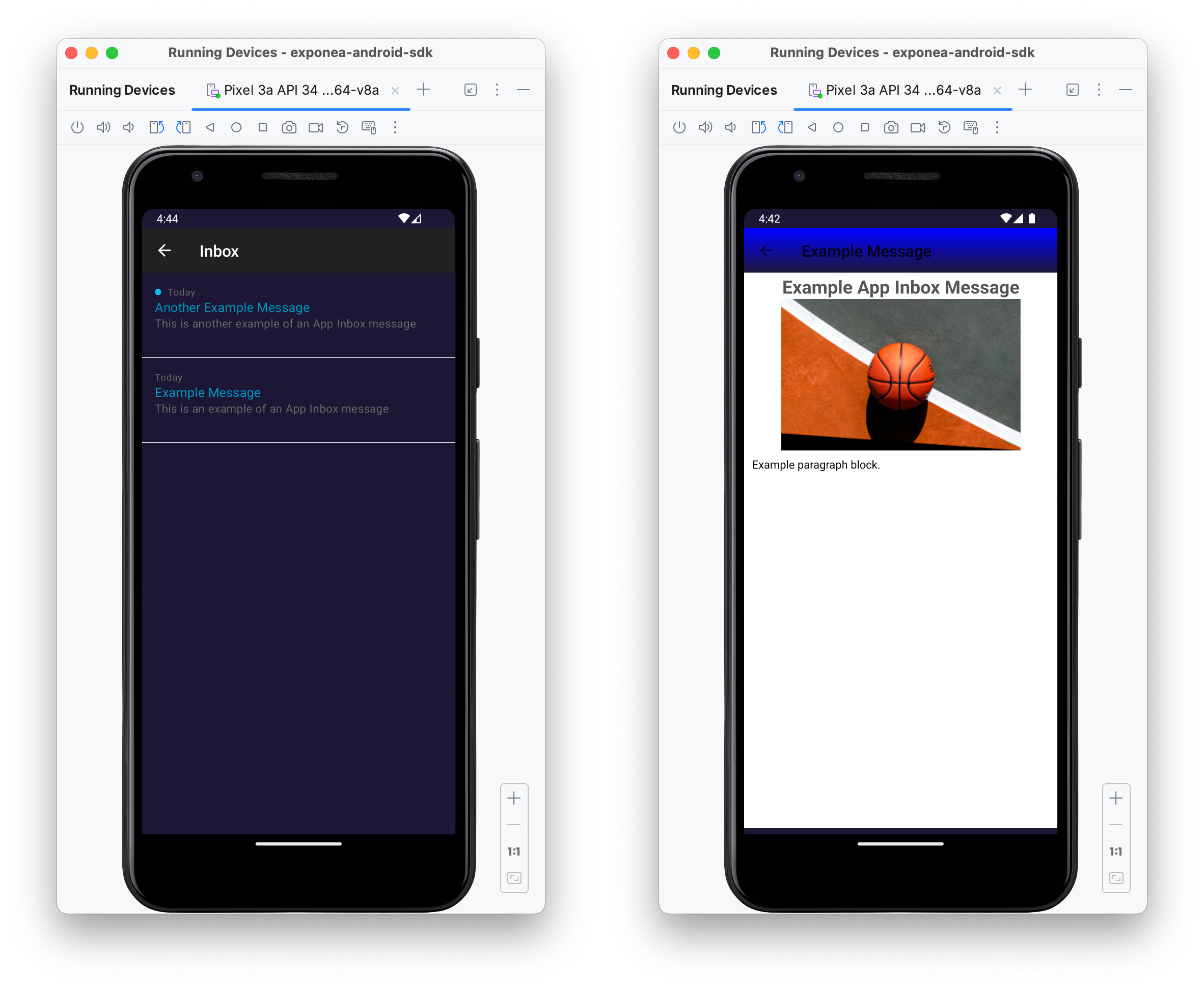
The SDK fetches and displays the App Inbox automatically as follows:
1. Display a button to access the App Inbox messages list view (integration by developer).
2. Display a messages list view. Display each item with:
* Flag indicating whether the message is read or unread.
* Delivery time in human-readable form (for example, `2 hours ago`).
* Single-lined title of the message (ended by '...' for longer values).
* Two-lined content of the message (ended by '...' for longer values).
* Squared image if the message contains any.
* Loading progress indicator of the list.
* Empty Inbox title and message in case there are no messages.
* Error title and description in case of an error loading the list
3. Call `Exponea.trackAppInboxOpened` when the user clicks on a list item and mark the message as read automatically.
4. Display a message detail view that contains:
* Large squared image (or a gray placeholder if the message doesn't contain an image).
* Delivery time in human-readable form (for example, `2 hours ago`).
* Full title of the message.
* Full content of the message.
* A button for each action in the message that opens a browser link or invokes a universal link. No button is displayed for an action that opens the current app.
5. Call `Exponea.trackAppInboxClick` automatically when the user clicks a button in the message detail view.
> ❗️
>
> The behavior of `trackAppInboxOpened` and `trackAppInboxClick` may be affected by the tracking consent feature, which in enabled mode considers the requirement of explicit consent for tracking. Refer to [Tracking consent for Android SDK](https://documentation.bloomreach.com/engagement/docs/android-sdk-tracking-consent) for details.
## Customize App Inbox
Although the App Inbox works out of the box once the button has been integrated in your app, you may want to customize it to your app's requirements.
### Localization
The SDK provides the following UI labels in English. You can modify these or add localized labels by defining customized strings in your `strings.xml` files.
```xml
Inbox
Inbox
Inbox message
Empty Inbox
You have no messages yet.
Something went wrong :(
We could not retrieve your messages.
See more
```
### Customize UI styles
The App Inbox screens are designed to satisfy most customers' needs. However, they may not fit the design of your application. The style rules defined for the App Inbox UI components are listed below. You can override them in your `styles.xml` files.
```xml
```
### Customize UI components
You can override App Inbox UI elements by registering your own `AppInboxProvider` implementation:
```kotlin
Exponea.appInboxProvider = ExampleAppInboxProvider()
```
You may register your provider anytime - before or after SDK initialization. Every action in scope of the App Inbox is using the currently registered provider instance. However, we recommend you register your provider directly after SDK initialization.
Your `AppInboxProvider` instance must implement all App Inbox UI components. You can extend from the SDK's `DefaultAppInboxProvider` and override only the UI views you want to customize.
> 📘
>
> Refer to [ExampleAppInboxProvider](https://github.com/exponea/exponea-android-sdk/blob/main/app/src/main/java/com/exponea/example/services/ExampleAppInboxProvider.kt) in the [Example app for Android SDK](https://documentation.bloomreach.com/engagement/docs/android-sdk-example-app) for a reference implementation.
#### App Inbox button
The method `getAppInboxButton(Context)` returns an `android.widget.Button` instance.
The default implementation builds a simple button instance with an icon  and the `exponea.inbox.button` label. The click action for the button opens the `AppInboxListActivity` screen.
To customize this behavior, override `getAppInboxButton(Context)`. For example:
```kotlin
override fun getAppInboxButton(context: Context): Button {
// reuse a default button or create your own
val appInboxButton = super.getAppInboxButton(context)
// apply your setup
appInboxButton.setTextColor(Color.BLACK)
// return instance
return appInboxButton
}
```
#### App Inbox list view
The method `getAppInboxListView(Context, (MessageItem, Int) -> Unit)` returns an `android.view.View` instance to display the App Inbox messages list.
The `View` implements all the data handling (fetching, displaying data, action listeners, etc.).
The default implementation builds a simple view that shows data in an `androidx.recyclerview.widget.RecyclerView`. `android.widget.TextView` elements display empty or error state when applicable. The click action for each item in the list opens the `AppInboxDetailActivity` view for the `MessageItem` value.
To customize this behavior, override the `getAppInboxListView` method. For example:
```kotlin
override fun getAppInboxListView(context: Context, onItemClicked: (MessageItem, Int) -> Unit): View {
// reuse a default view or create your own
val appInboxListView = super.getAppInboxListView(context, onItemClicked)
// you are able to access default class impl by casting
val typedView = appInboxListView as AppInboxListView
// apply your setup to any element
typedView.statusErrorTitleView.setTextColor(Color.RED)
// return instance
return typedView
}
```
> ❗️
>
> The methods `Exponea.trackAppInboxOpened` and `Exponea.markAppInboxAsRead` are called when the user clicks on an item. Please call these methods in your custom implementation to maintain correct App Inbox behavior.
#### App Inbox list fragment
The method `getAppInboxListFragment(Context)` returns an `androidx.fragment.app.Fragment` instance that shows the [App Inbox list view](#app-inbox-list-view) described in the previous paragraph.
To customize this behavior, override the `getAppInboxListFragment` method. For example:
```kotlin
override fun getAppInboxListFragment(context: Context): Fragment {
// reuse a default fragment or create your own
val appInboxListFragment = super.getAppInboxListFragment(context)
// you are able to access default class impl by casting
val typedFragment = appInboxListFragment as AppInboxListFragment
// there isn't a lot of things to do :-) but animations may be customized here
typedFragment.enterTransition = Fade()
typedFragment.returnTransition = Fade()
// return instance
return typedFragment
}
```
#### App Inbox detail view
The method `getAppInboxDetailView(Context, String)` returns an `android.view.View` implementation to show an App Inbox message detail view.
The `View` implements all the data handling (fetching, displaying data, action listeners, etc.).
The default implementation builds a simple View that shows data by multiple `android.widget.TextView`s and an `android.widget.ImageView`. The entire layout is wrapped by an `android.widget.ScrollView`. App Inbox message actions are displayed and invoked by multiple `android.widget.Button`s.
To customize this behavior, override the `getAppInboxDetailViewController` method. For example:
```kotlin
override fun getAppInboxDetailView(context: Context, messageId: String): View {
// reuse a default view or create your own
val appInboxDetailView = super.getAppInboxDetailView(context, messageId)
// you are able to access default class impl by casting
val typedView = appInboxDetailView as AppInboxDetailView
// apply your setup to any element
typedView.titleView.textSize = 32f
// return instance
return appInboxDetailView
}
```
> ❗️
>
> The method `Exponea.trackAppInboxClick` is called when the user clicks on an action. Please call this method in your custom implementation to maintain correct App Inbox behavior.
#### App Inbox detail fragment
The method `getAppInboxDetailFragment(Context, String)` returns an `androidx.fragment.app.Fragment` instance that shows the [App Inbox detail view](#app-inbox-detail-view) described in the previous paragraph.
To customize this behavior, override the `getAppInboxDetailFragment` method. For example:
```kotlin
override fun getAppInboxDetailFragment(context: Context, messageId: String): Fragment {
// reuse a default view or create your own
val appInboxDetailFragment = super.getAppInboxDetailFragment(context, messageId)
// you are able to access default class impl by casting
val typedFragment = appInboxDetailFragment as AppInboxDetailFragment
// some animations may be customized here
typedFragment.enterTransition = Fade()
typedFragment.returnTransition = Fade()
// return instance
return appInboxDetailFragment
}
```
### App Inbox data API
The SDK provides methods to access App Inbox data directly without accessing the UI layer.
#### Fetch App Inbox
The App Inbox is assigned to an existing customer account (identified by a hard ID). Calling either of the following methods will clear the App Inbox:
* `Exponea.identifyCustomer`
* `Exponea.anonymize`
To prevent large data transfers on each fetch, the SDK stores the App Inbox locally and loads incrementally. The first fetch will transfer the entire App Inbox, but subsequent fetches will only transfer new messages.
The App Inbox assigned to the current customer can be fetched as follows:
```kotlin
Exponea.fetchAppInbox { data ->
if (data == null) {
Log.e("AppInbox", "Error while loading AppInbox")
return@fetchAppInbox
}
if (data.isEmpty()) {
Log.i("AppInbox", "AppInbox loaded but is empty")
return@fetchAppInbox
}
Log.i("AppInbox", "AppInbox loaded")
}
```
It's also possible to fetch a single message by its ID from the App Inbox as follows:
```kotlin
Exponea.fetchAppInboxItem(messageId, { message ->
message?.let {
Log.i("AppInbox", "AppInbox message found and loaded")
}
})
```
Fetching a single message triggers fetching the entire App Inbox (including incremental loading) but will retrieve the data from local storage if the App Inbox was fetched previously.
#### Mark message as read
Use the `markAppInboxAsRead` method to mark an App Inbox message (specified by their ID) as read:
```kotlin
Exponea.markAppInboxAsRead(message) { marked ->
Log.i("AppInbox", "AppInbox message marked as read: $marked")
}
```
> ❗️
>
> Marking a message as read using the `markAppInboxAsRead` method does not trigger a tracking event for opening the message. To track an opened message, you need to call the `Exponea.trackAppInboxOpened` method).
### Track App Inbox events manually
The SDK tracks App Inbox events automatically by default. In case of a [custom implementation](#customize-app-inbox), it is the developers' responsibility to use the relevant tracking methods in the right places.
#### Track opened App Inbox message
Use the `Exponea.trackAppInboxOpened(MessageItem)` method to track the opening of App Inbox messages.
The behavior of `trackAppInboxOpened` may be affected by the tracking consent feature, which, when enabled, requires explicit consent for tracking. Refer to [Tracking consent for Android SDK](https://documentation.bloomreach.com/engagement/docs/android-sdk-tracking-consent) for details.
If you want to ignore tracking consent, use `Exponea.trackAppInboxOpenedWithoutTrackingConsent` instead. This method will track the event regardless of consent.
#### Track clicked App Inbox message action
Use the `Exponea.trackAppInboxClick(MessageItemAction, MessageItem)` method to track action invocations in App Inbox messages.
The behavior of `trackAppInboxClick` may be affected by the tracking consent feature, which, when enabled, requires explicit consent for tracking. Refer to [Tracking consent for Android SDK](https://documentation.bloomreach.com/engagement/docs/android-sdk-tracking-consent) for details.
If you want to ignore tracking consent, use `Exponea.trackAppInboxClickWithoutTrackingConsent` instead. This method will track the event regardless of consent.